narbulut

Narbulut Easy Image Backup Application Getting Started Guide

This guide explains step by step the basic features and usage of Narbulut Easy Image Backup application. After running the application for the first time, you can log in to the application by entering your panel login information.
Dashboard

Dashboard

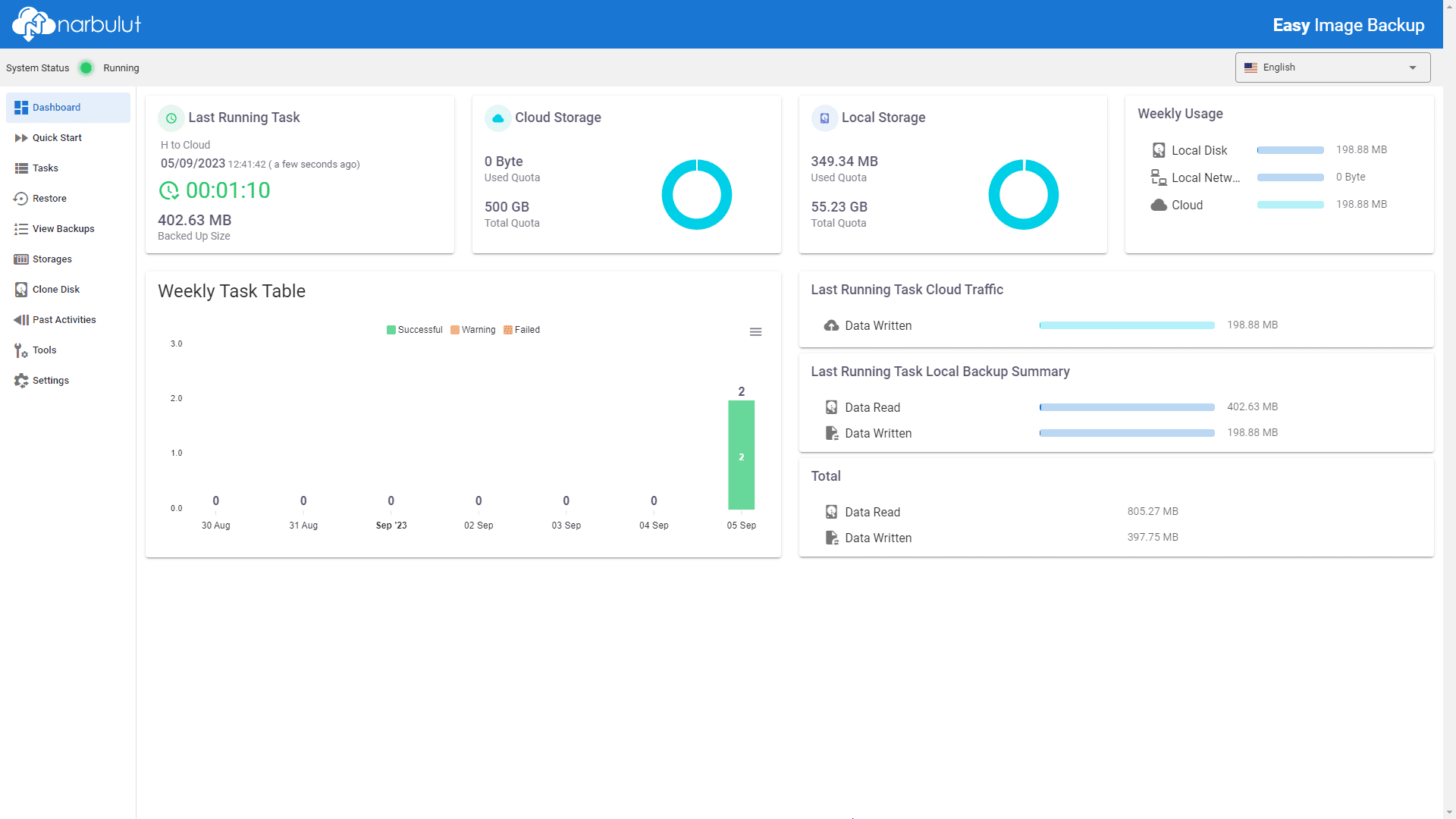
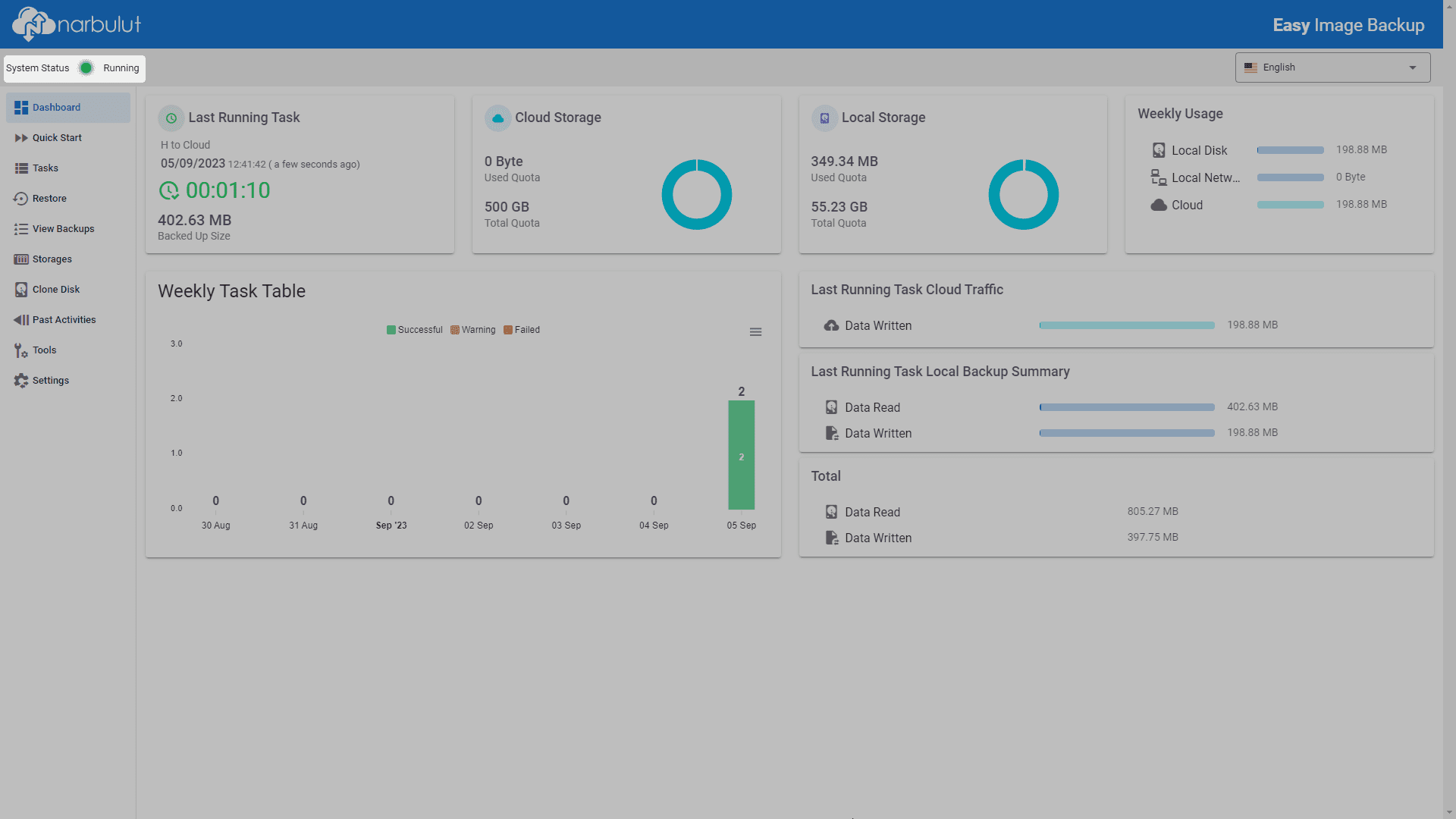
The system status bar is located at the top of the screen, regardless of menu. This menu bar provides information about the status of the Narbulut Easy Image application.
Service Status

System Status Colors:
Green: Application is running smoothly
Blue: A specific process is in progress
Yellow: May stop soon
Orange: User-related issue
Red: Narbulut-related issue

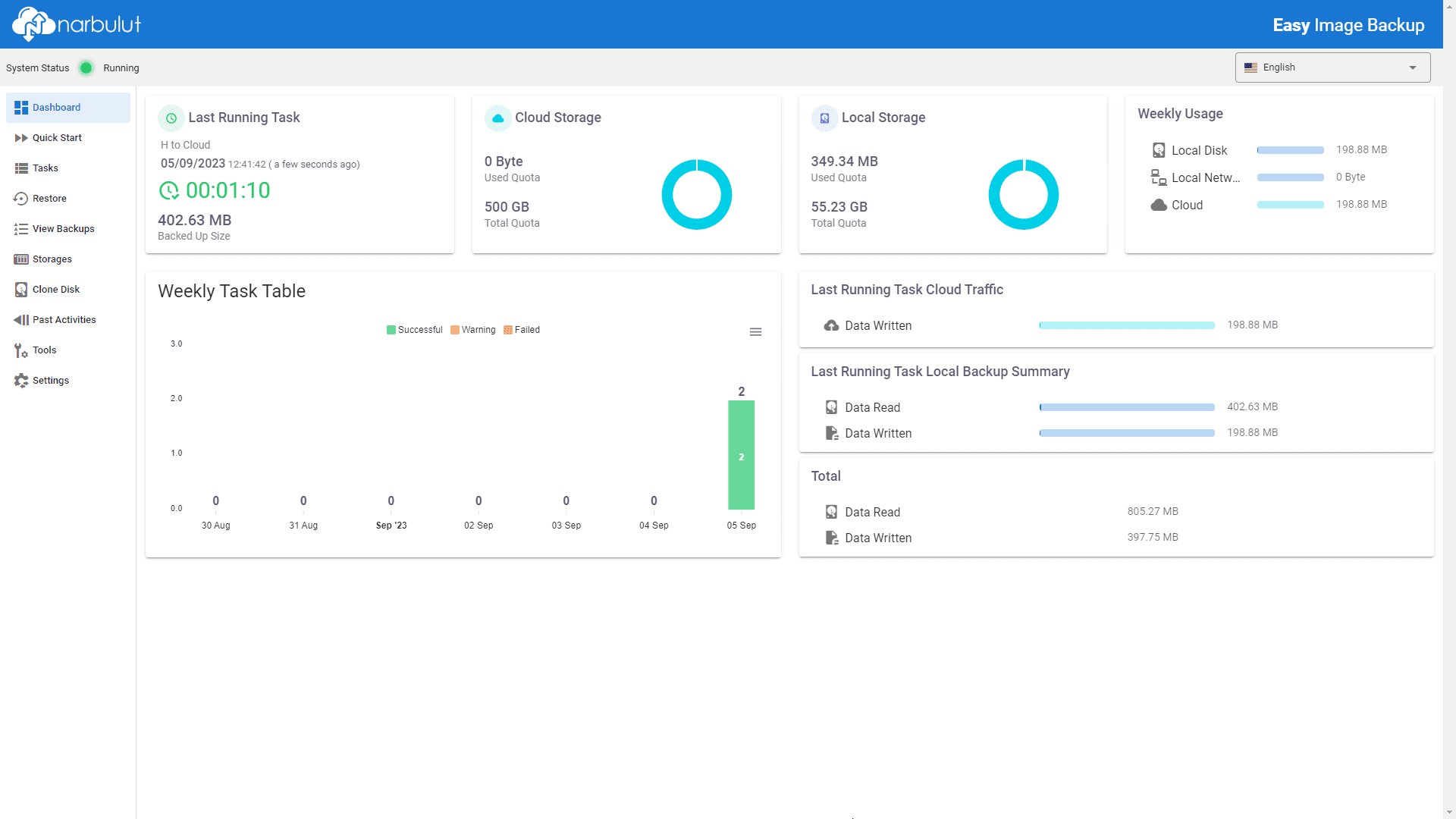
Dashboard Detail

Quick Start

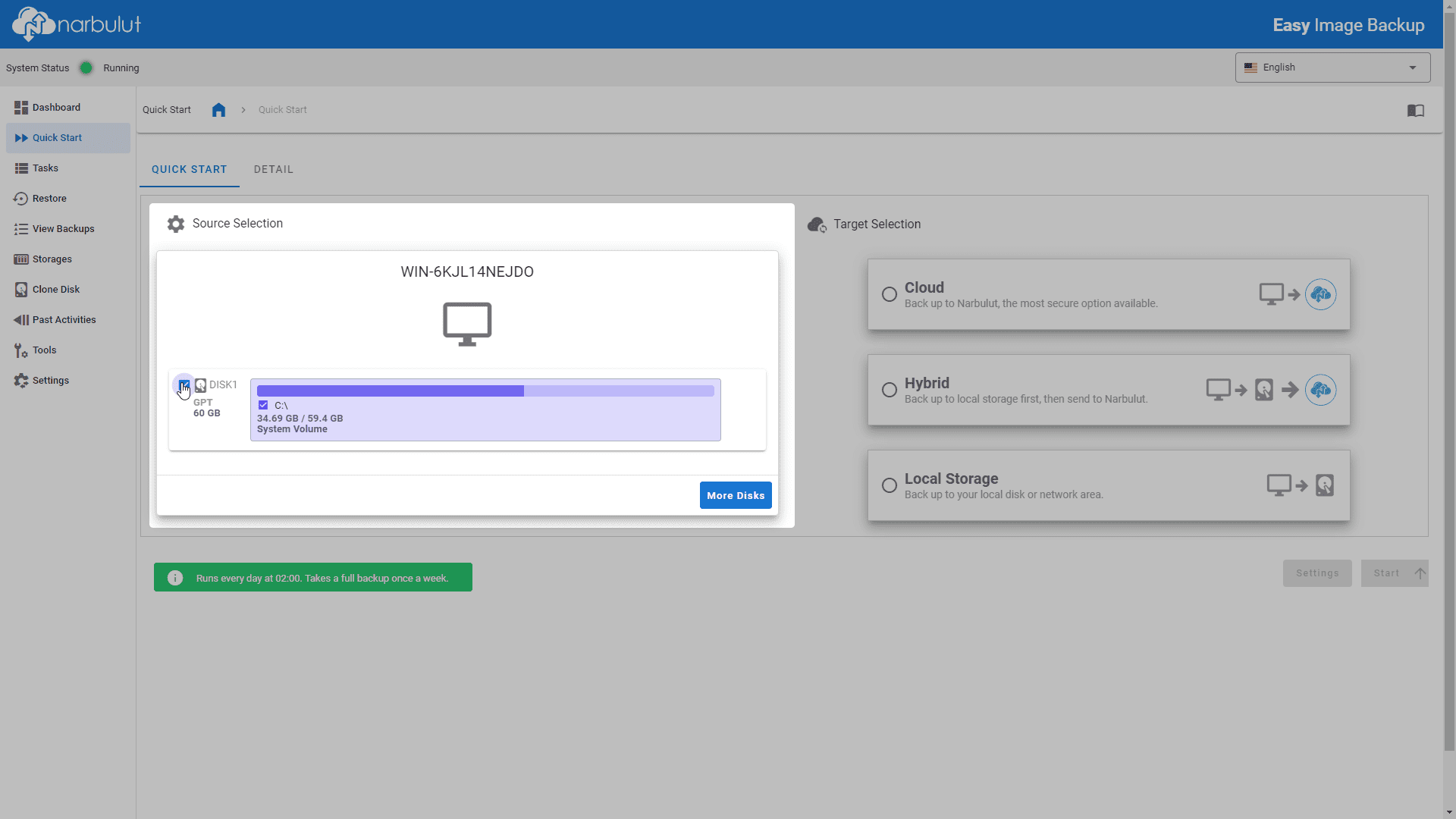
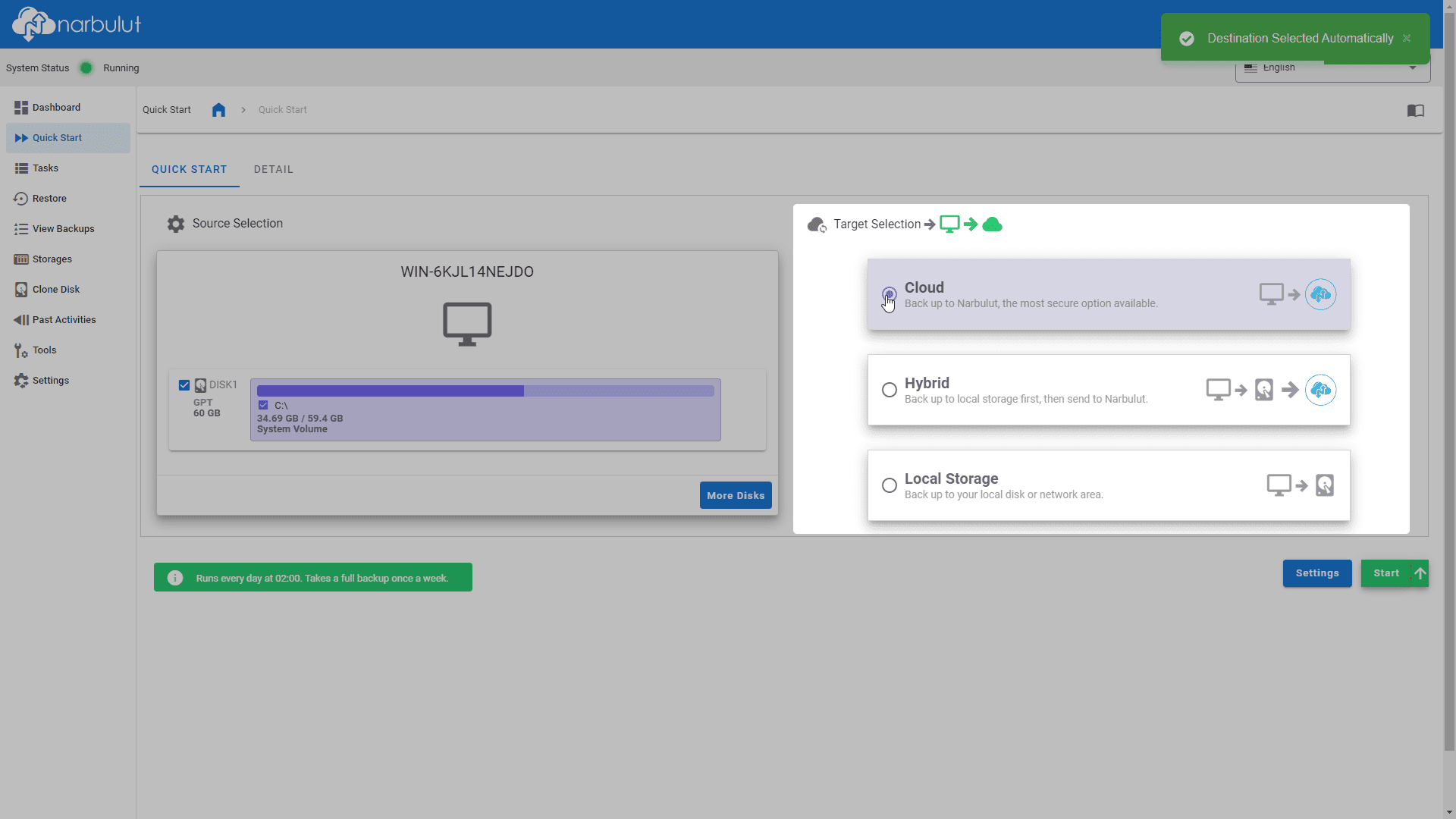
This menu allows you to create and launch a preconfigured task so you can quickly start your disk backup operations.
Select the volume and/or disks you want to back up from the Source Selection section.
Source Selection
Determine the target location of the backup operation in the Target Selection section.
Target Selection
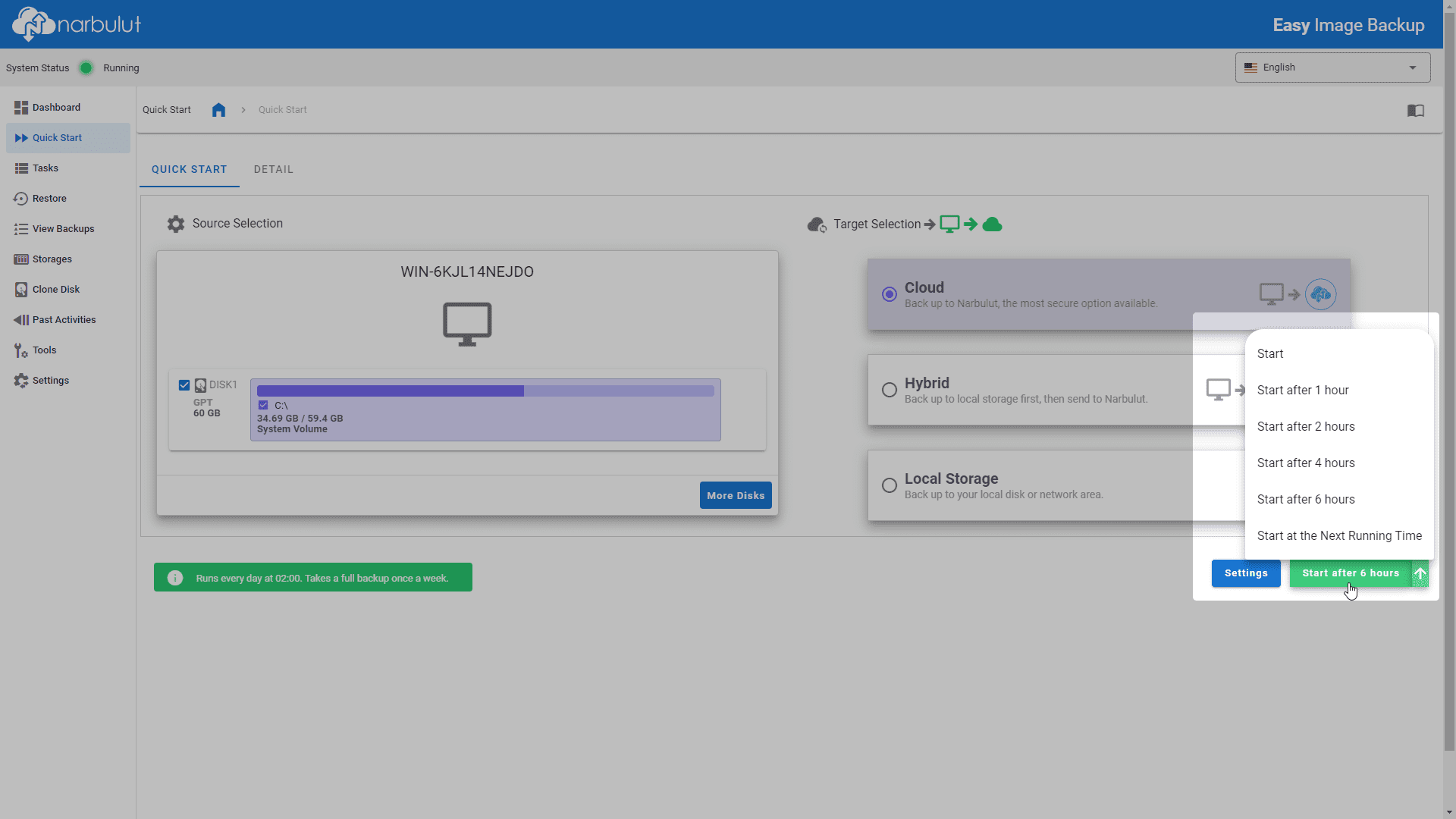
Start the task using the Start Now button. You can schedule the task to start later.
Time Selection
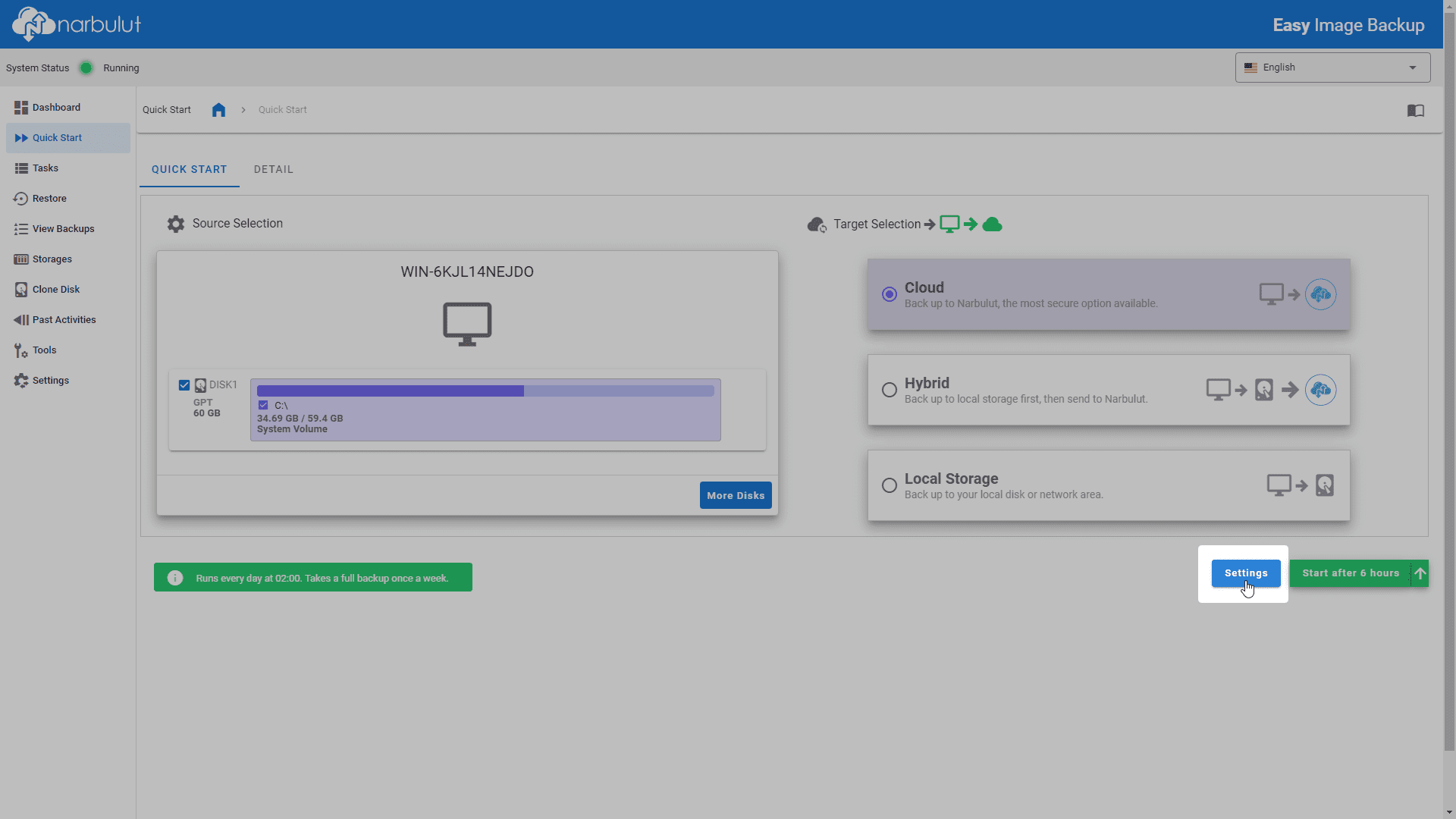
You can configure the backup task yourself using the settings button.
Settings
Guide
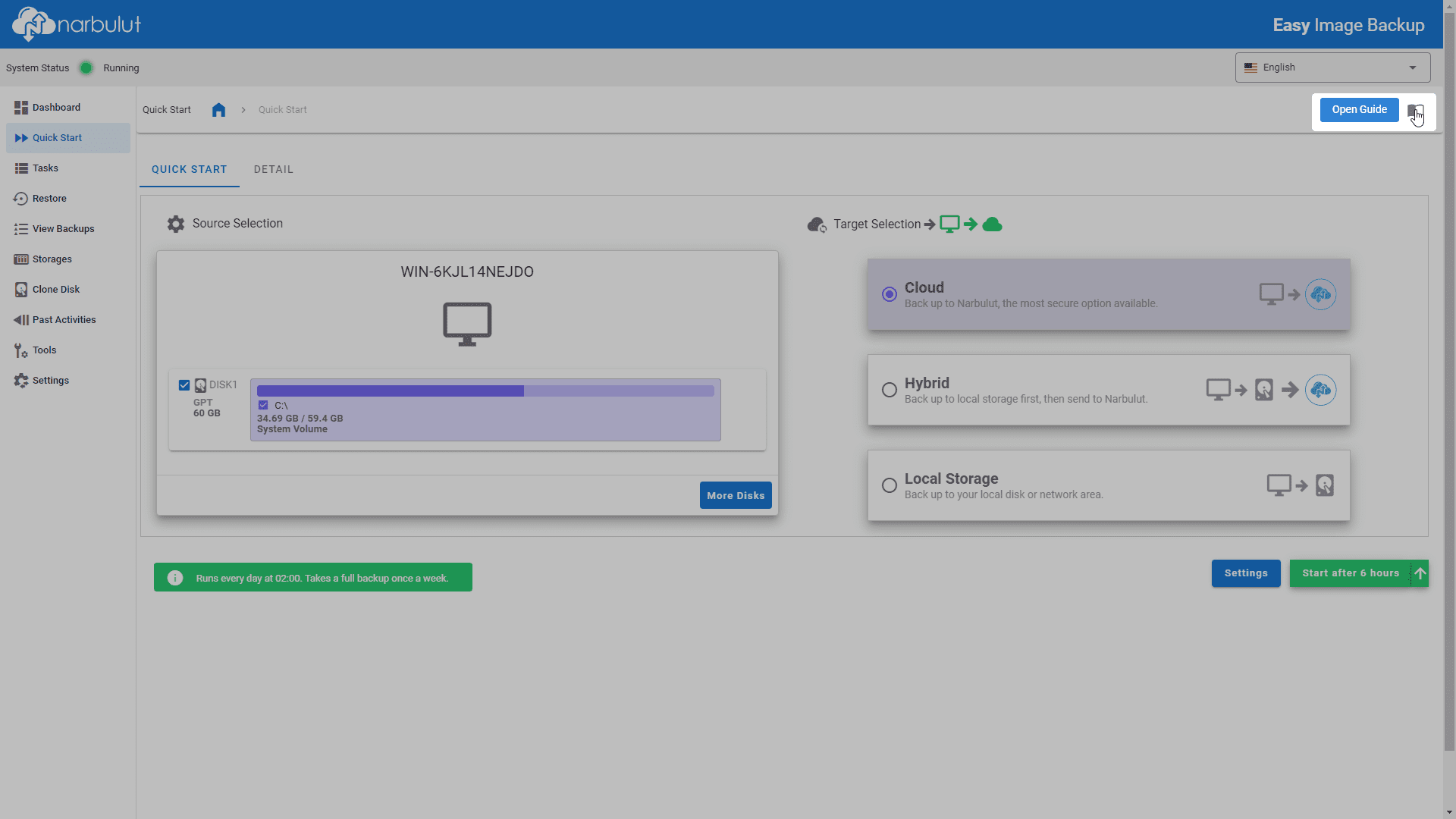
You can get information about the basic functions of the menu by using the Guide button at the top right of the menu.
Guide

Quests

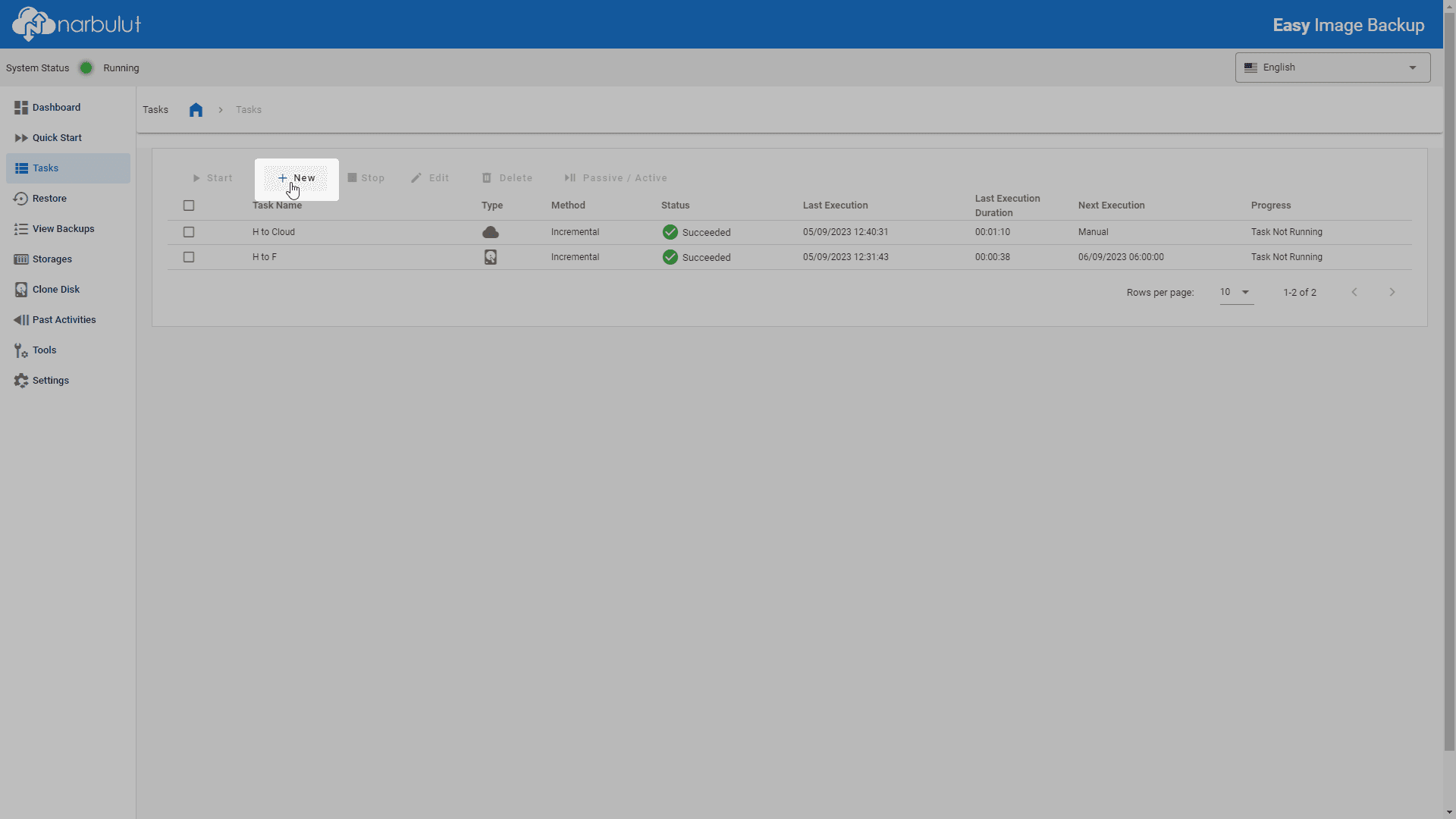
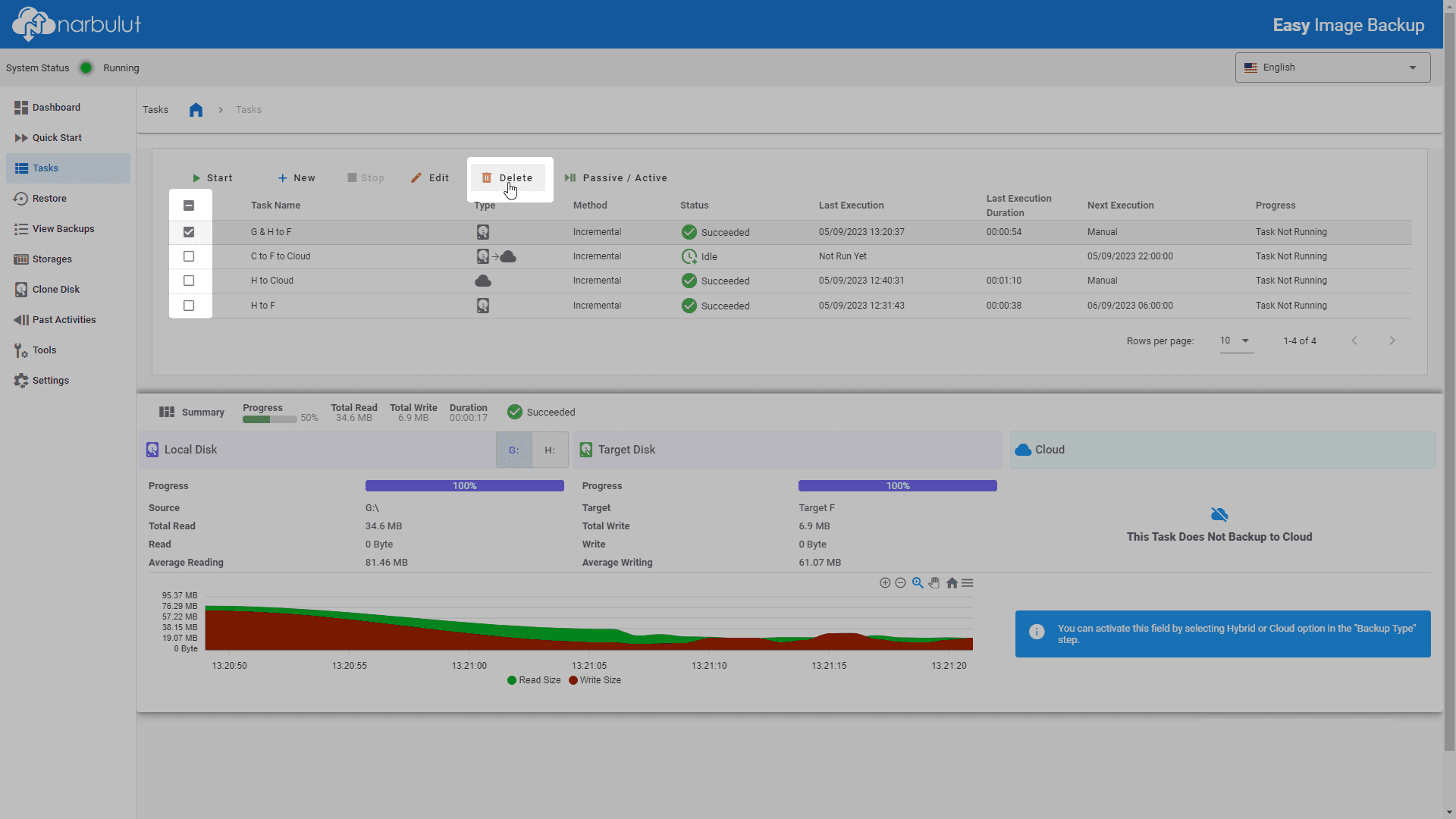
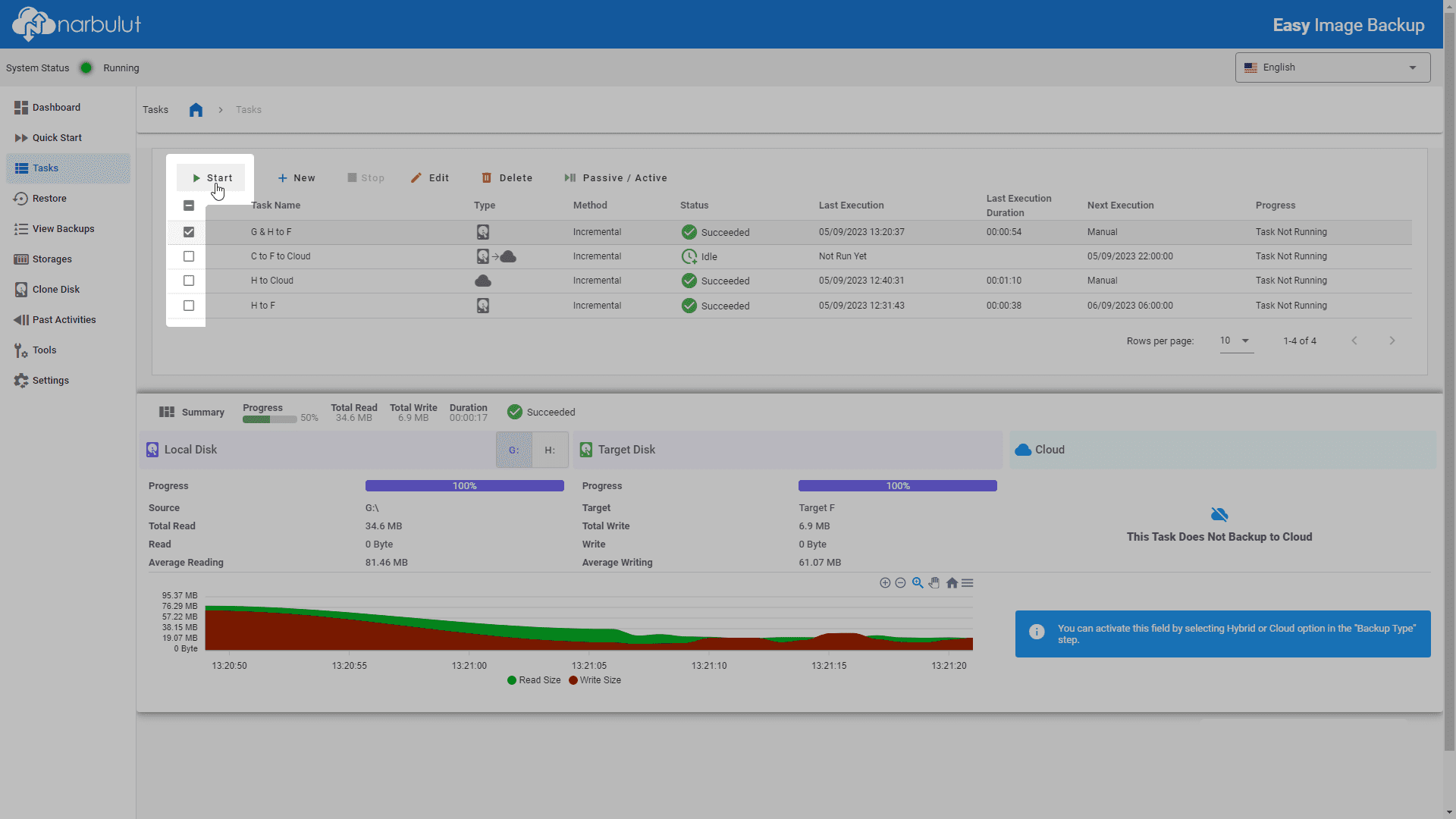
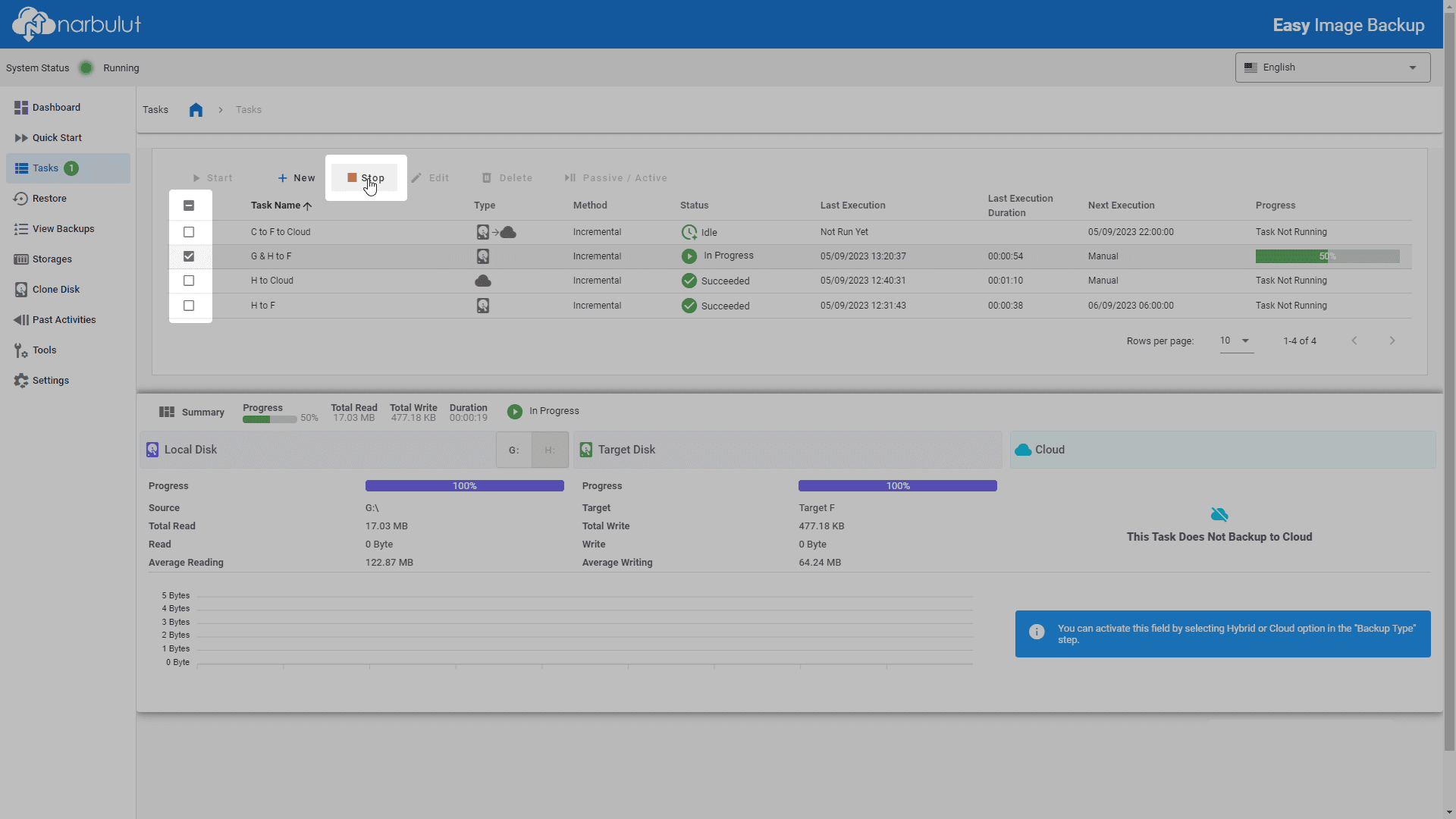
With this menu, you can create new backup tasks and manage existing tasks.

Creating a Task — Click the +New button to create a new task.

New Task
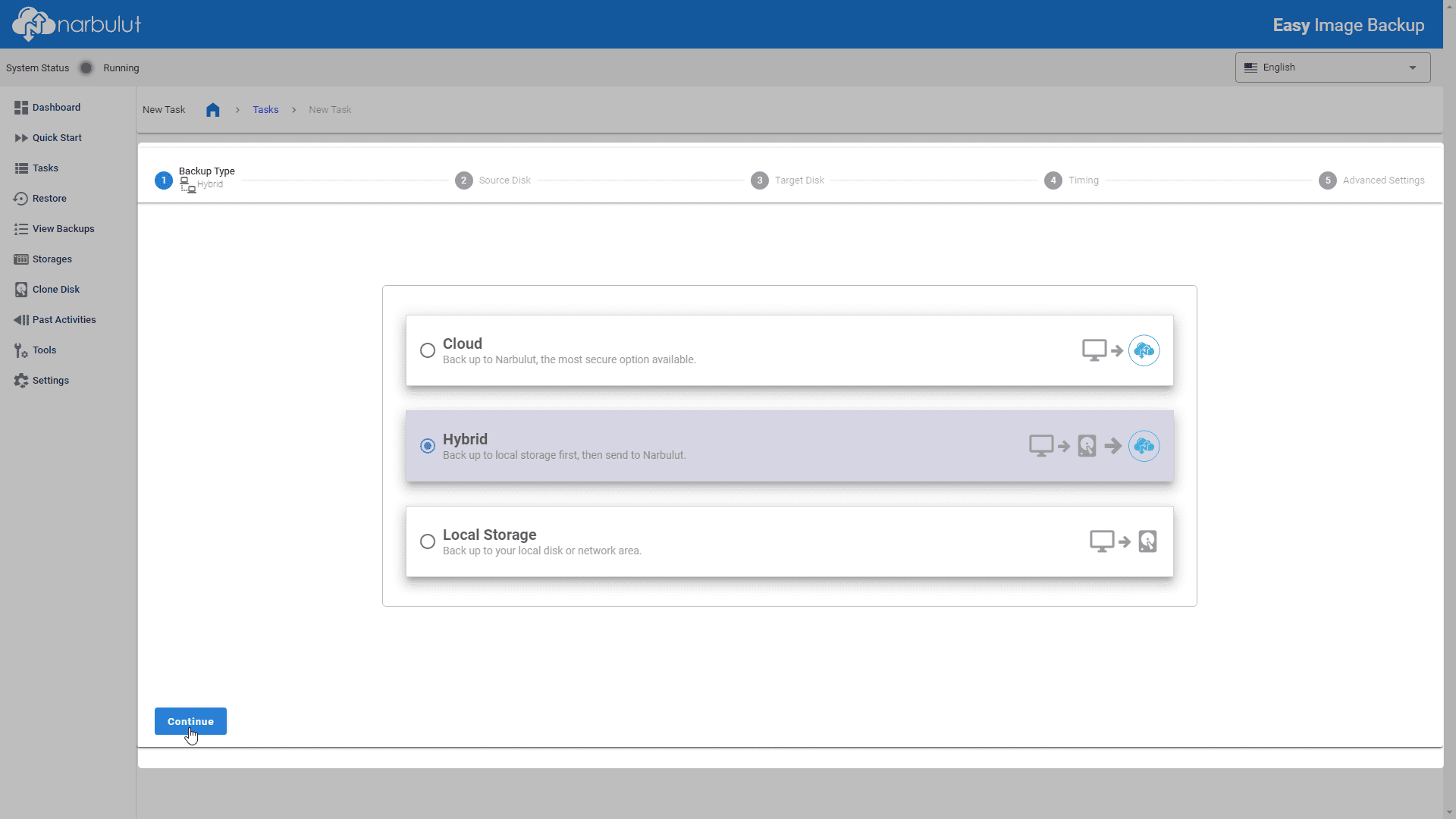
Determine the backup type:Cloudy(in Narbulut data centers),hybrid(both cloud and local),Local Area(local only).
Backup Type
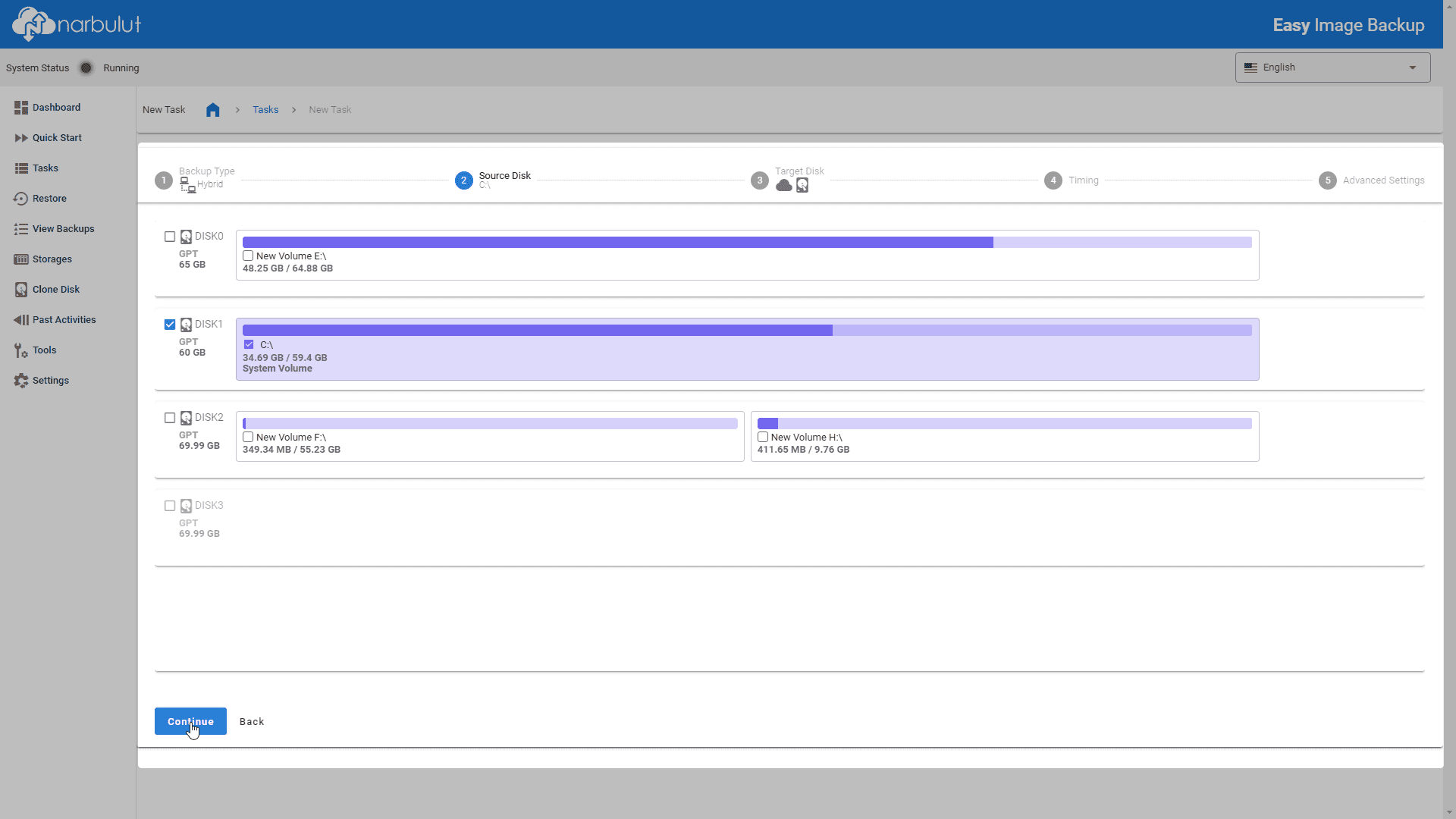
Select the volume and/or disks to back up.
Source Disk
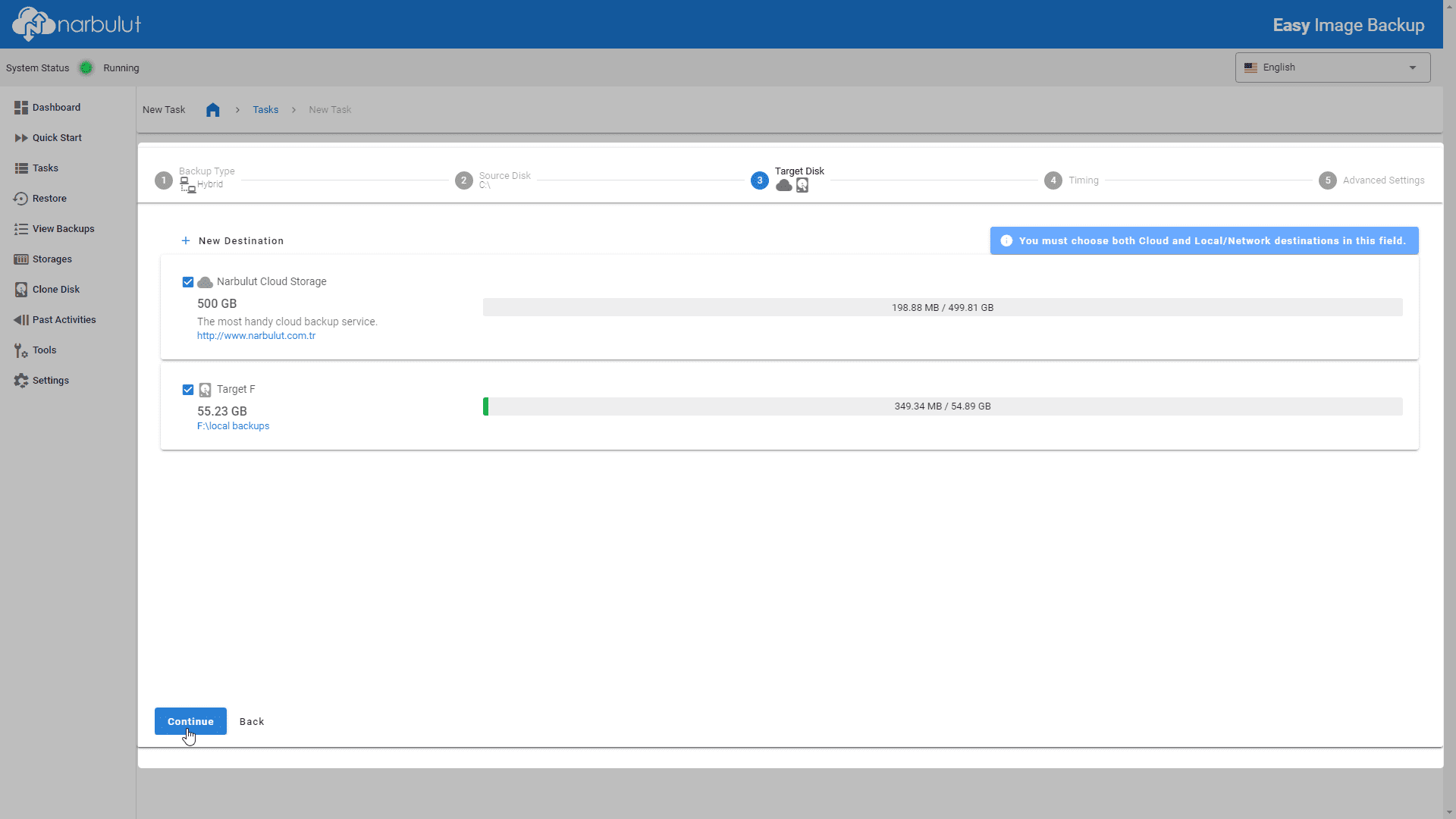
Select the target disk(s).
Target Disk
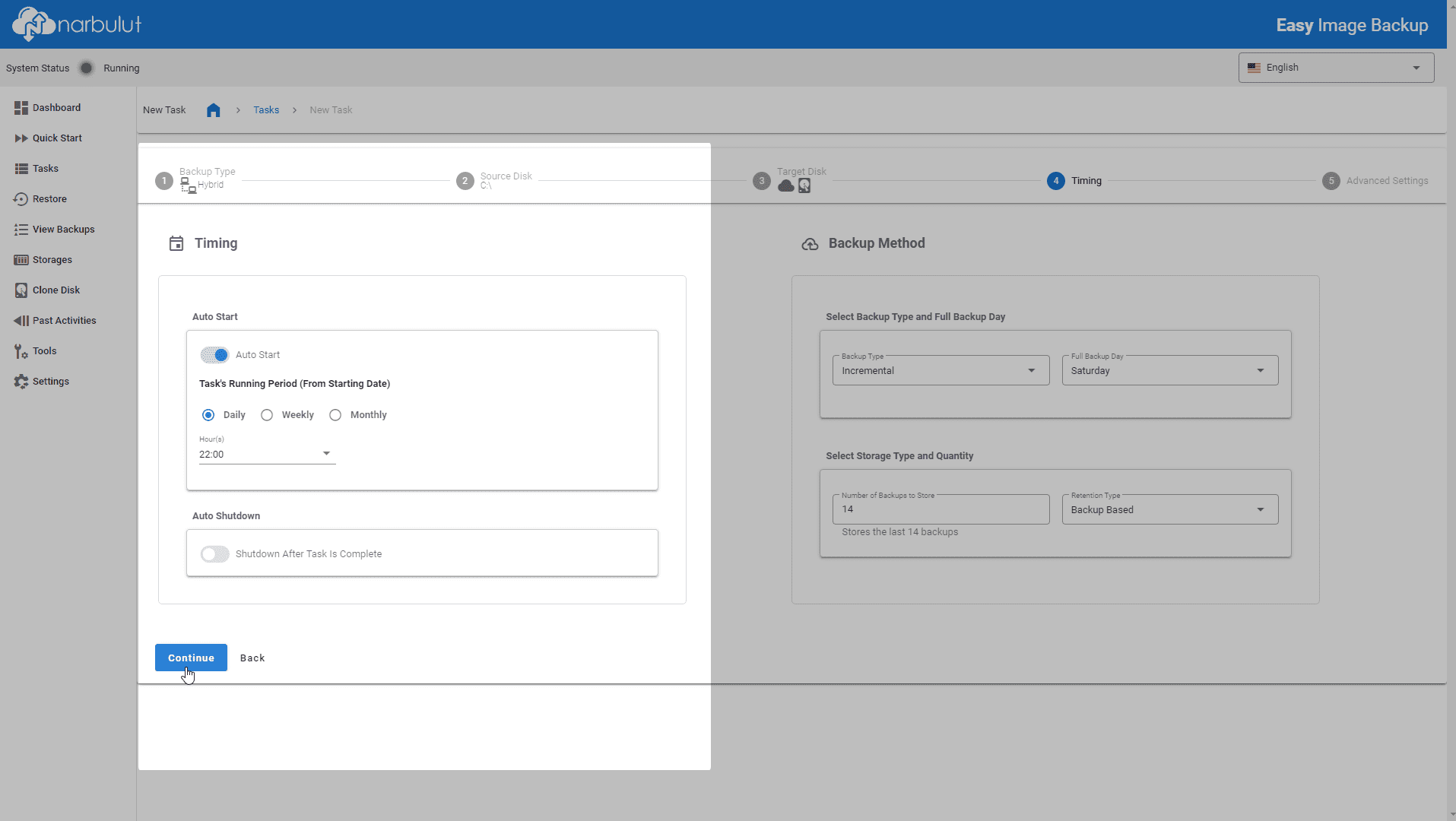
Adjust the schedule of the task.
Scheduling
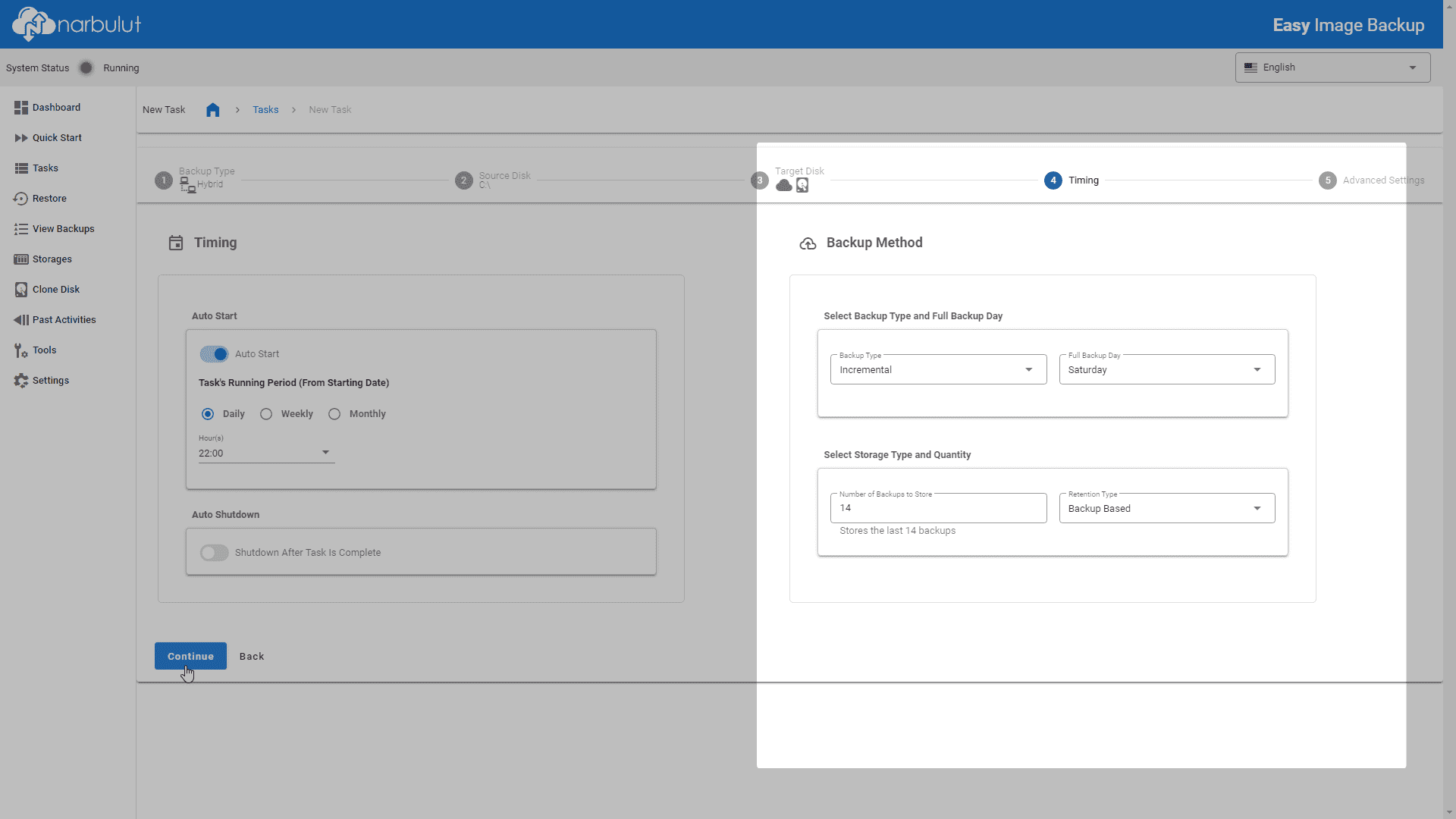
Determine the backup method:full, incrementalor differential.
Backup Method
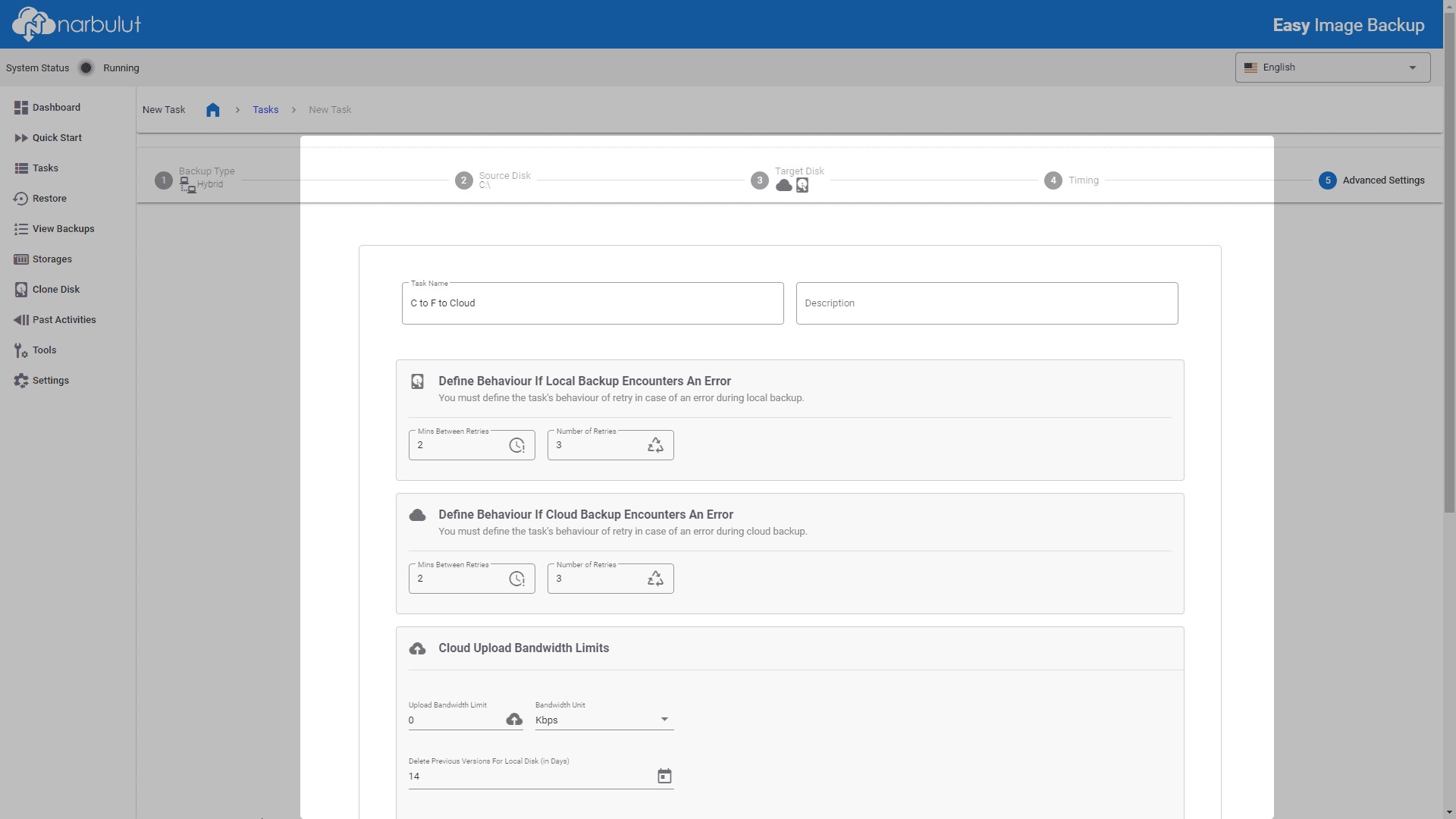
Configure advanced settings.
Advanced Settings
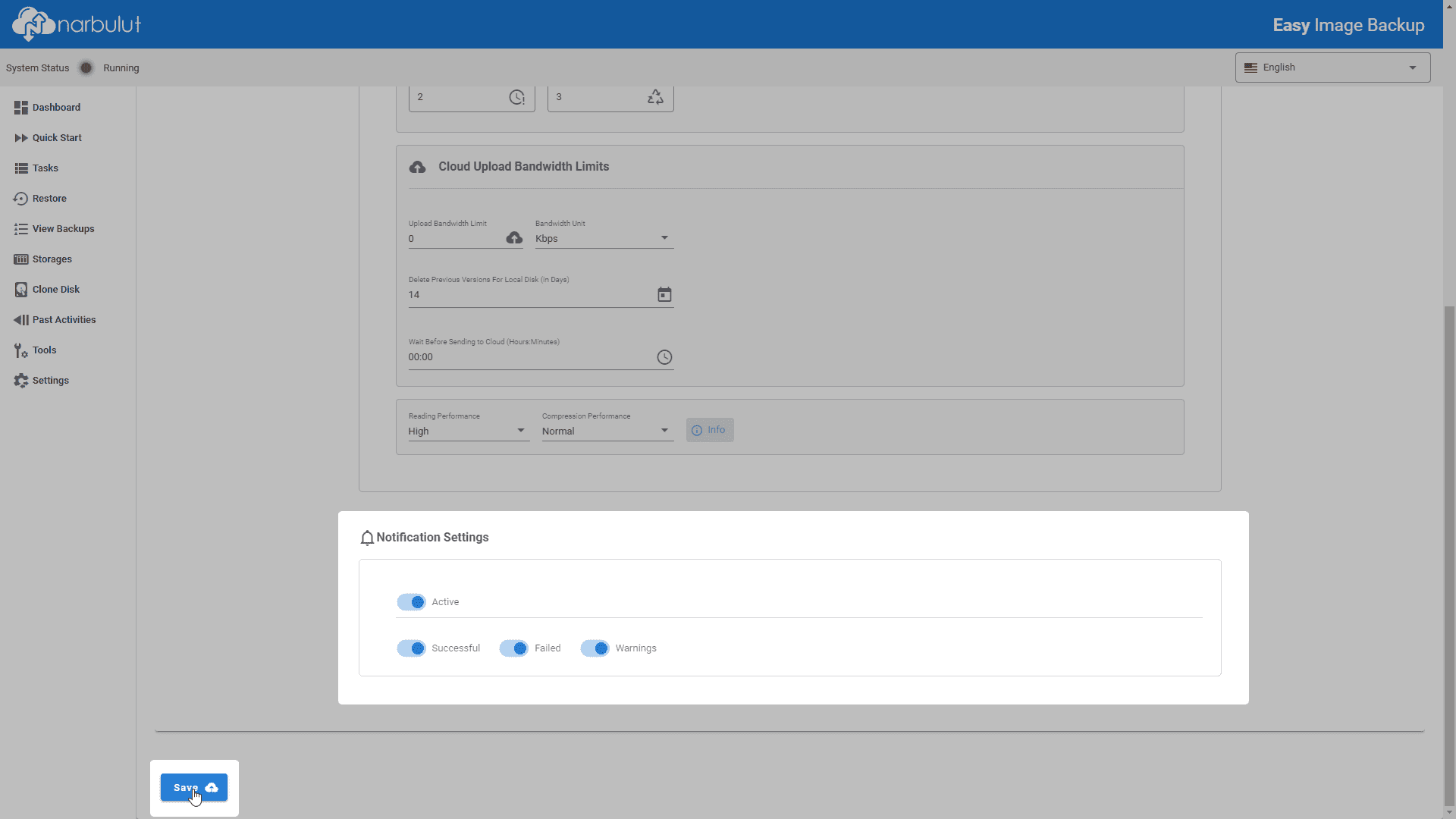
Configure notification settings and finalize task creation using the Save button.
Notifications

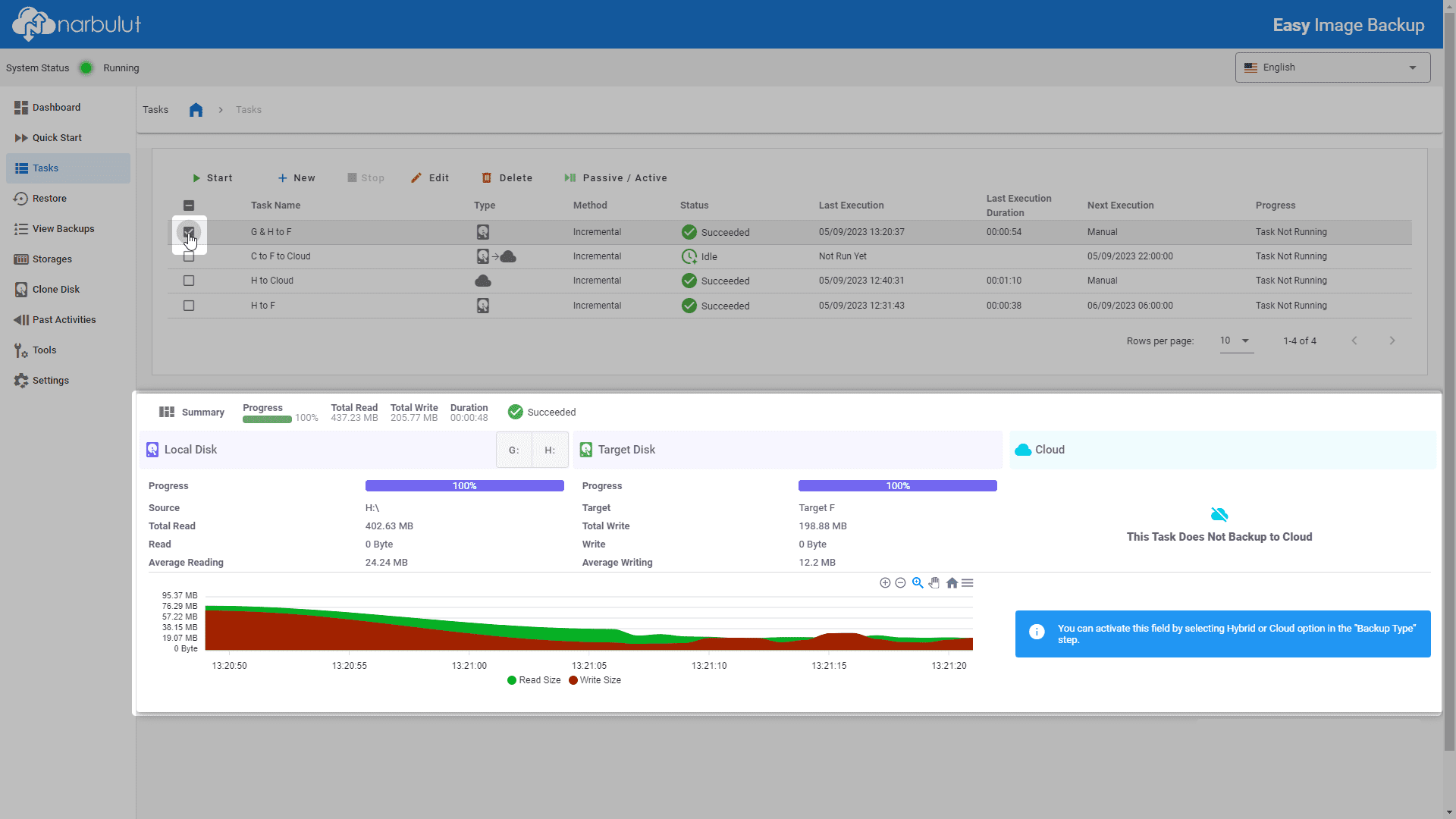
Managing Tasks — To view statistics for tasks, select the task.

Task Statistics
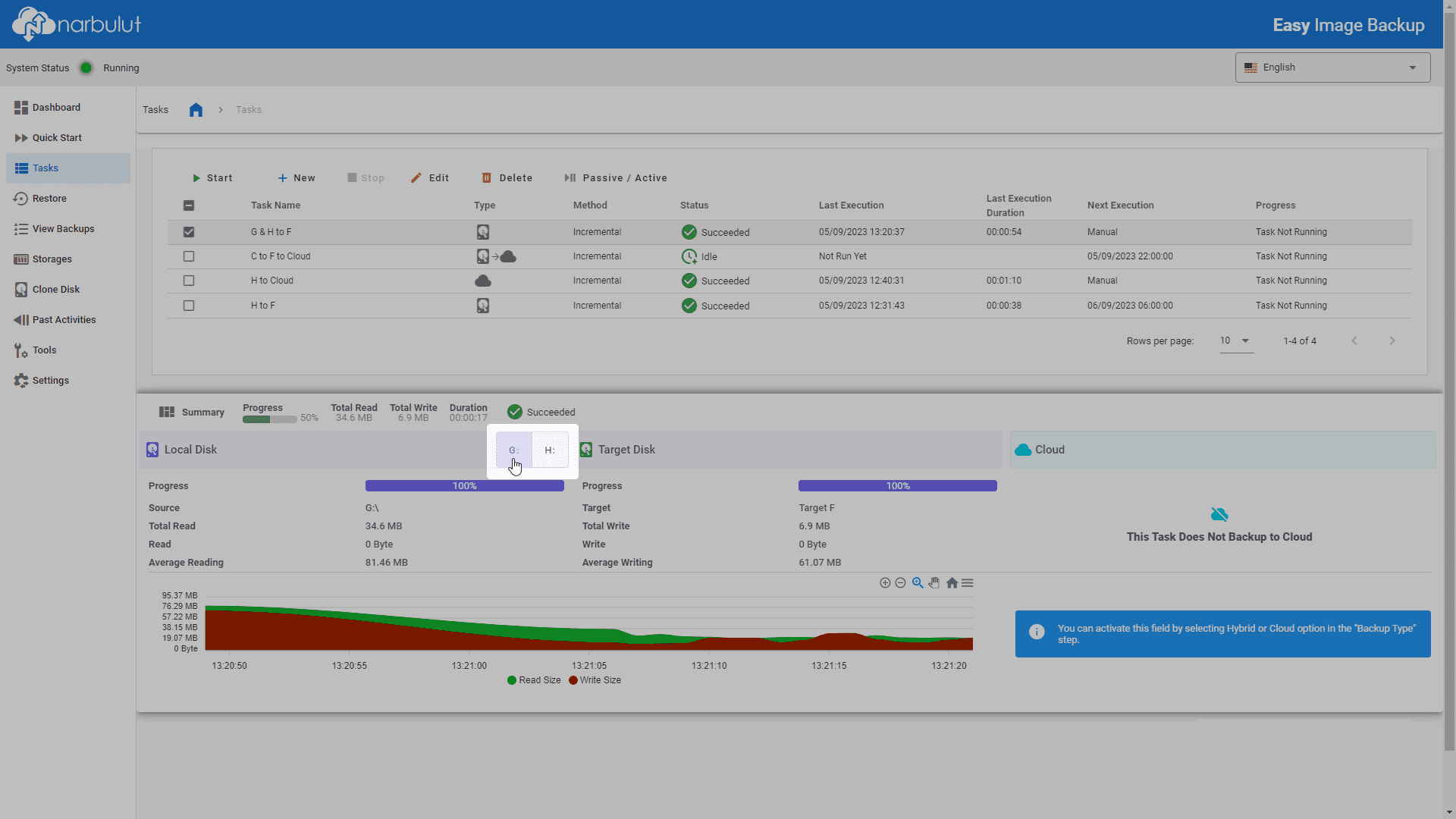
Volume-Based Statistics
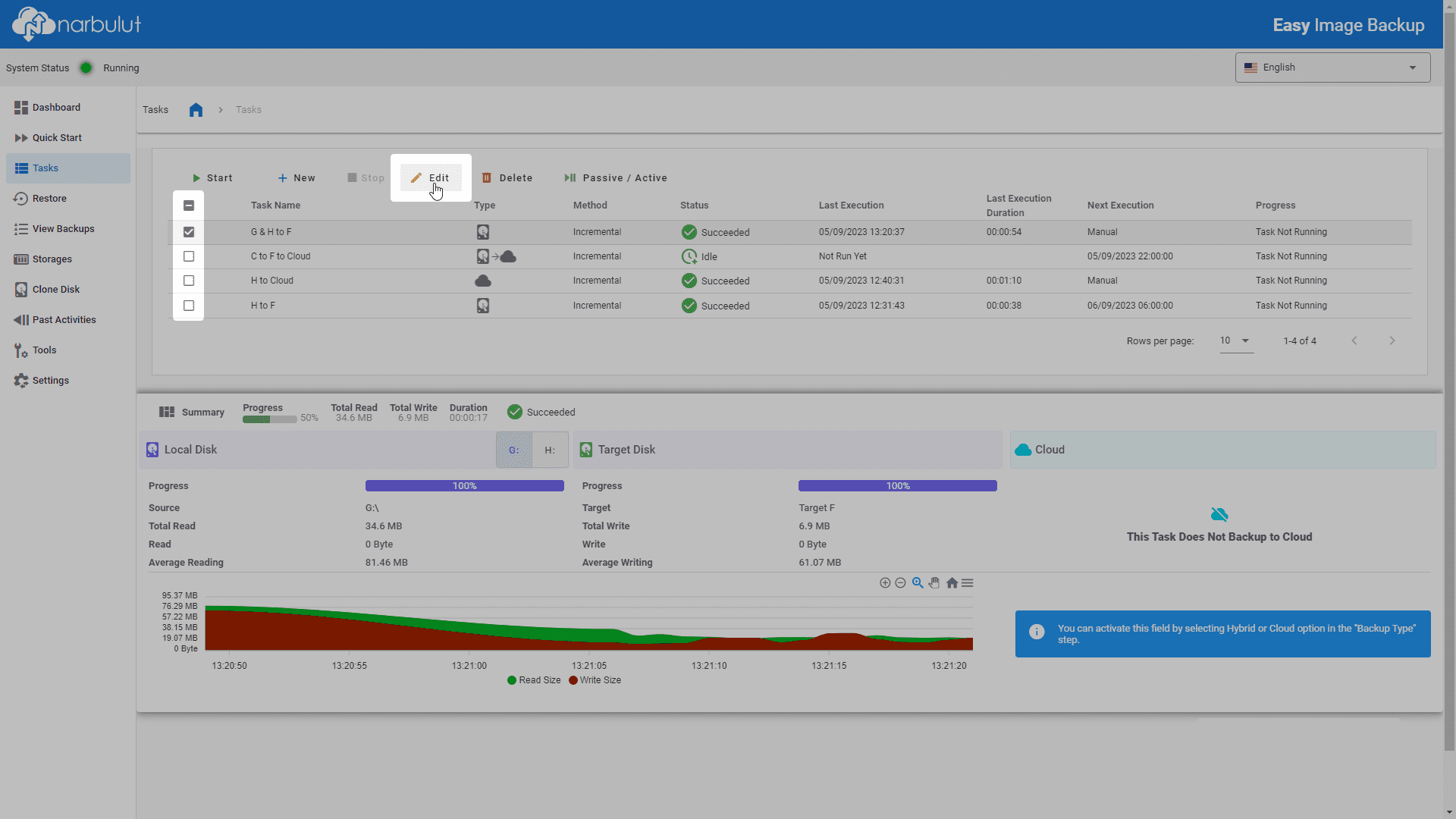
To edit a task, select the task and click the Edit button.
Edit Task
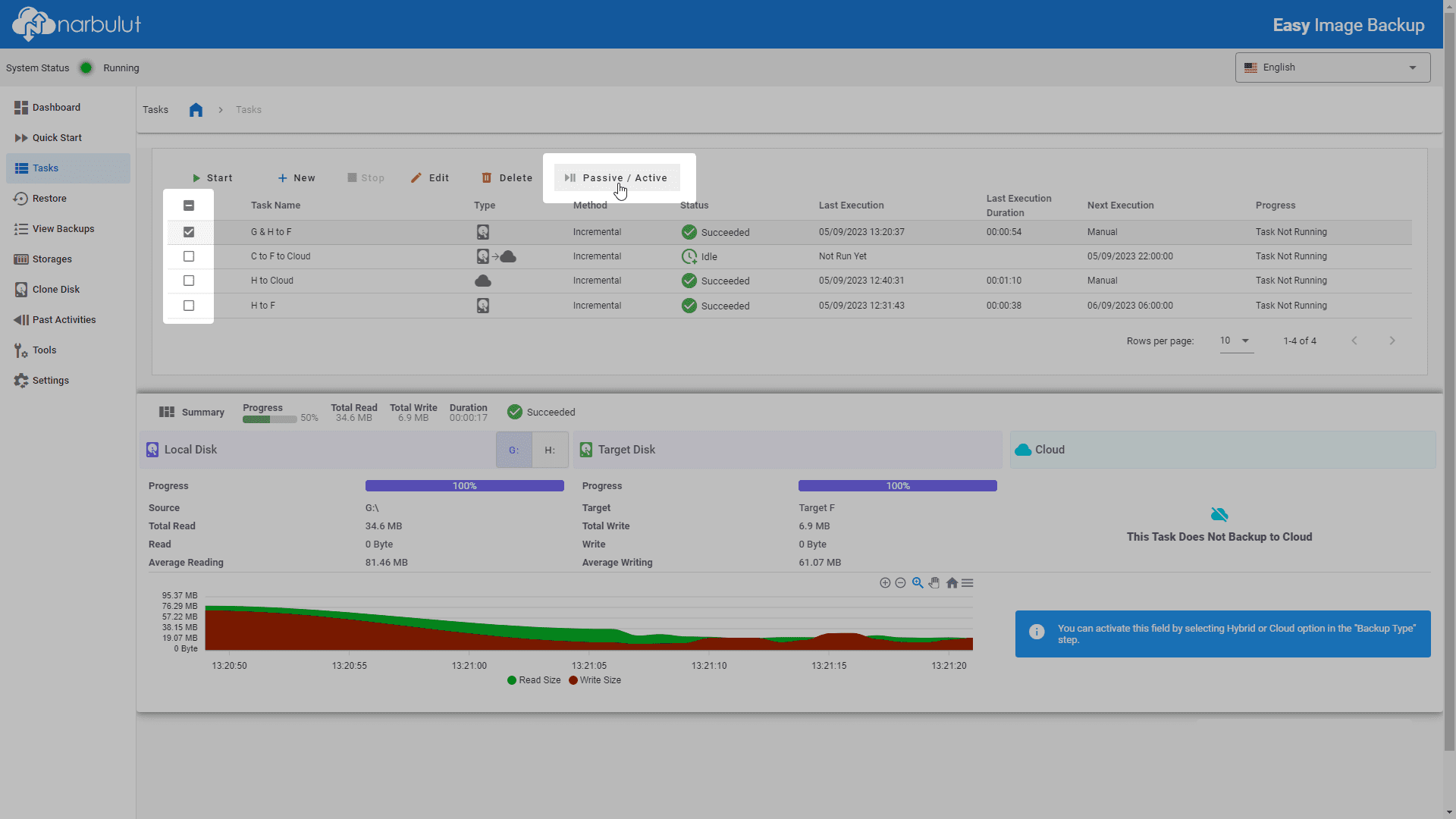
Inactive/Active
Delete Task
Start Task
Stop Task

Restore

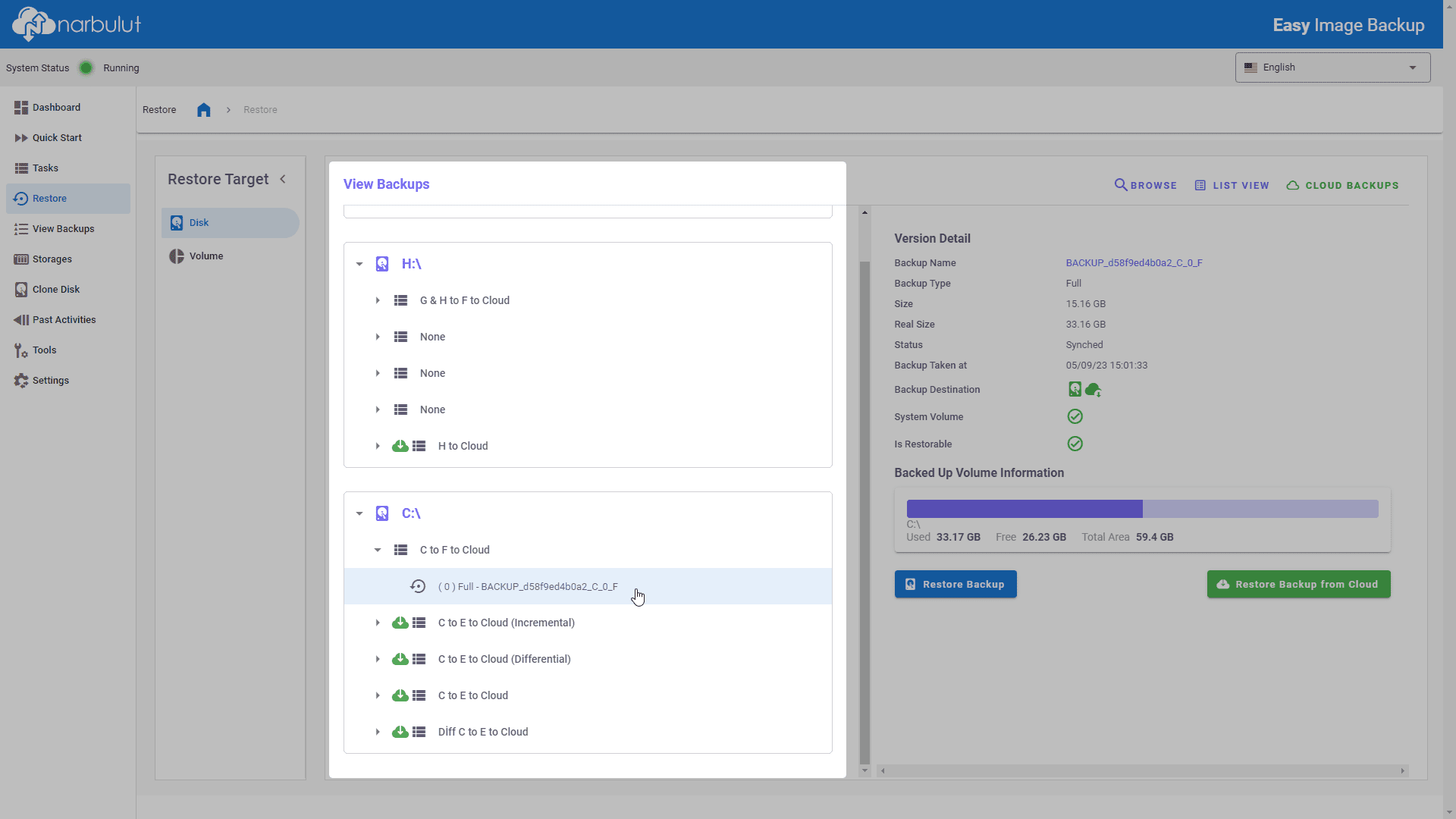
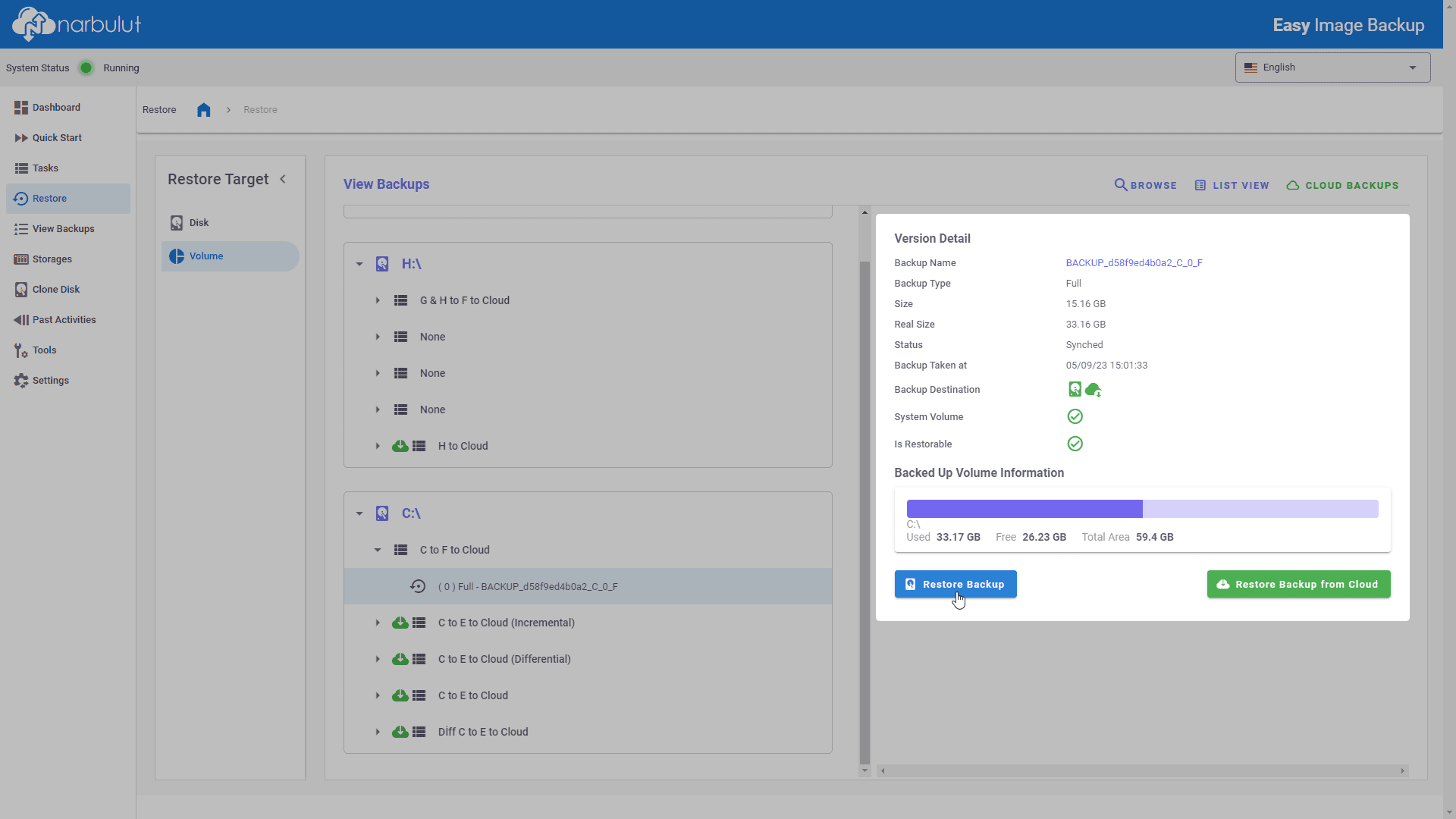
You can restore your backups using this menu.
Select the backup you want to restore by task name.
Select Backup
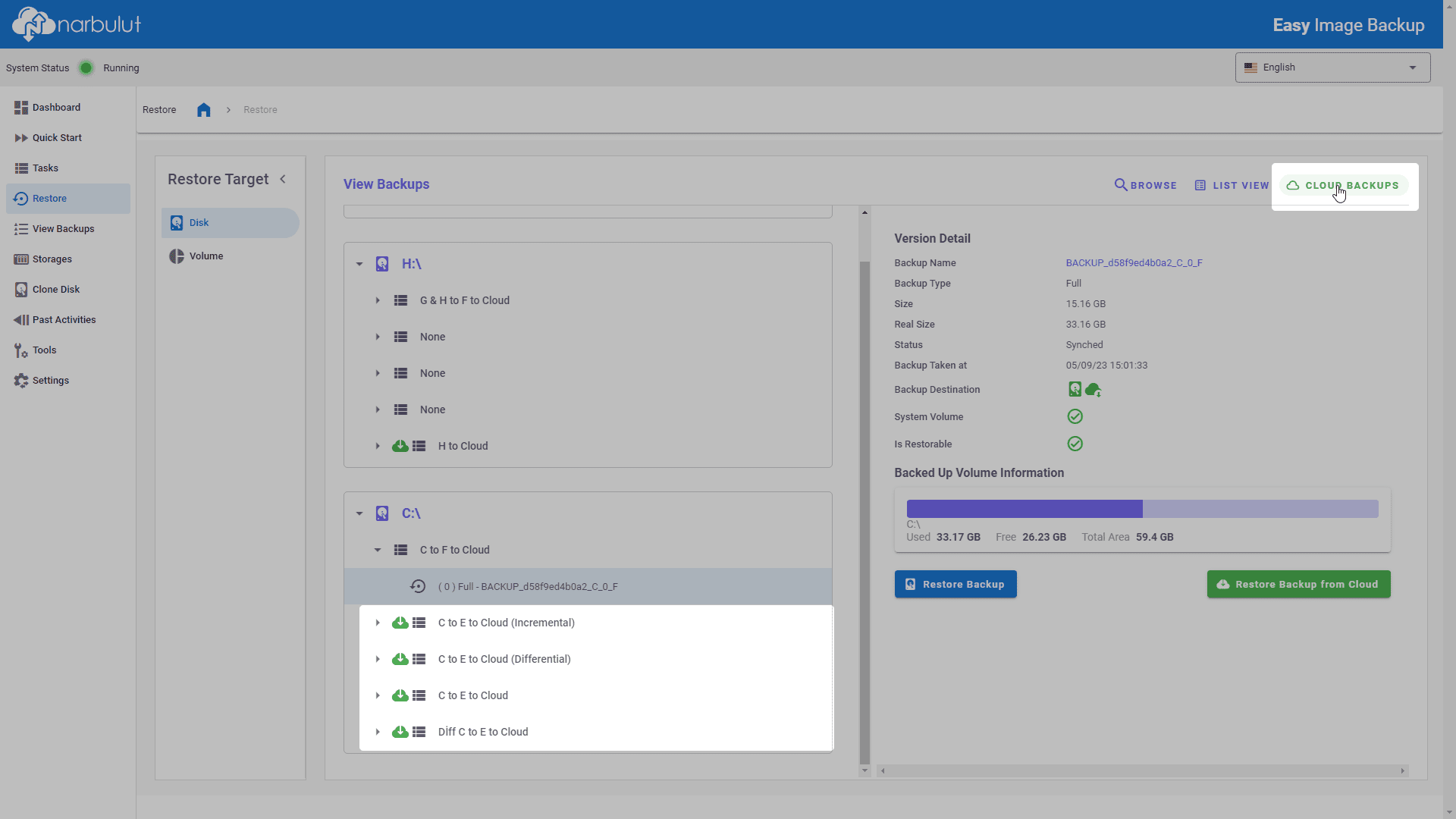
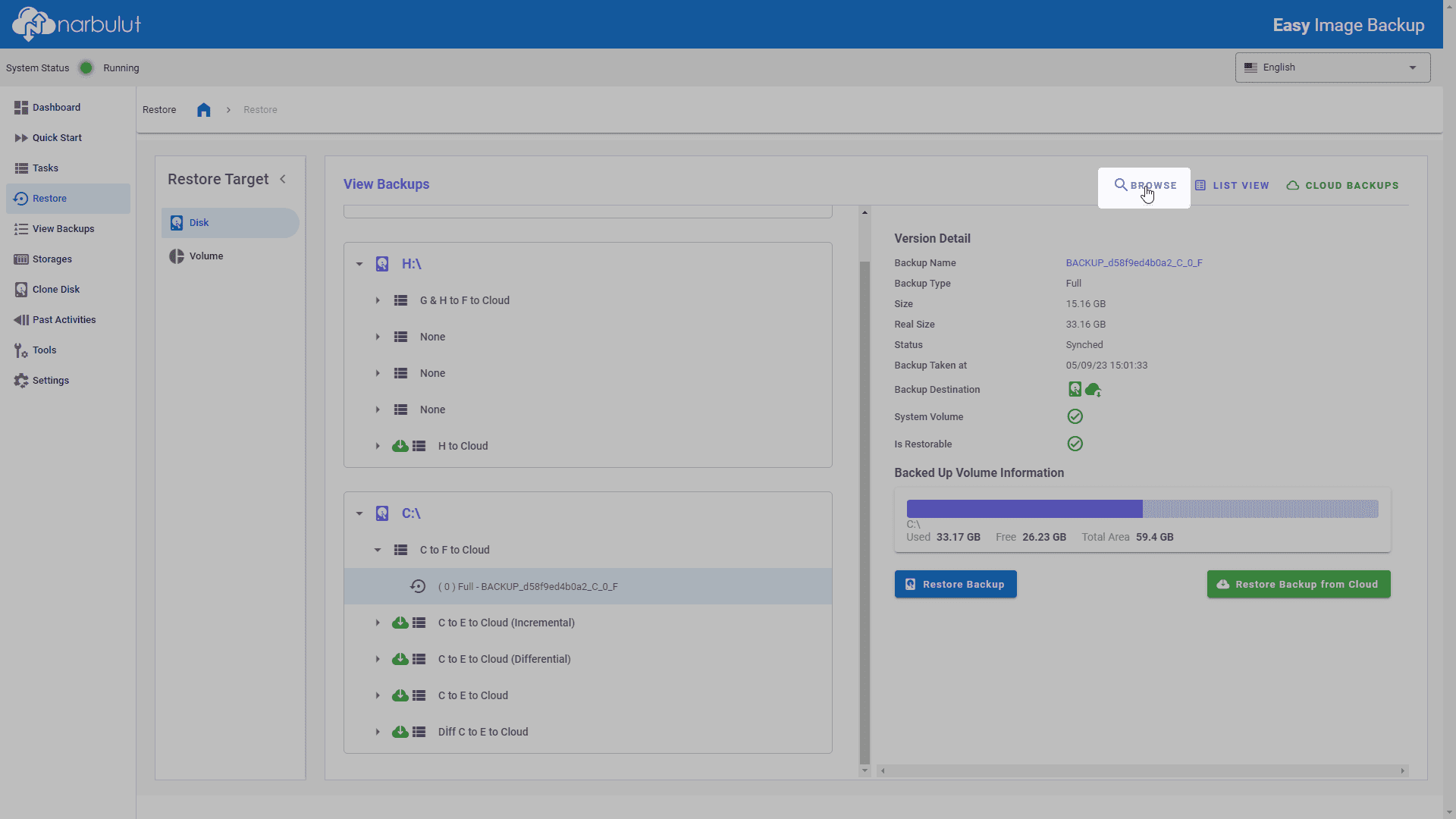
Cloud Backups
Browse
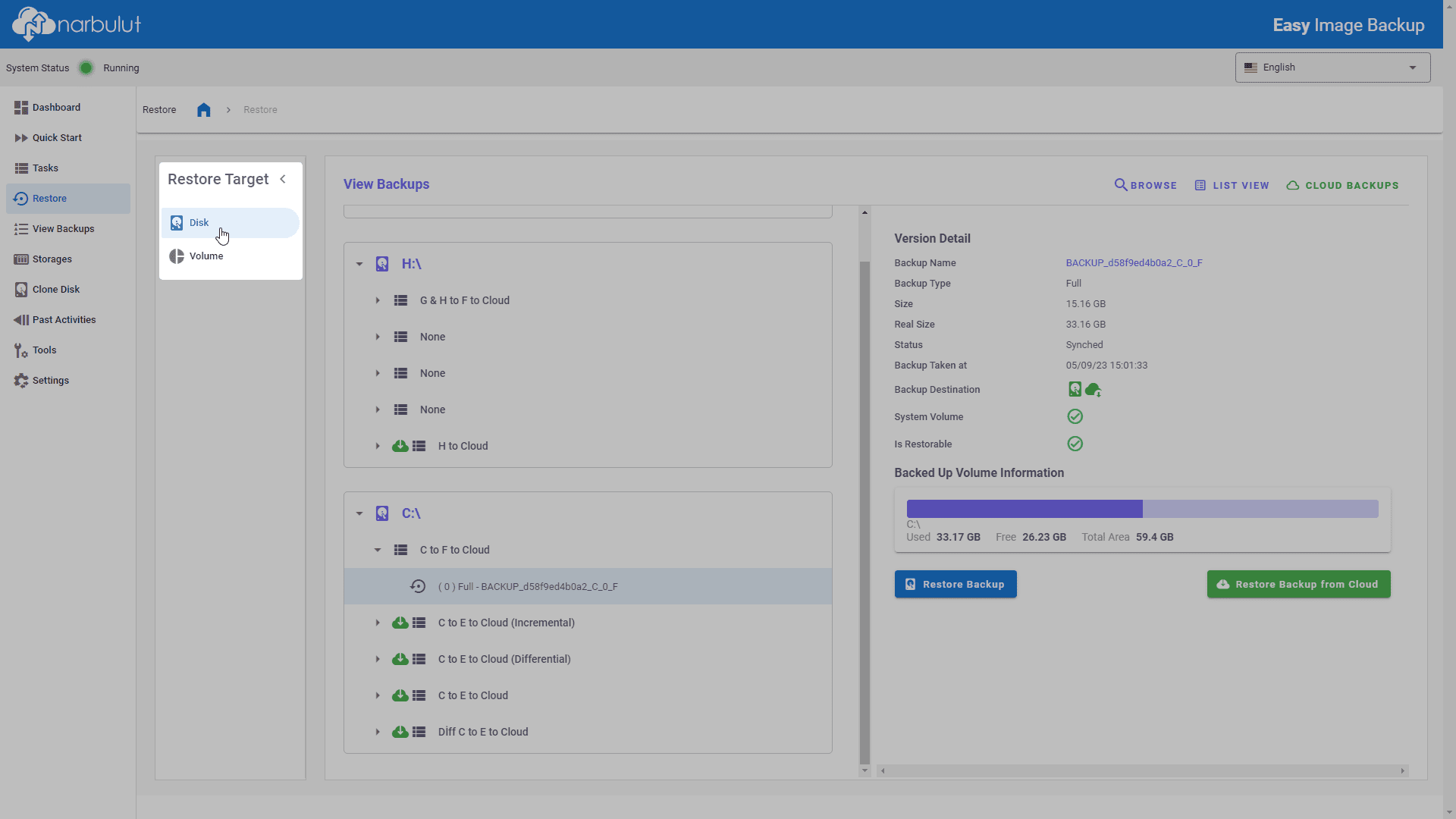
Disk
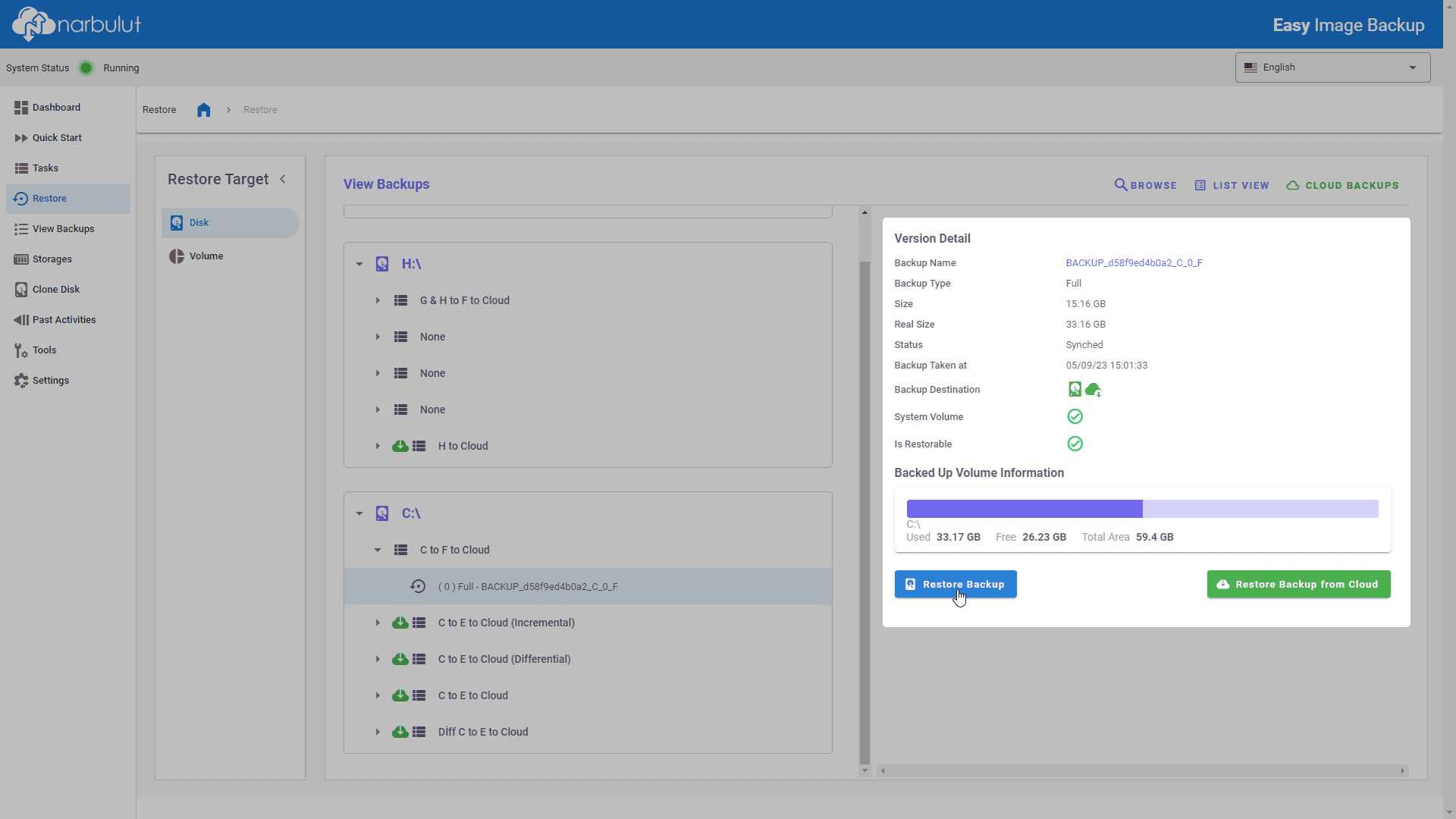
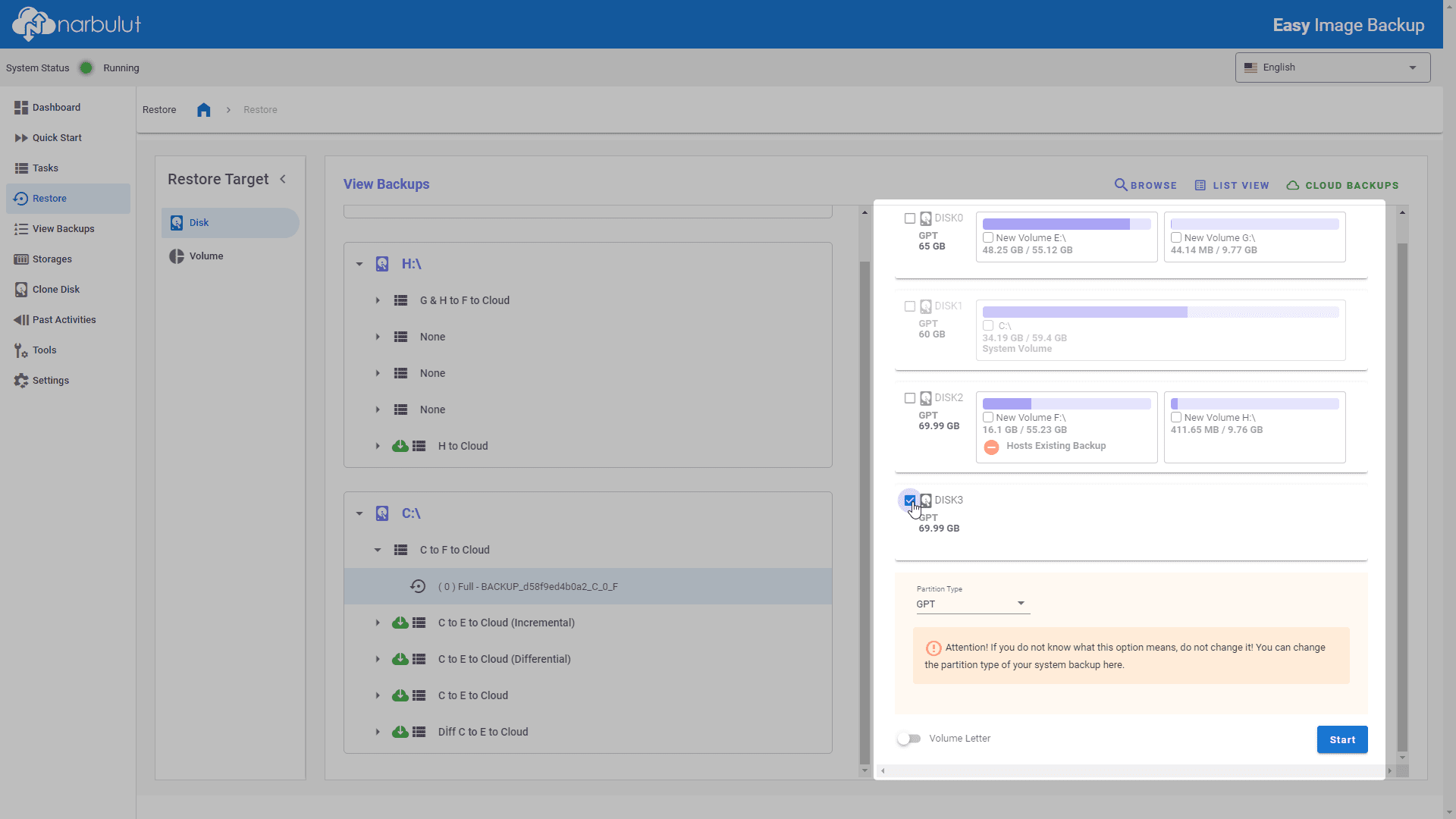
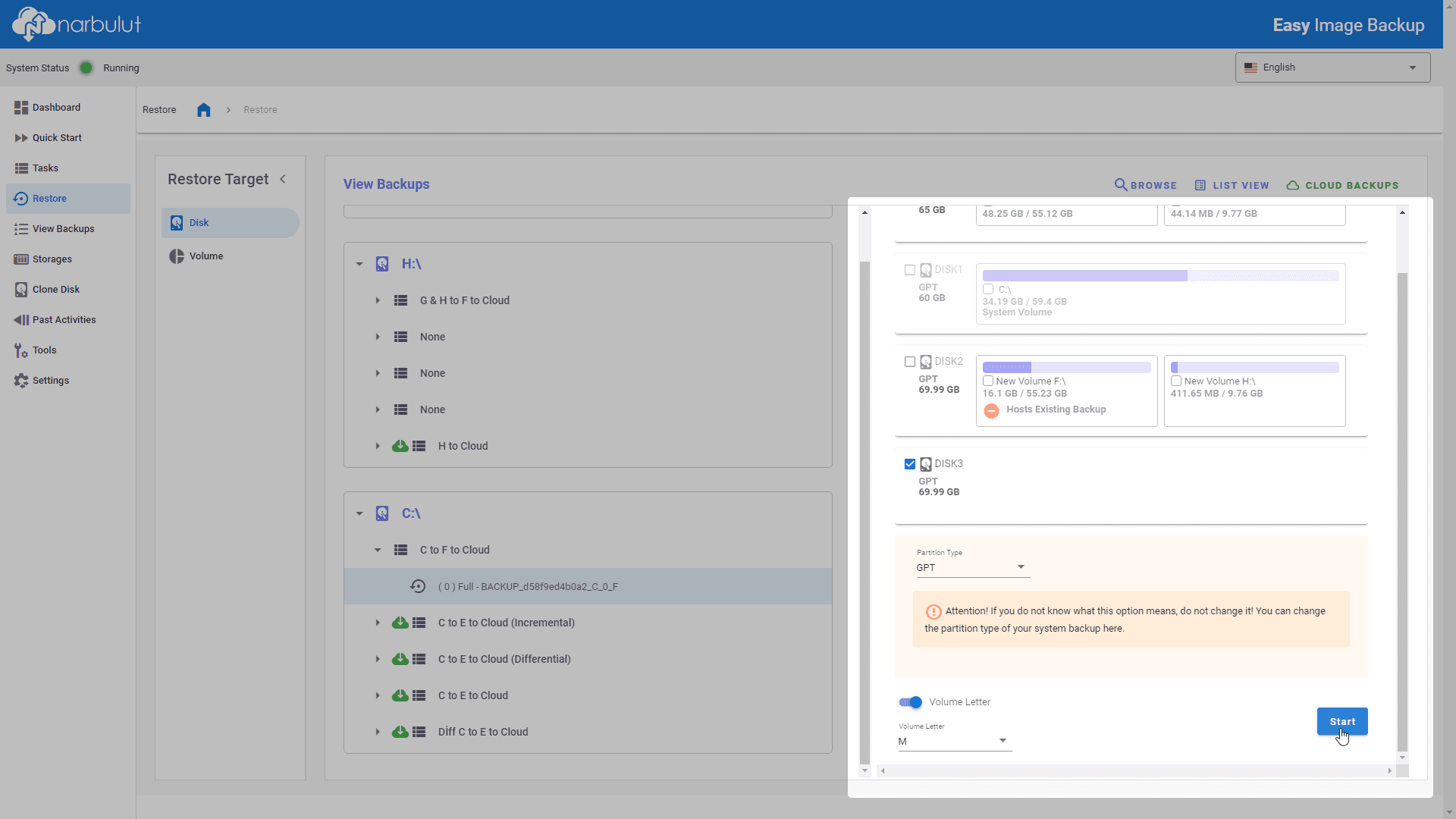
Select the installation destination as disk. Select the restore type and specify the target disk.
Disk Restore
Disk Restore Selection
Disk Target
Start Disk
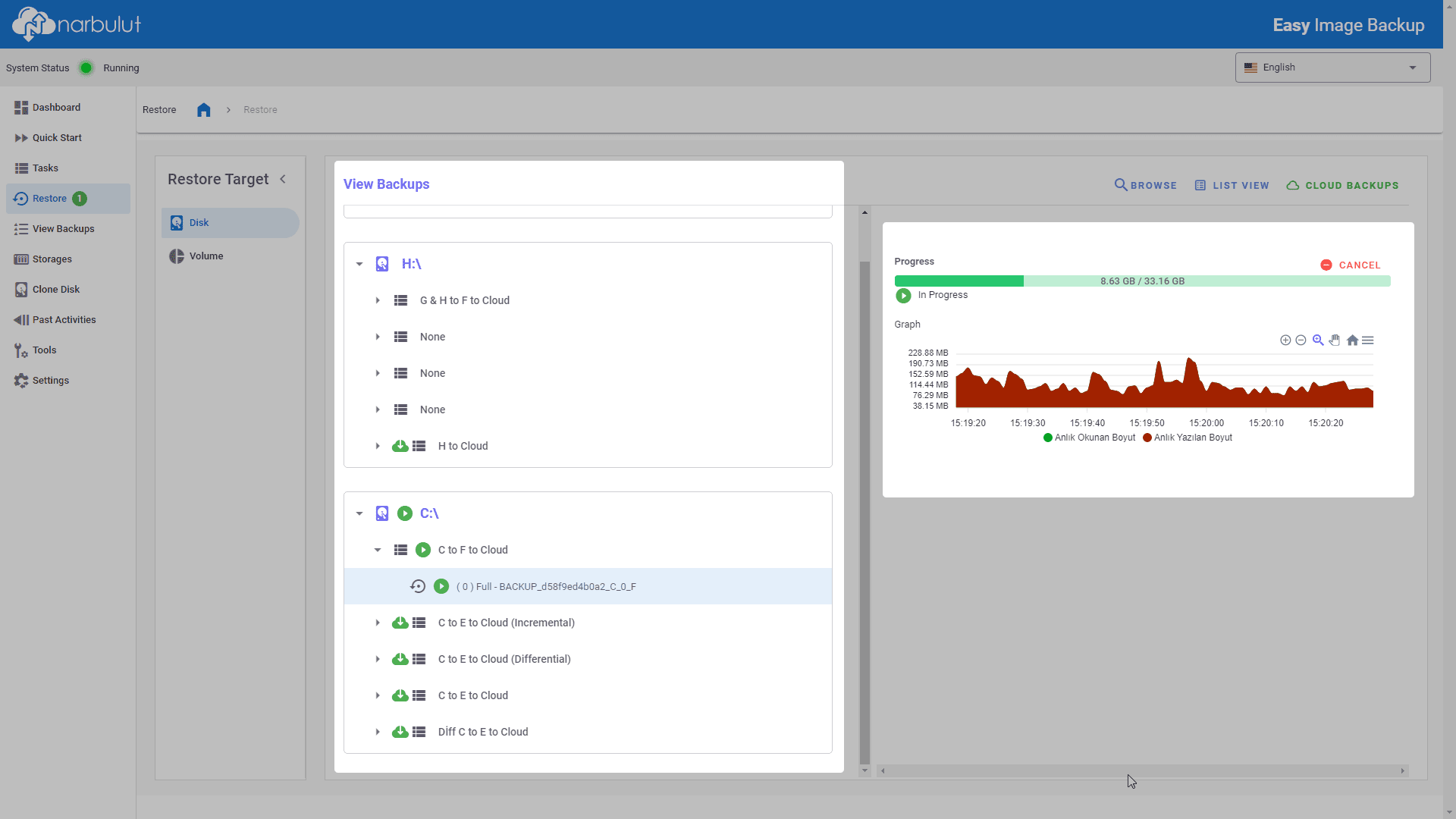
Disk Statistics
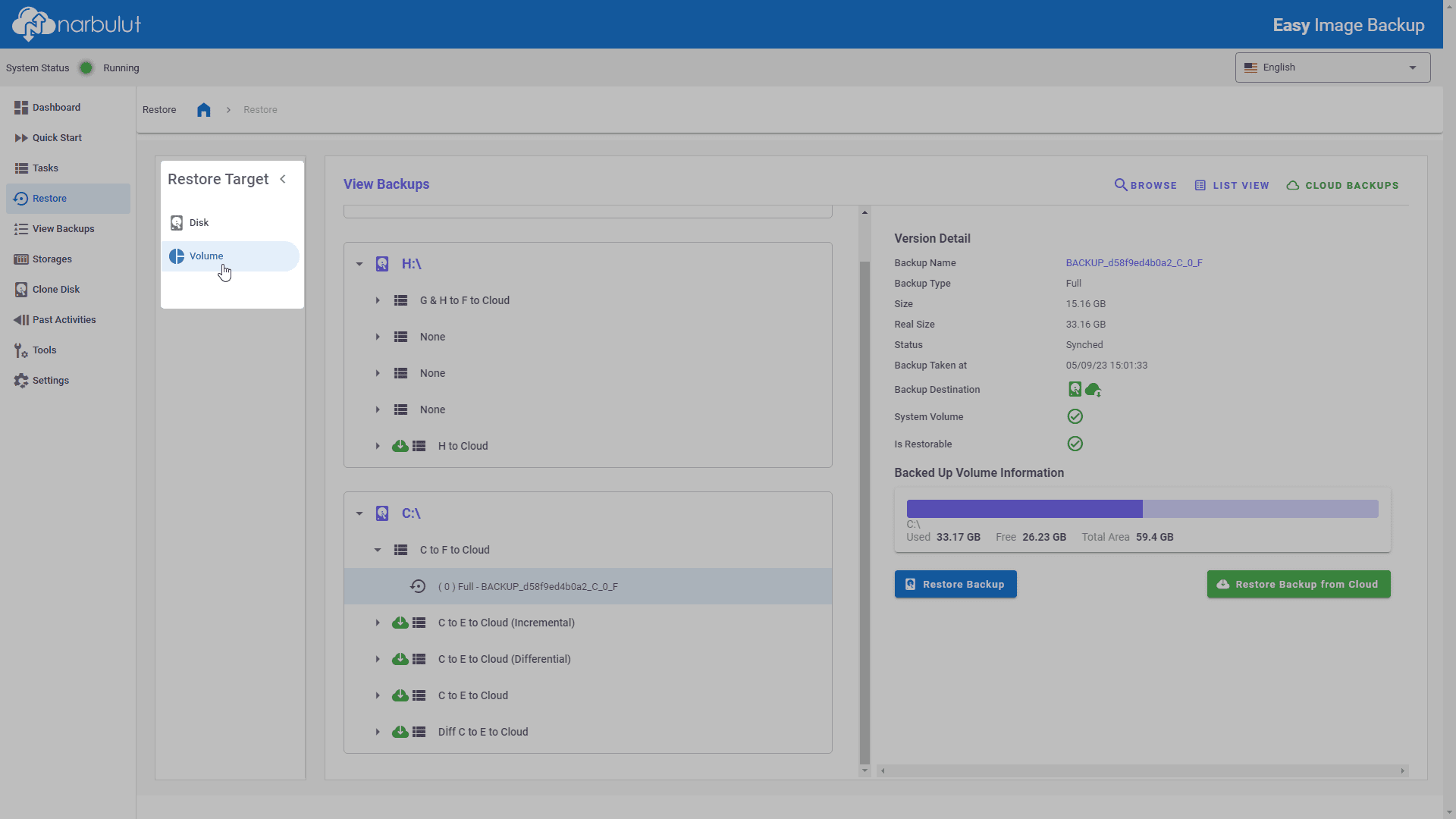
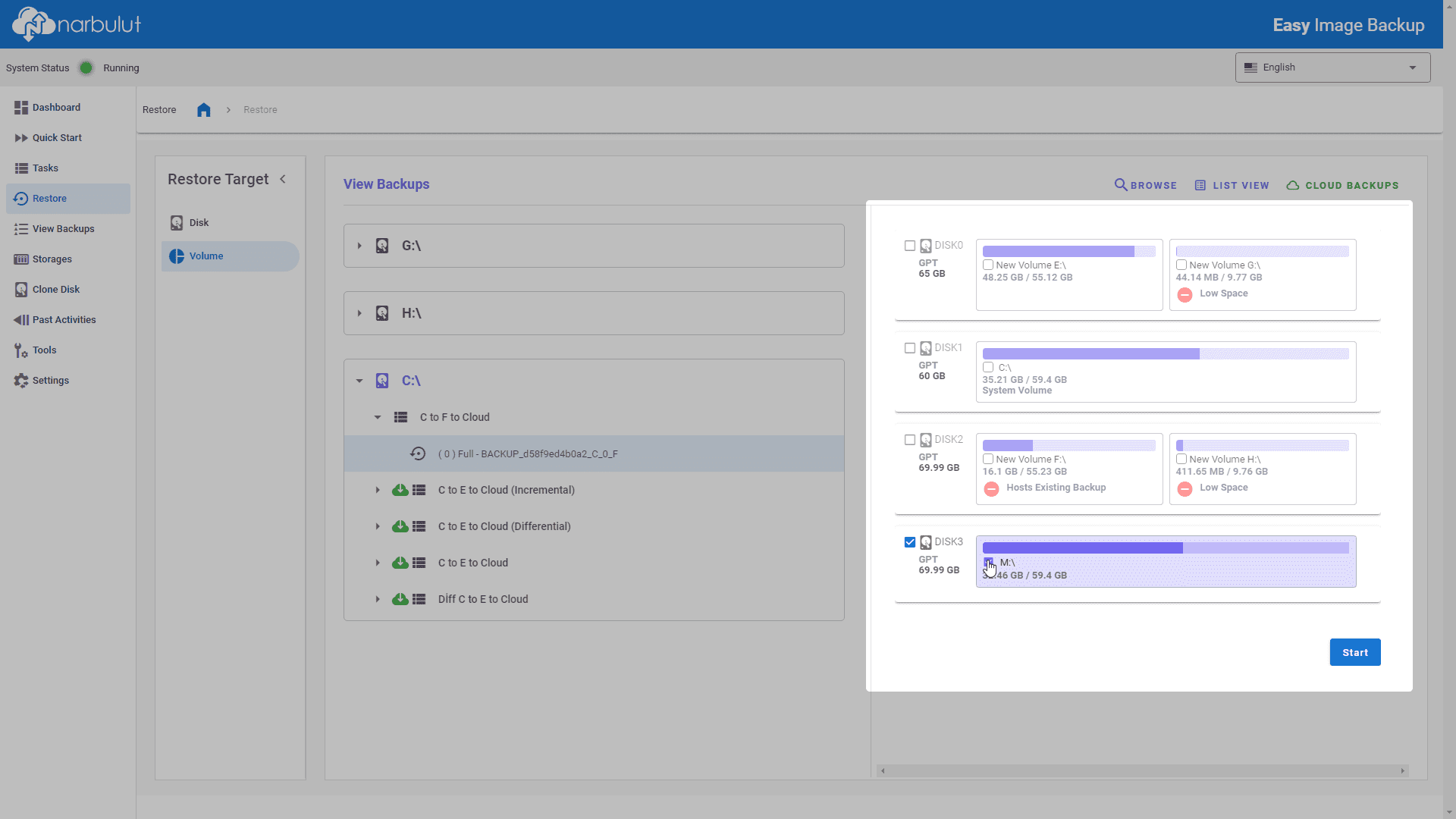
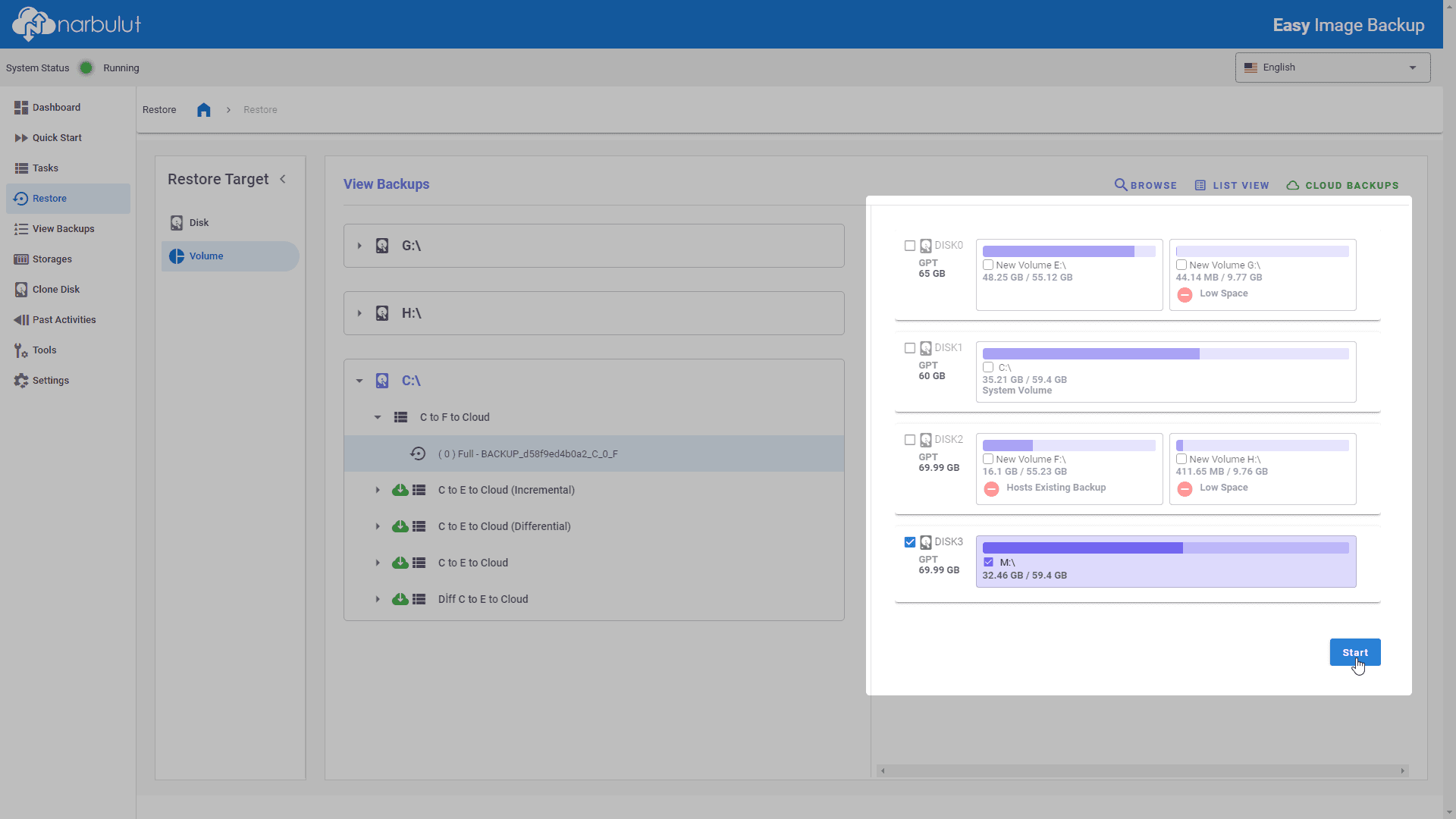
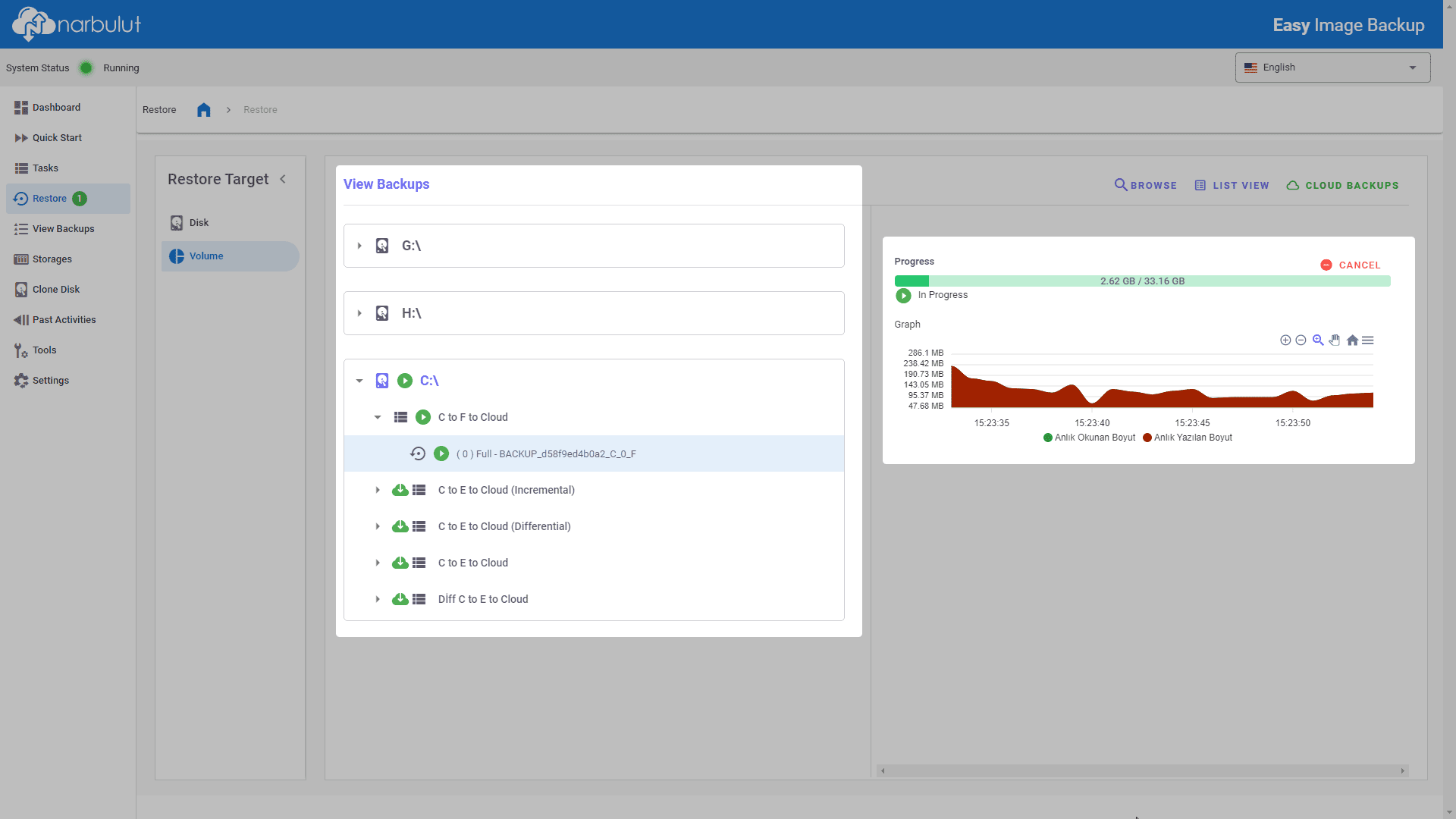
Volume
Select the upload destination as volume.
Volume Restore
Volume Restore Selection
Volume Target
Start Volume
Volume Statistics

View Backups

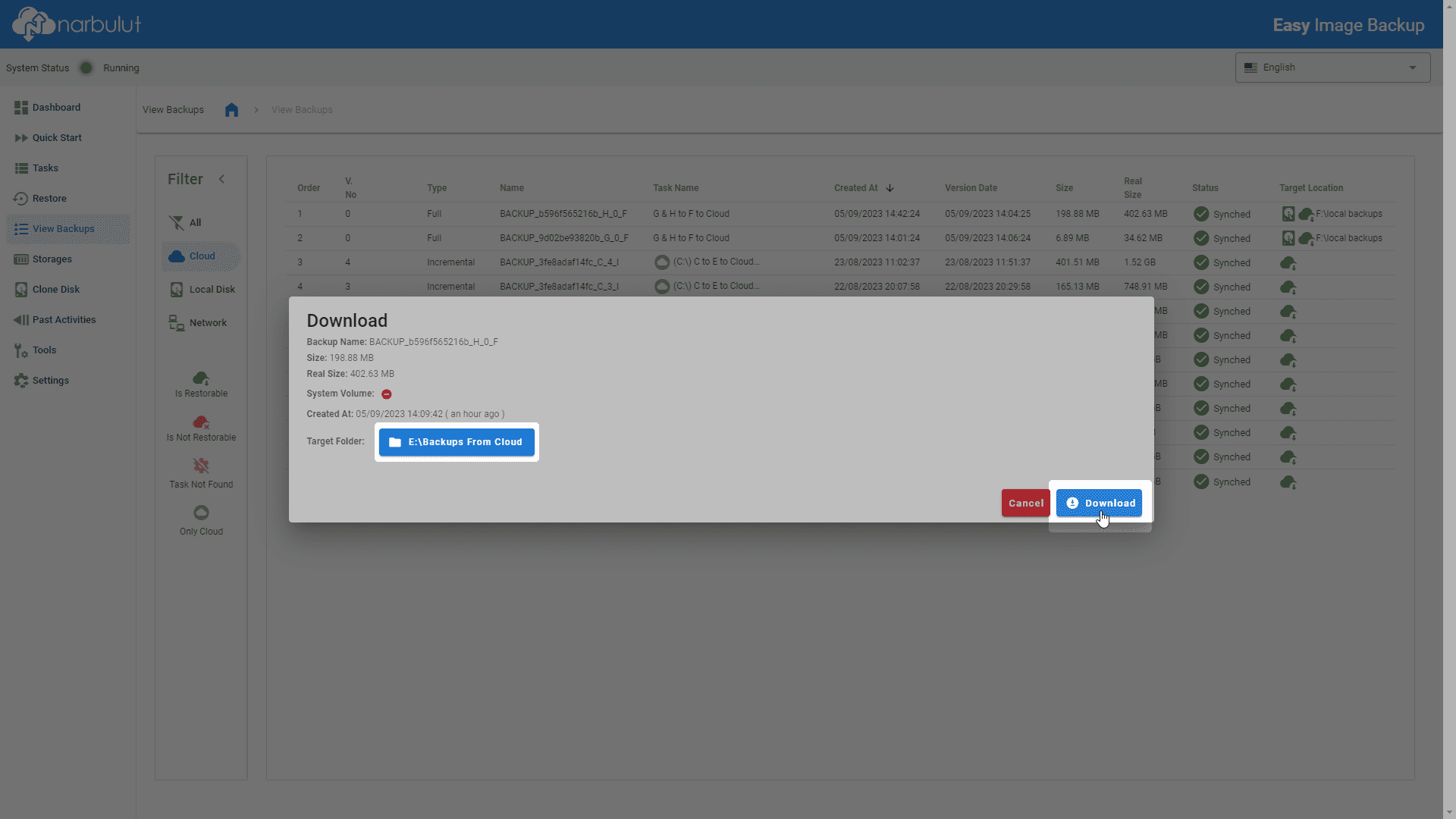
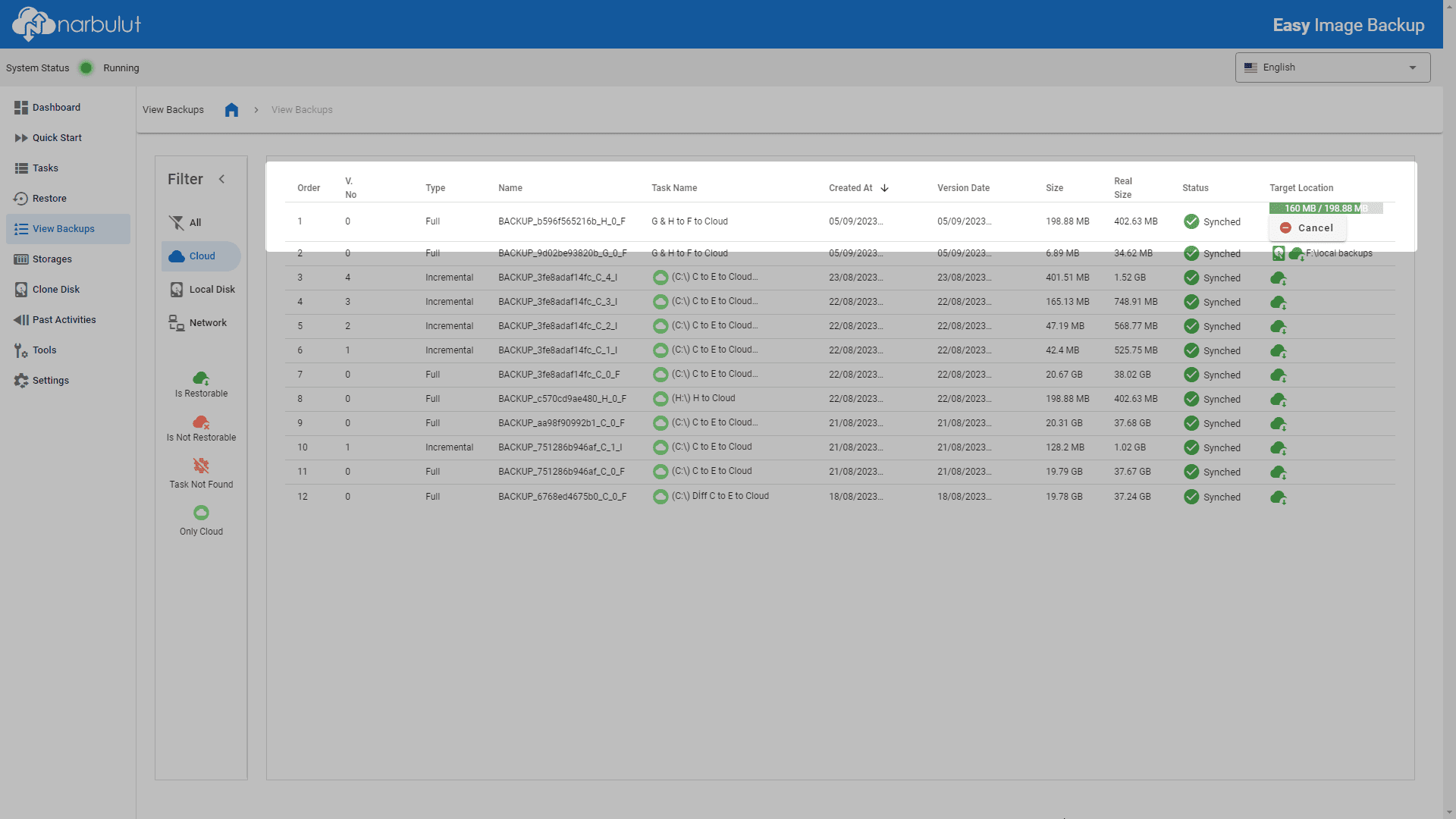
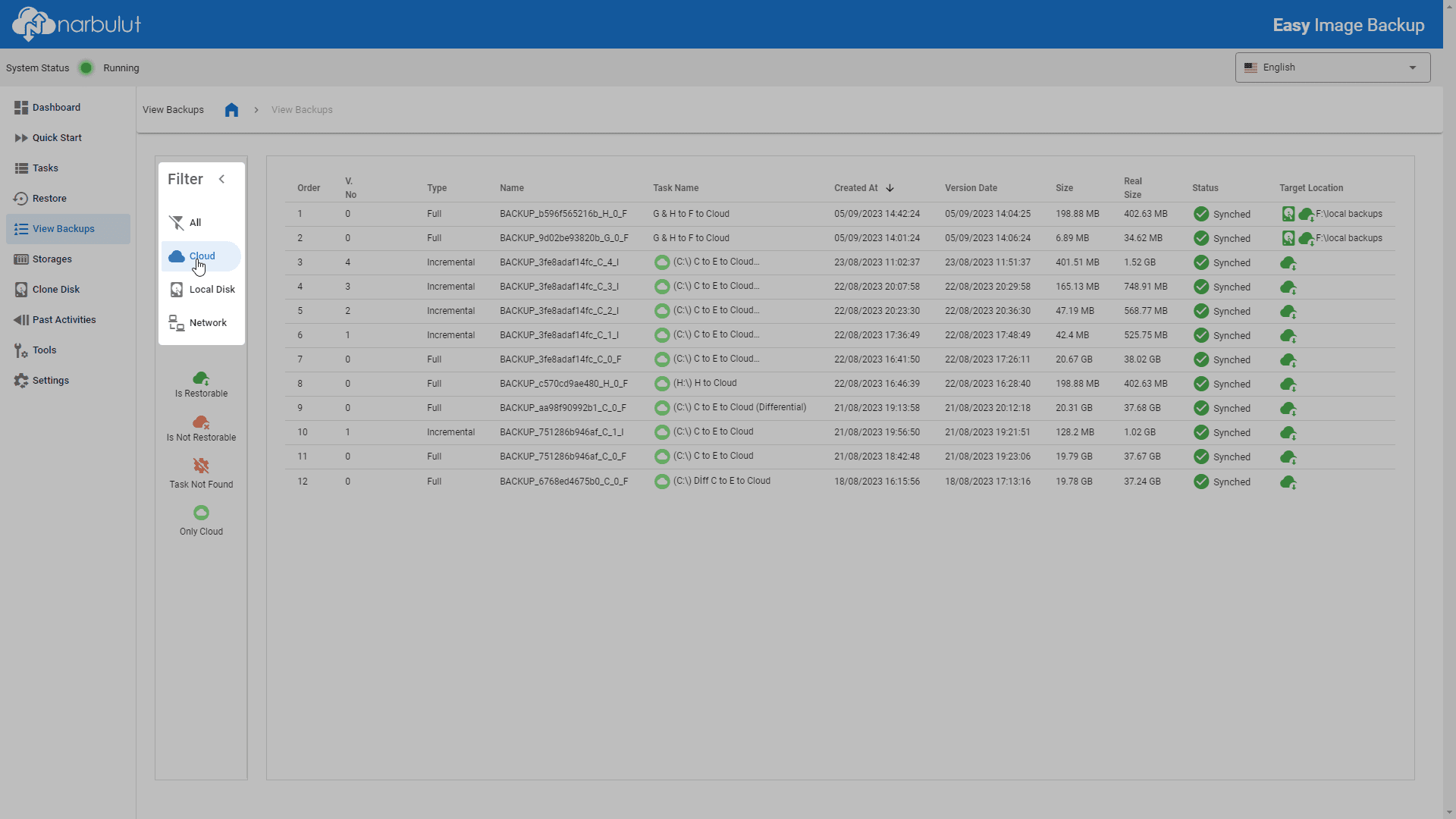
In this menu, you can view your backups and download your backups from the cloud.
The filter bar can help you find the backups you’re looking for.
Filter
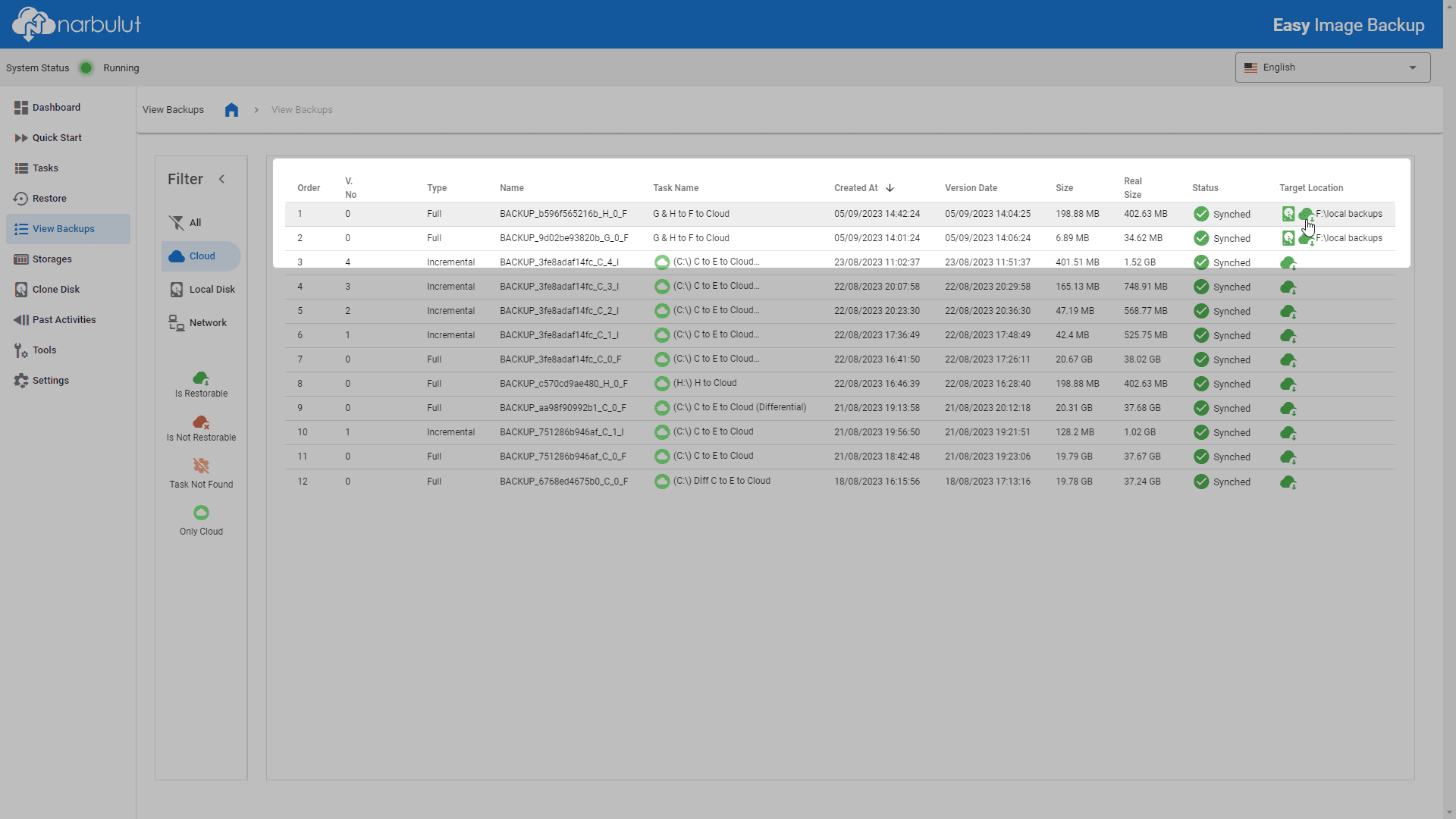
Click the cloud icon in the Destination Location column of the backup you want to download.
Download
Start Download
Downloadmeyi Takip Et

Storage Areas

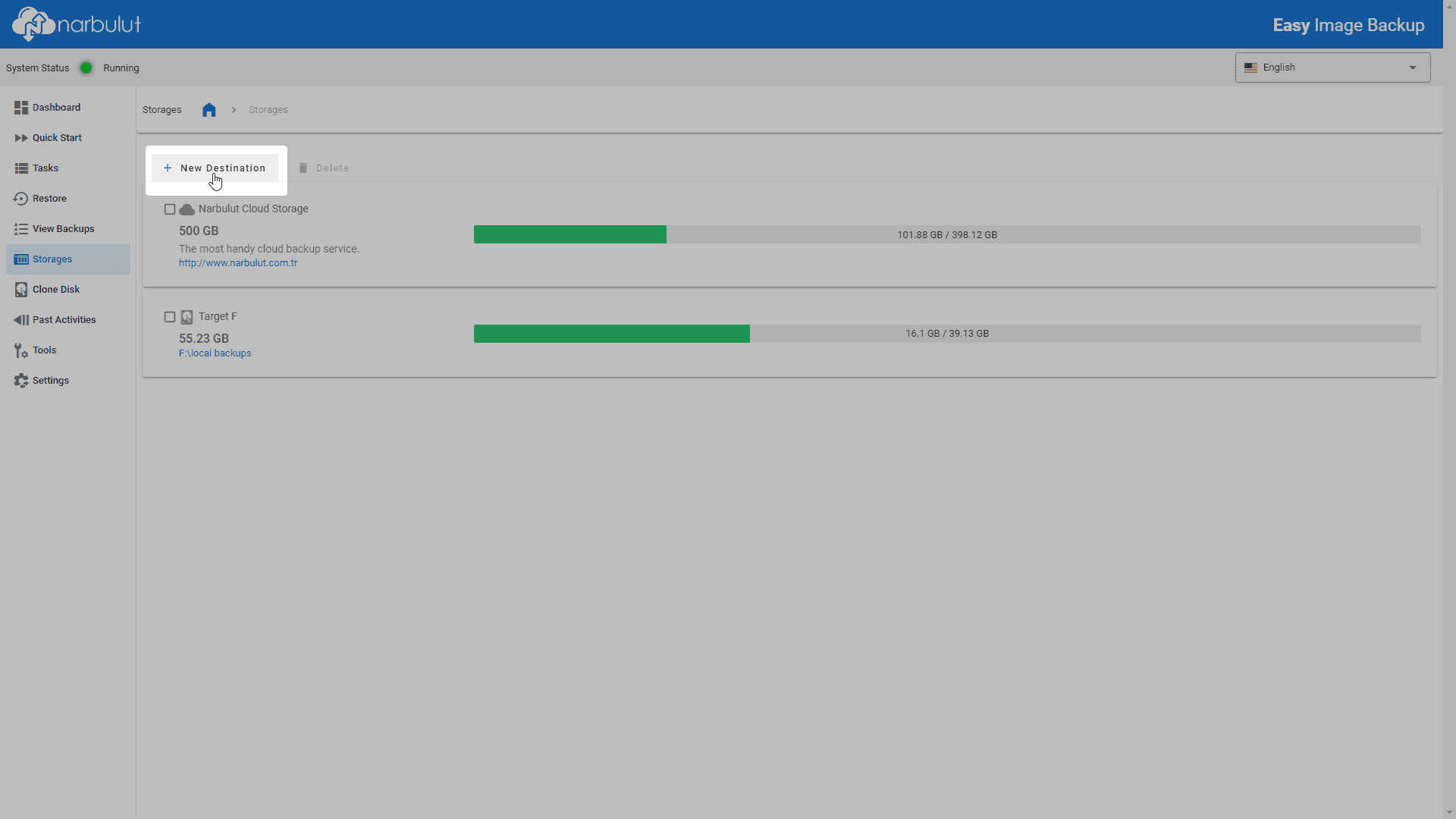
In this menu, you can create storage areas where your backups will be stored and manage existing storage areas.
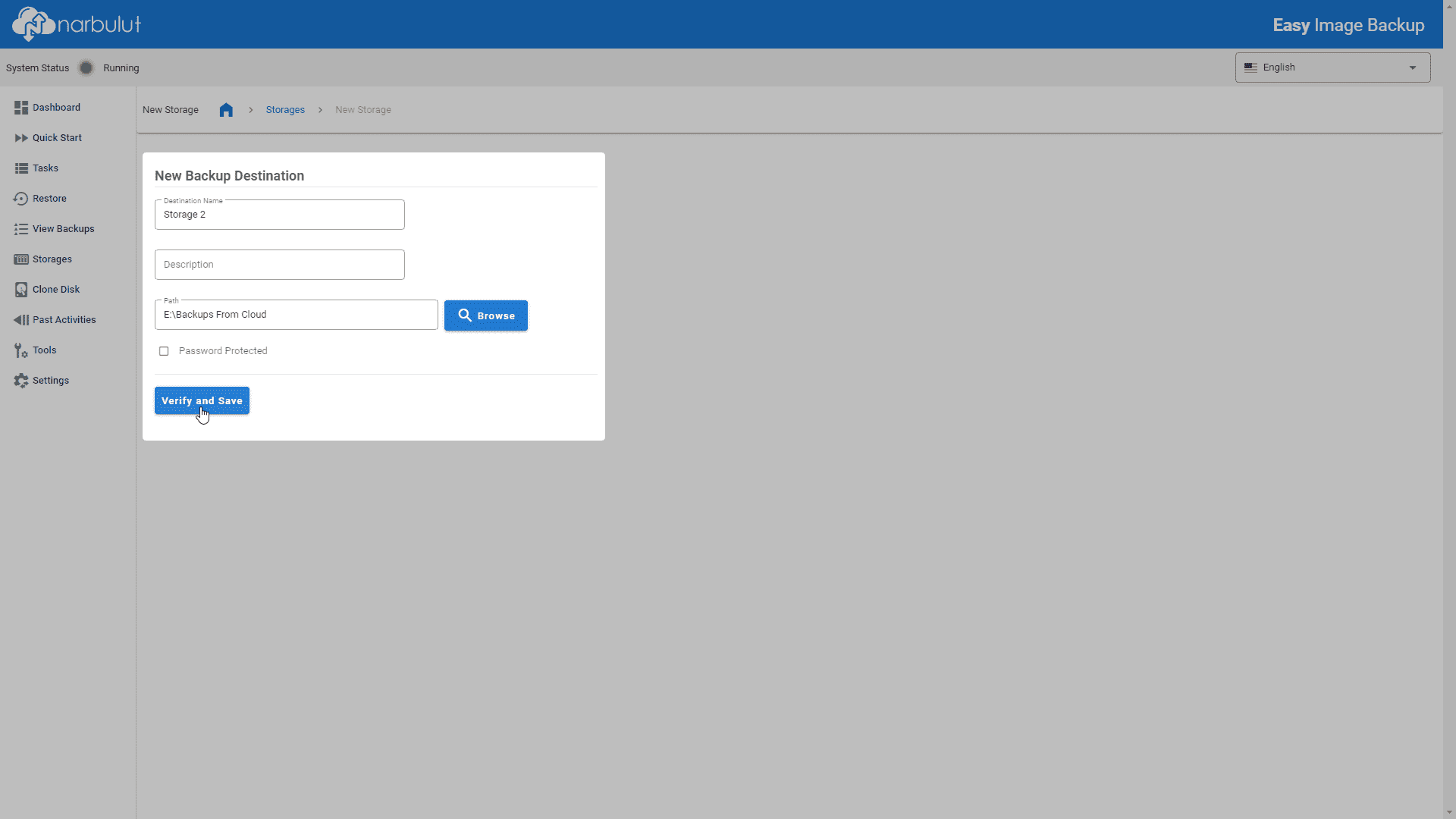
Use the Add New Destination button to add a new storage area.
Add New Target
Add Menu
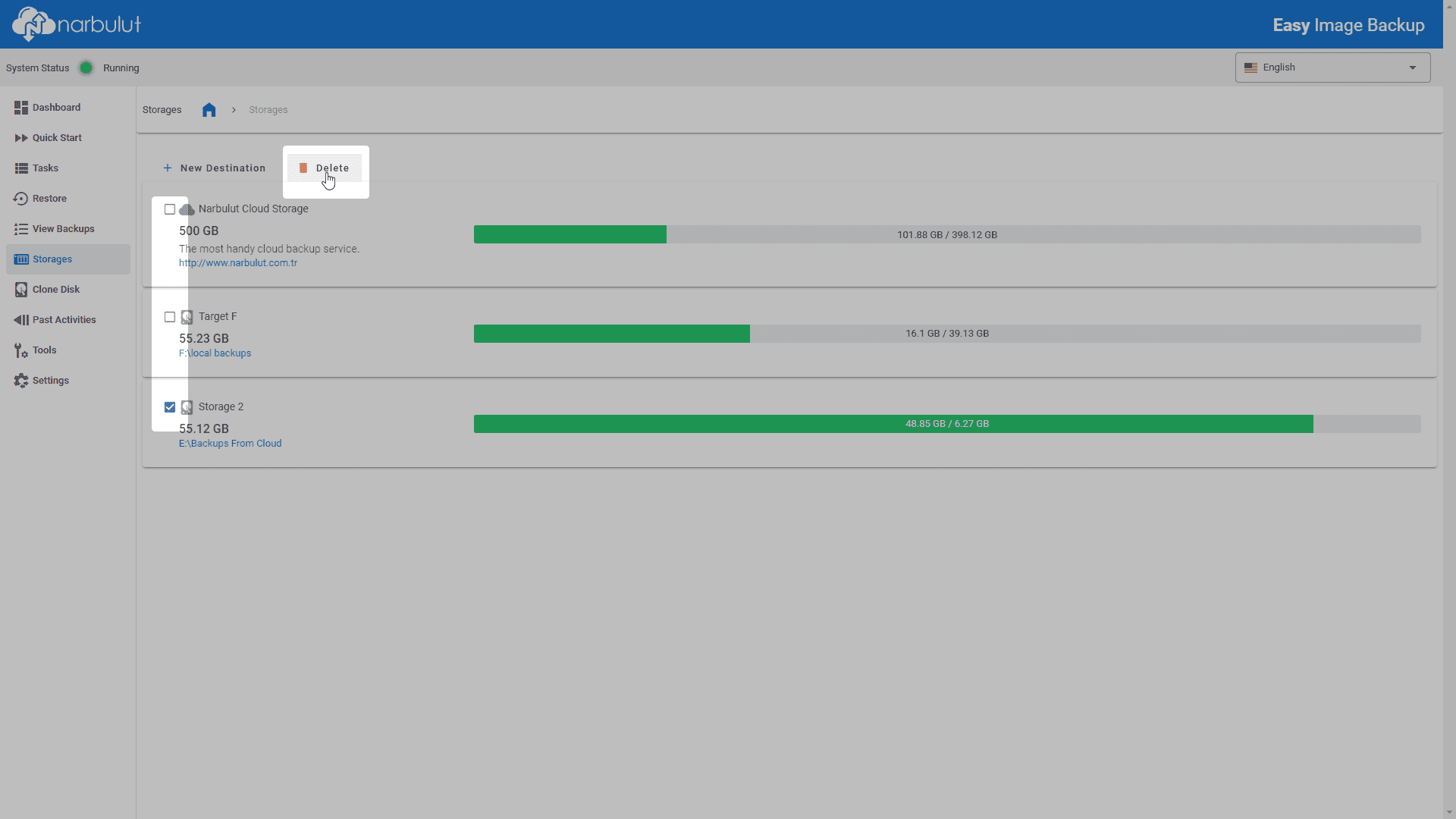
To delete storage areas, select the storage areas and click the Delete button.
Deletion

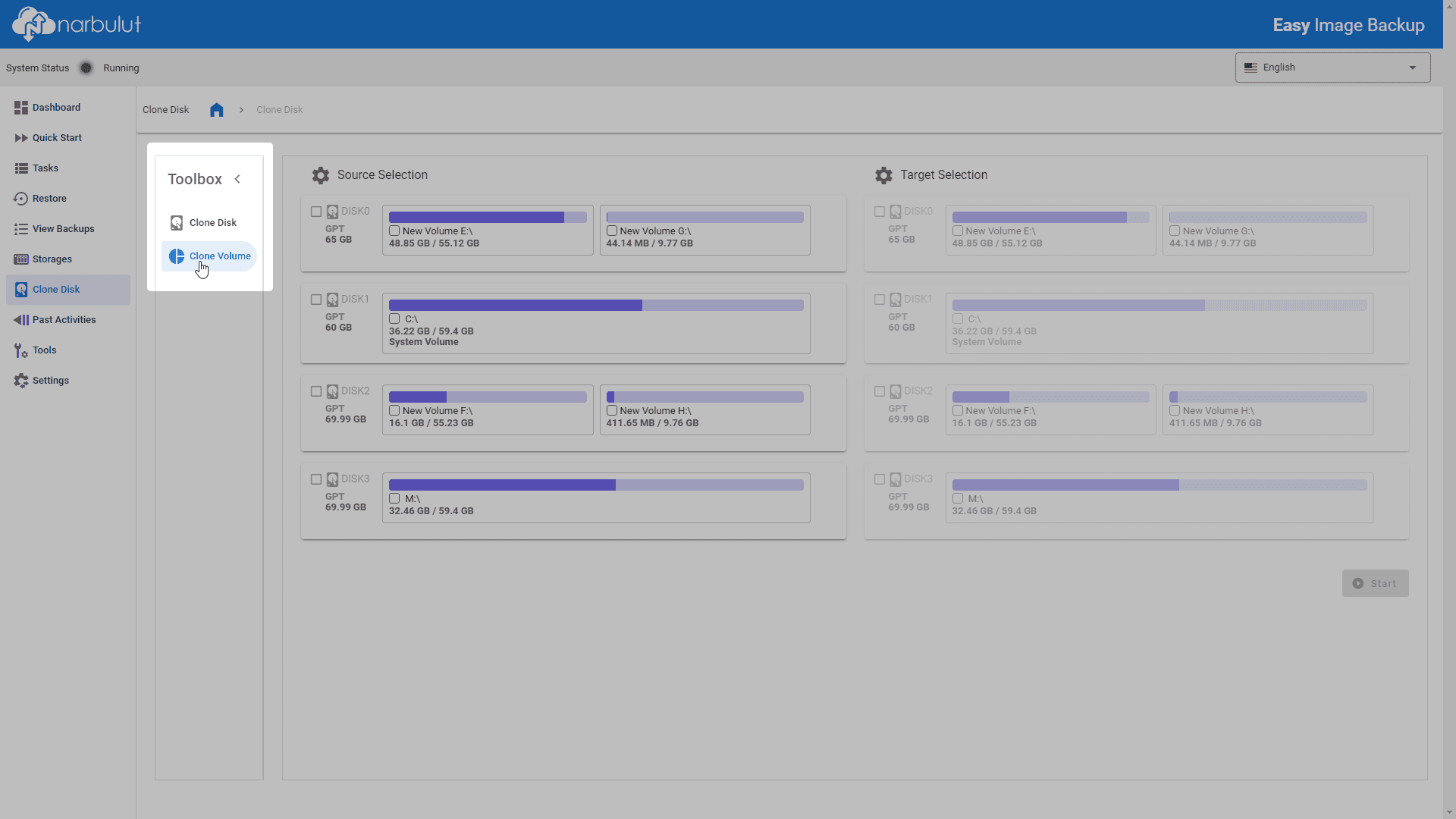
Disk Cloning

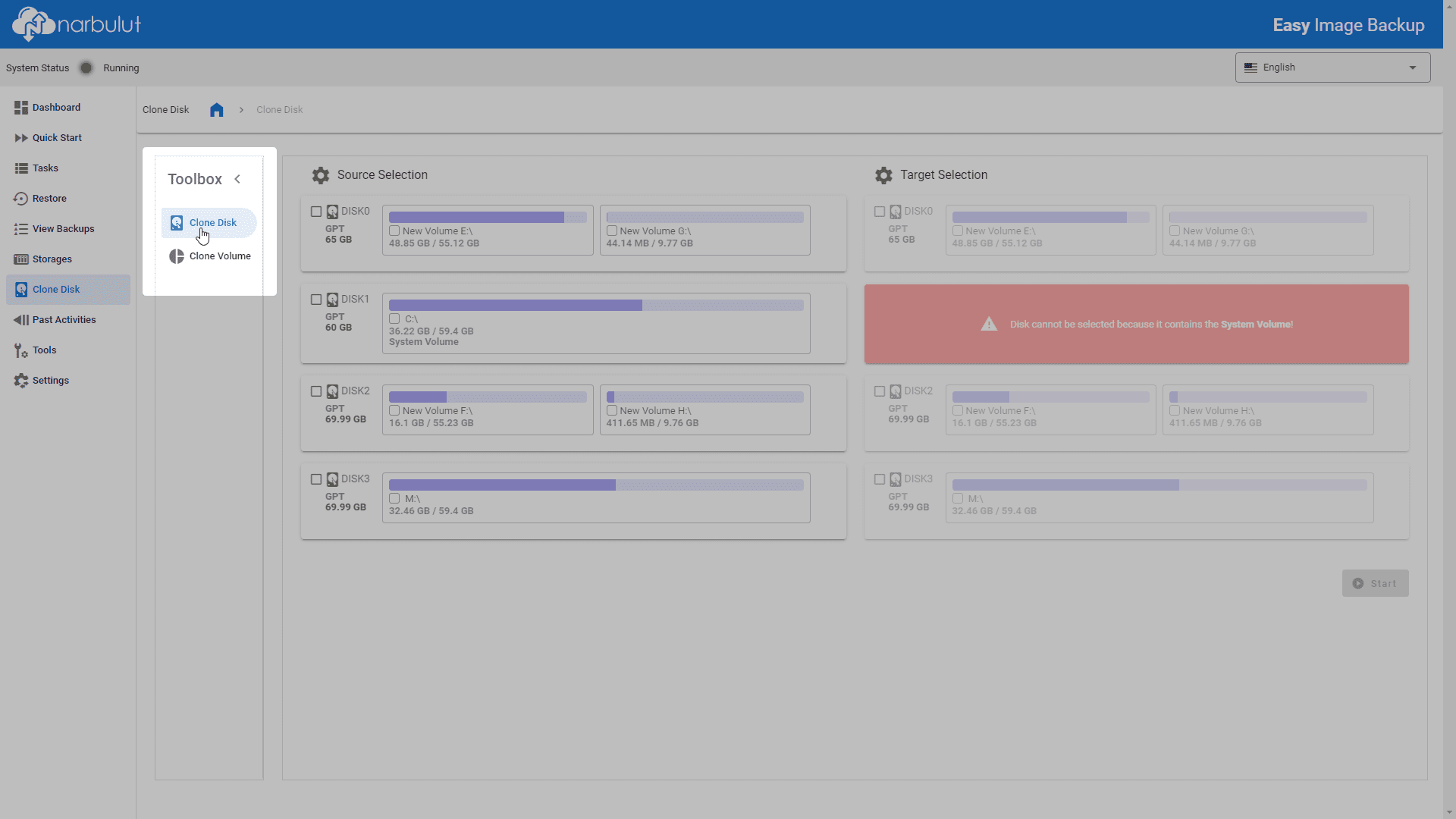
You can perform disk and volume cloning operations in this menu.

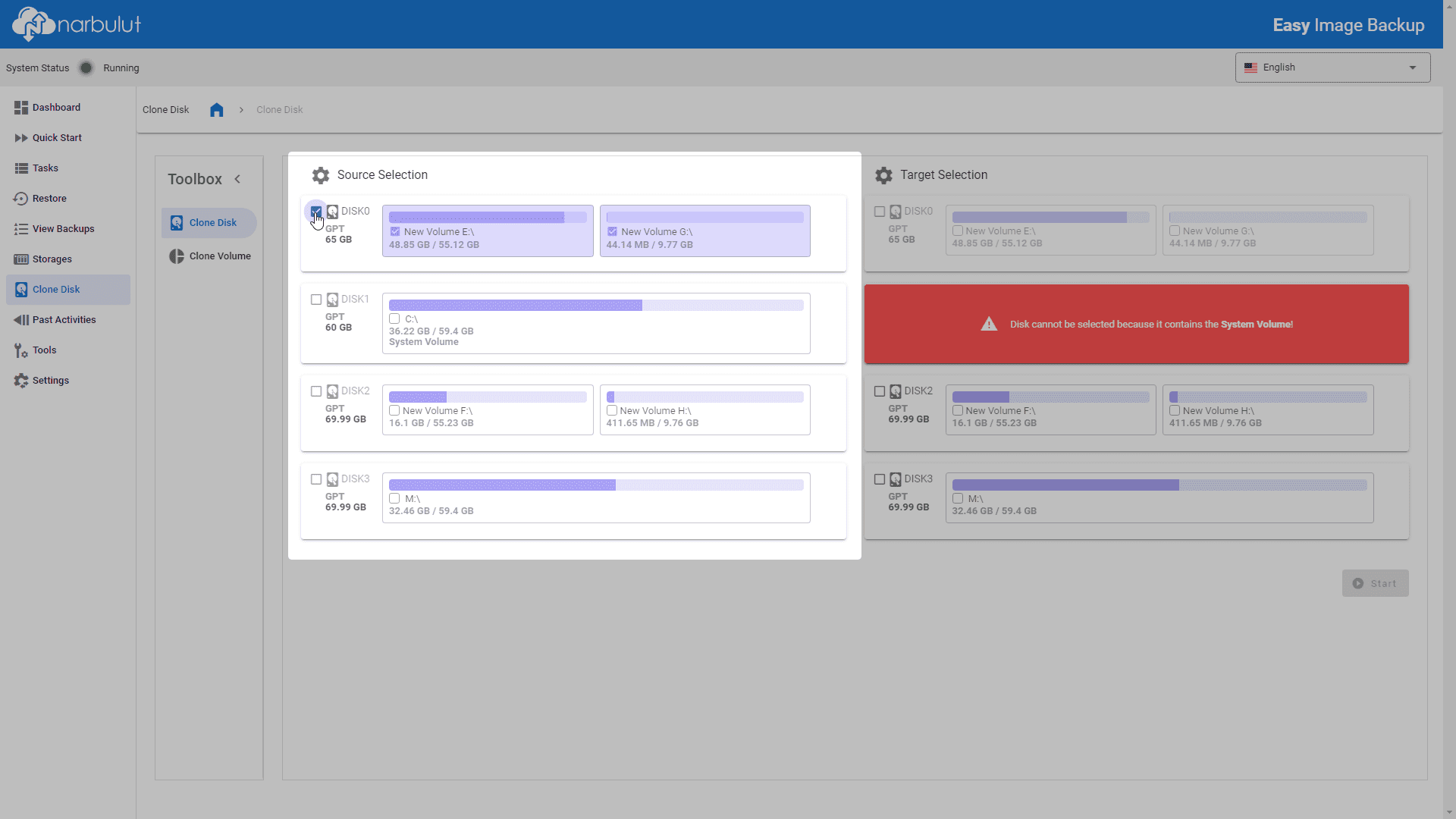
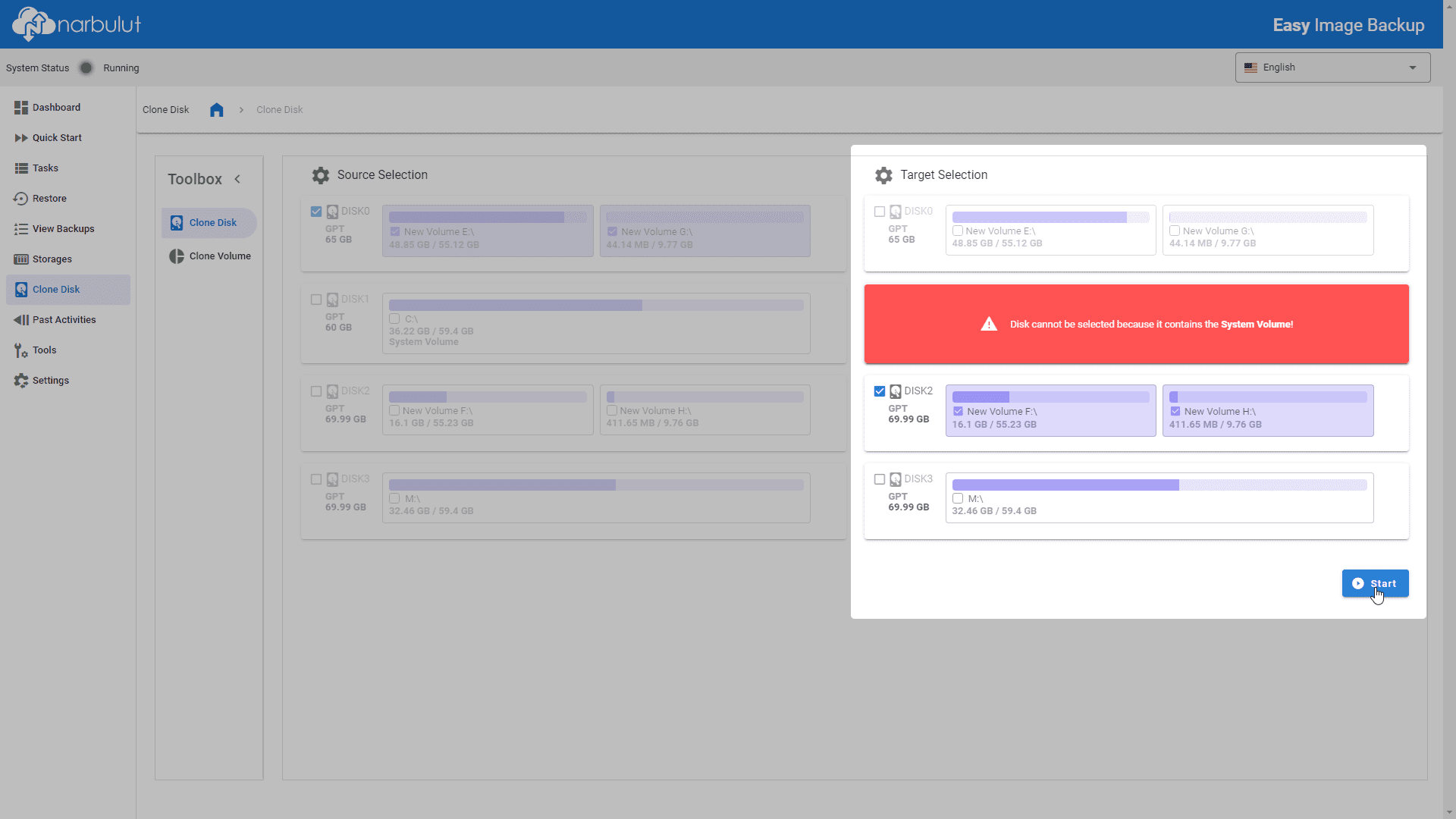
Disk Klonlama — In the toolbox, select Disk Cloning.

Disk Cloning
Source Selection
Target Selection

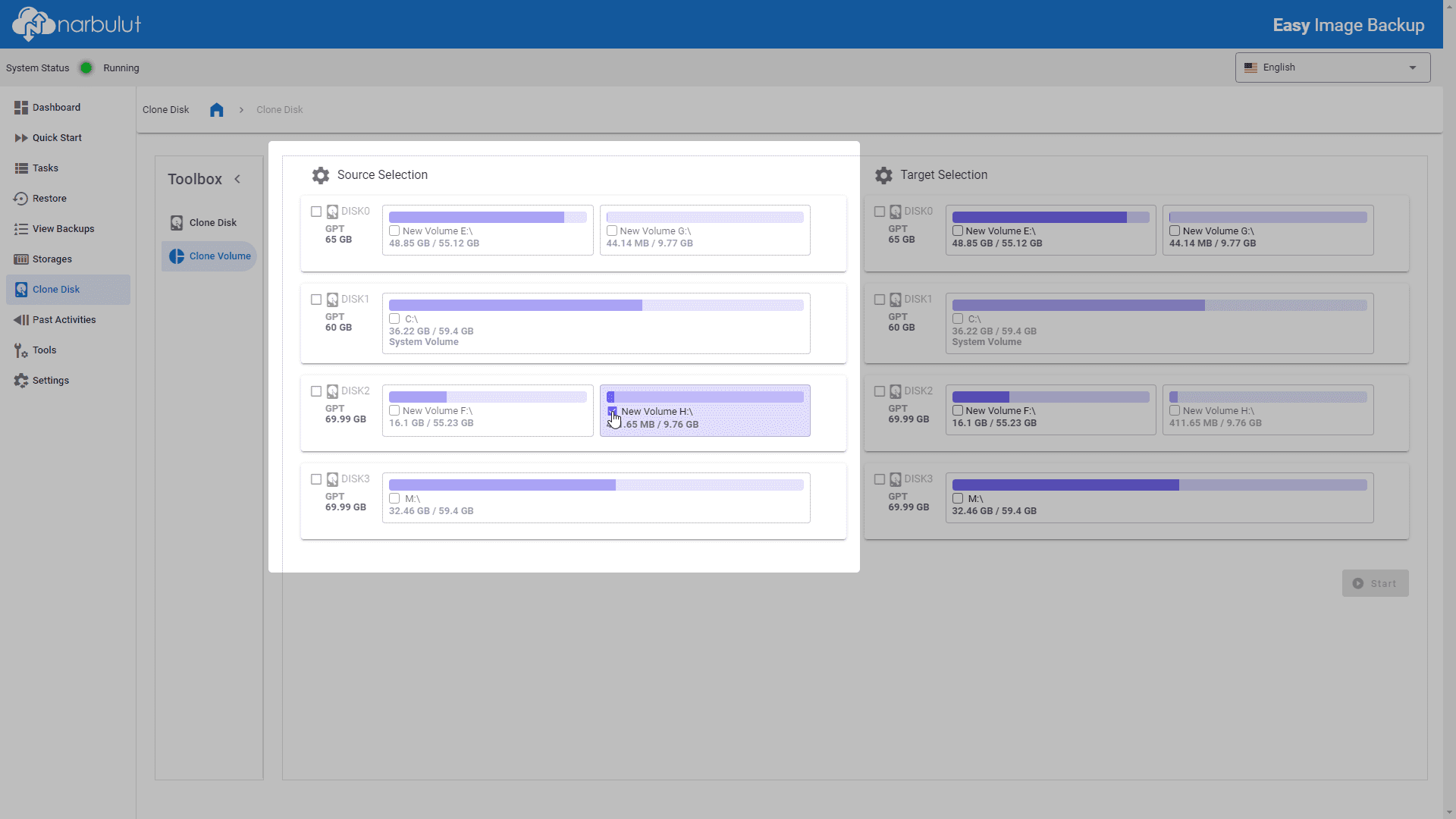
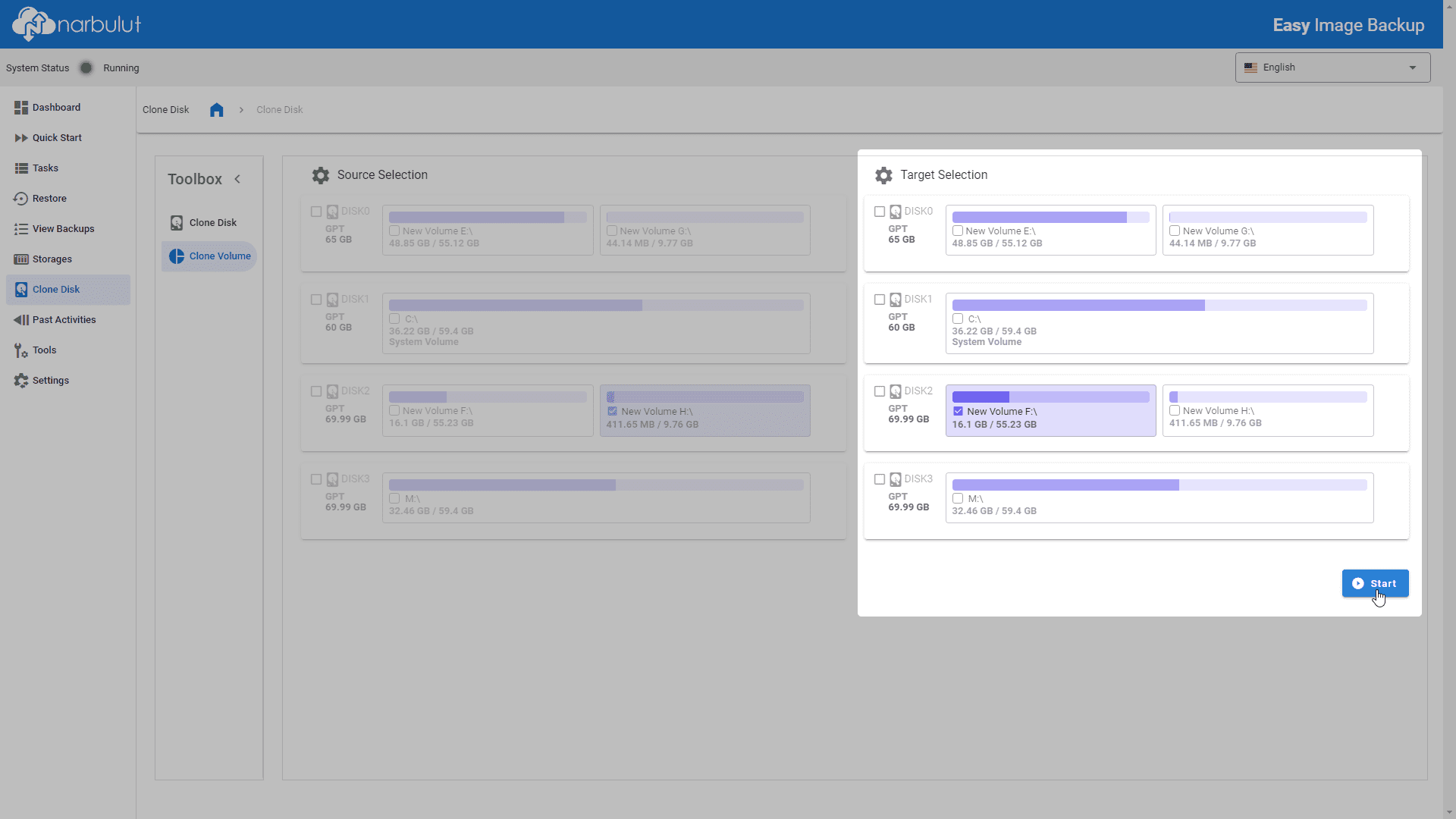
Volume Klonlama — In the toolbox, select Volume Clone.

Volume Cloning
Volume Source
Volume Target

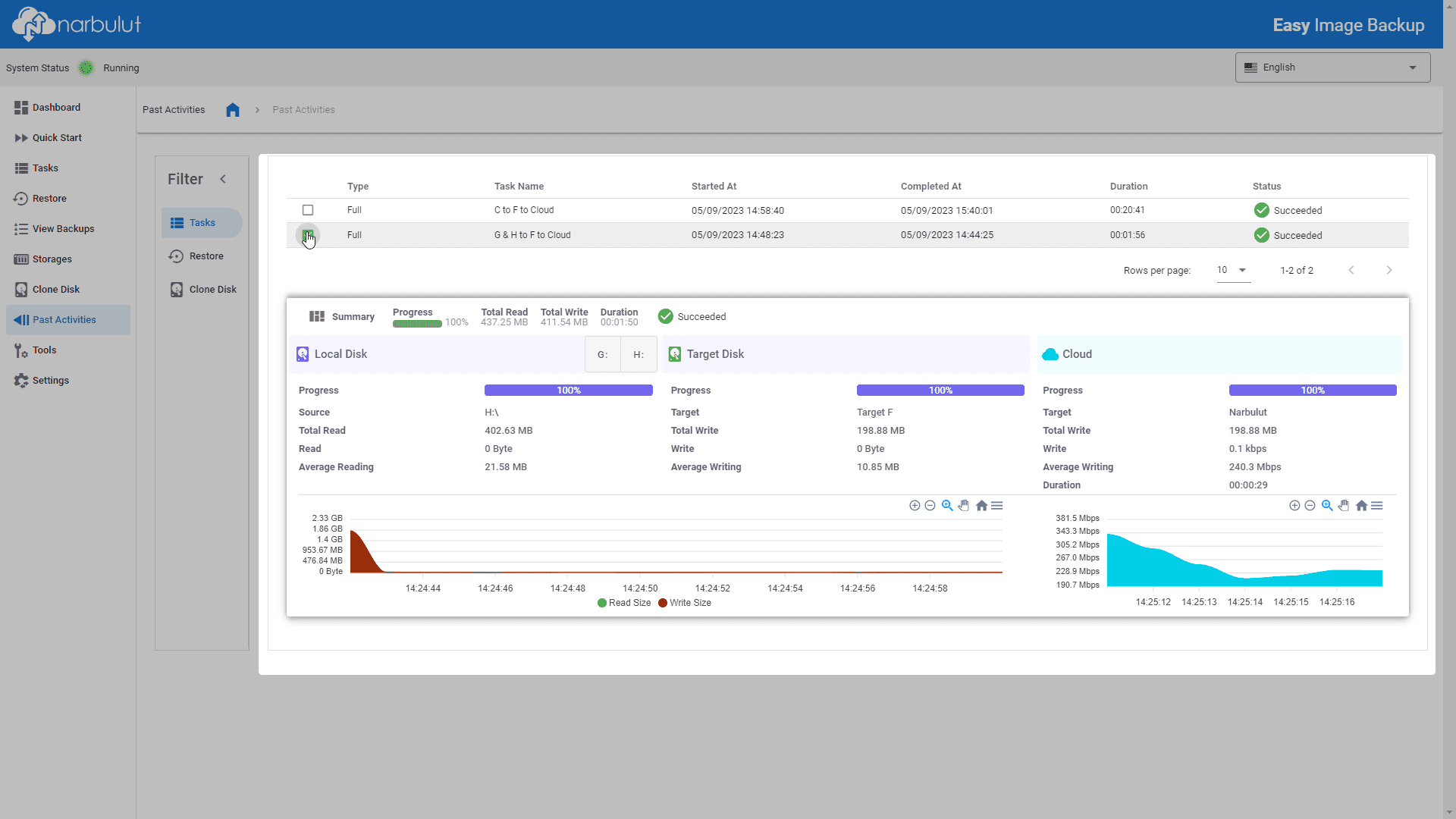
Past Activities

In this menu you can find information about past backup tasks, restores and disk/volume cloning operations. You can switch between menus using the Filter tab.
Past Activities

tools

This menu contains useful tools that help you create a startup disk and allow you to check your backups.

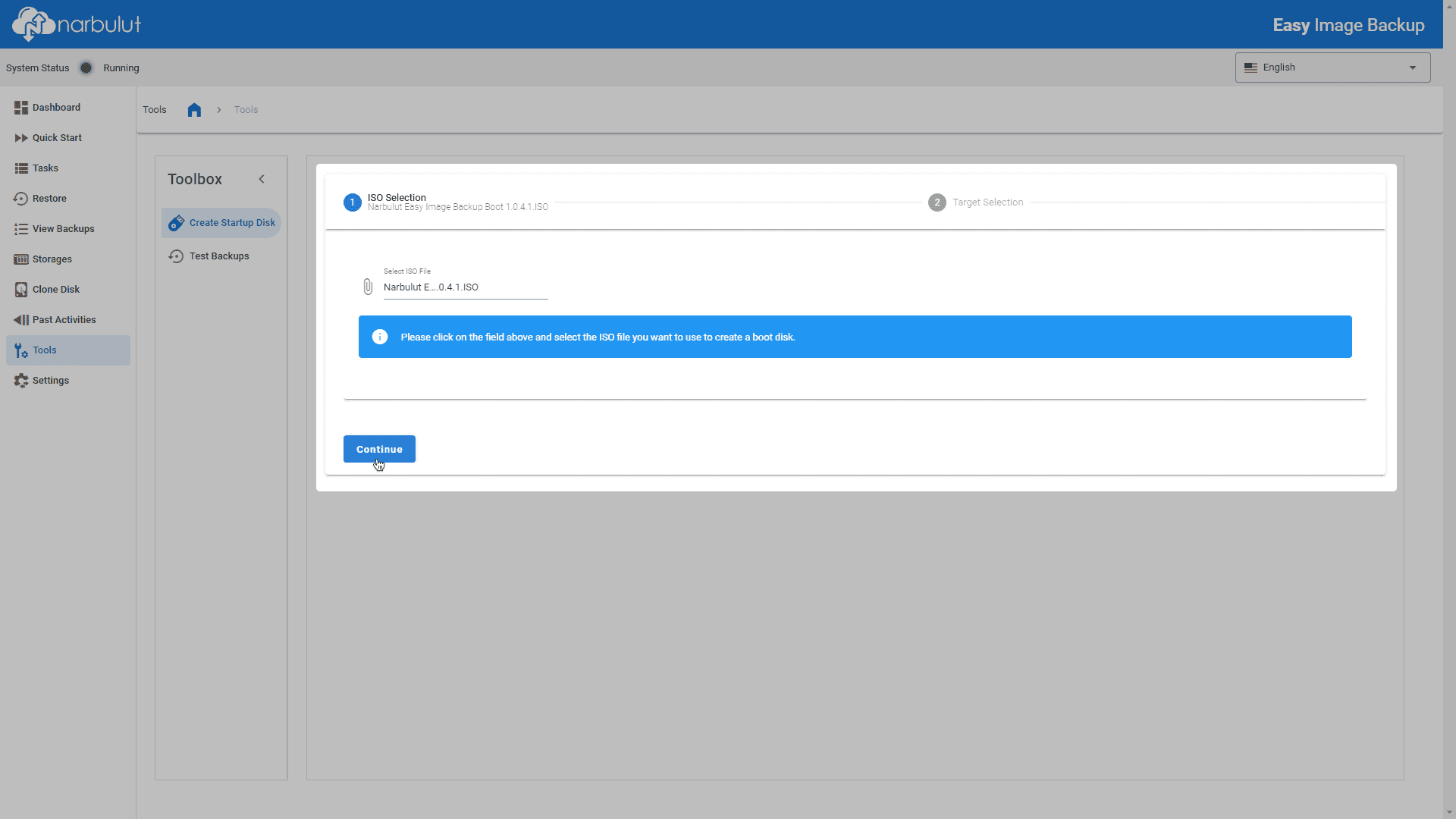
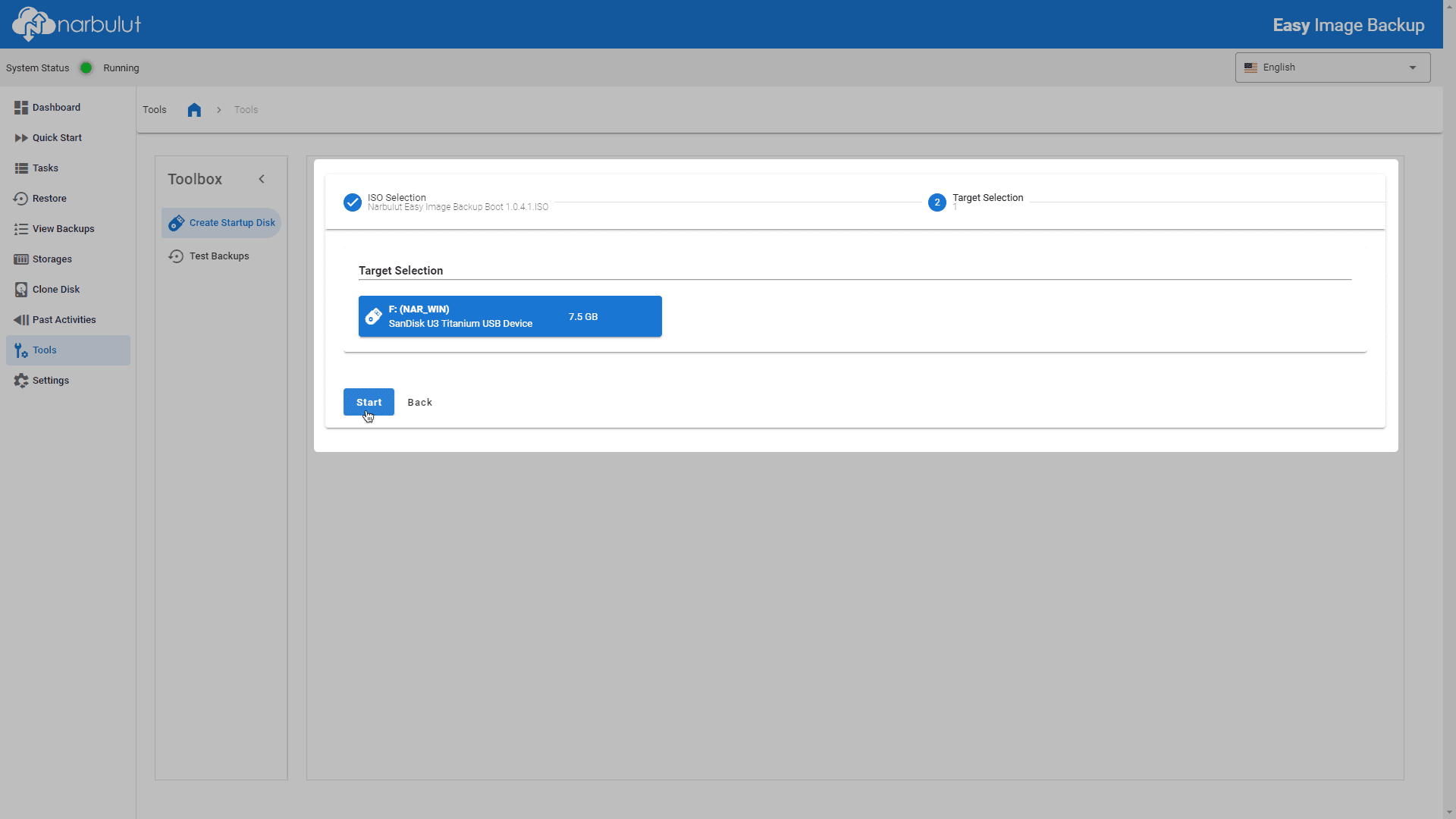
Create Starter Disc — You can turn your USB memory into a bootable disk by using a source ISO file.

ISO Selection
Target Selection

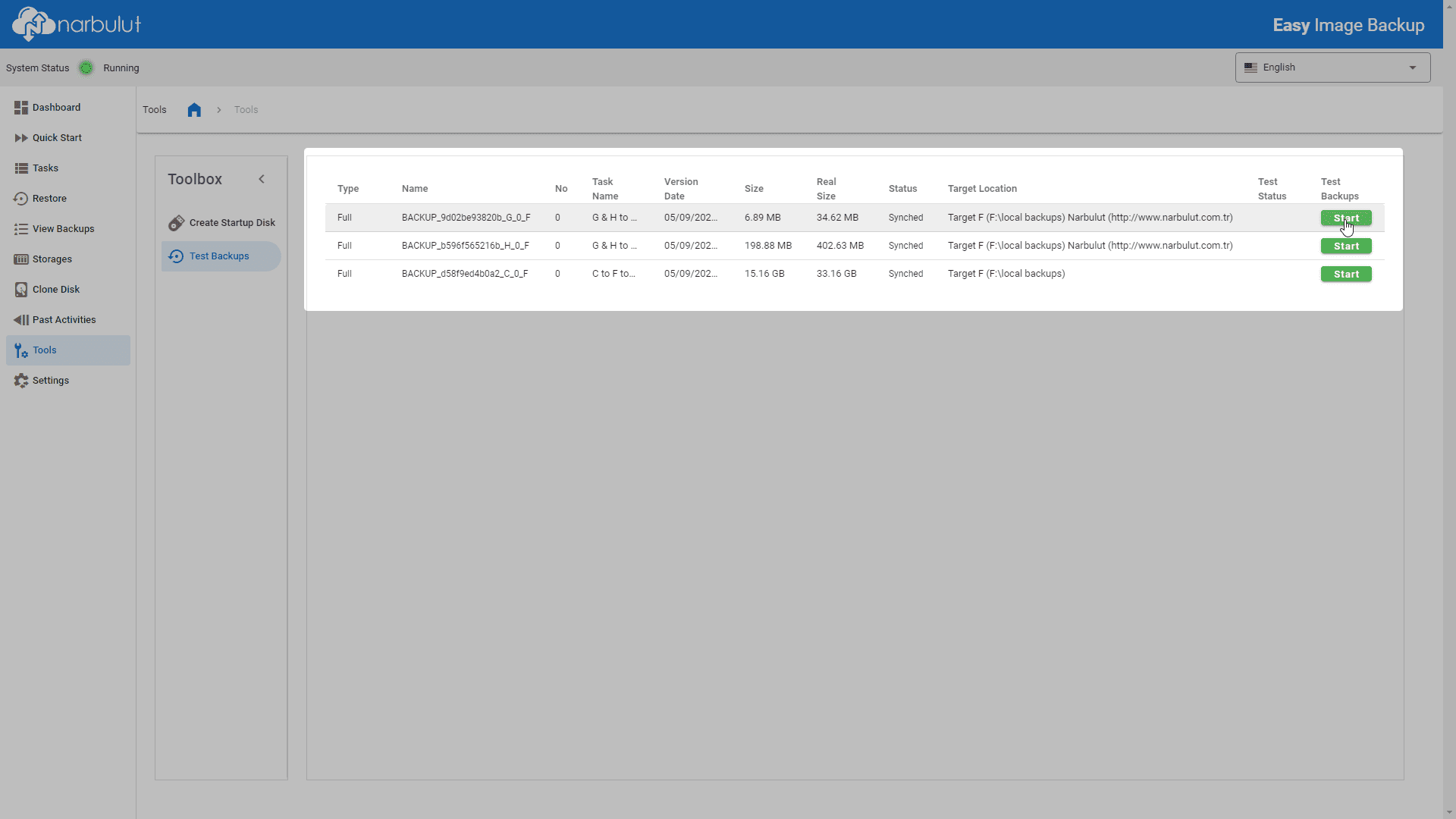
Test Backup — You can test whether the backups you have taken to local areas/network areas are restorable.

Test Backup

Settings

In this menu, you can find data such as user and license information, quota usage information and application version information, and perform operations such as logging out and changing password.
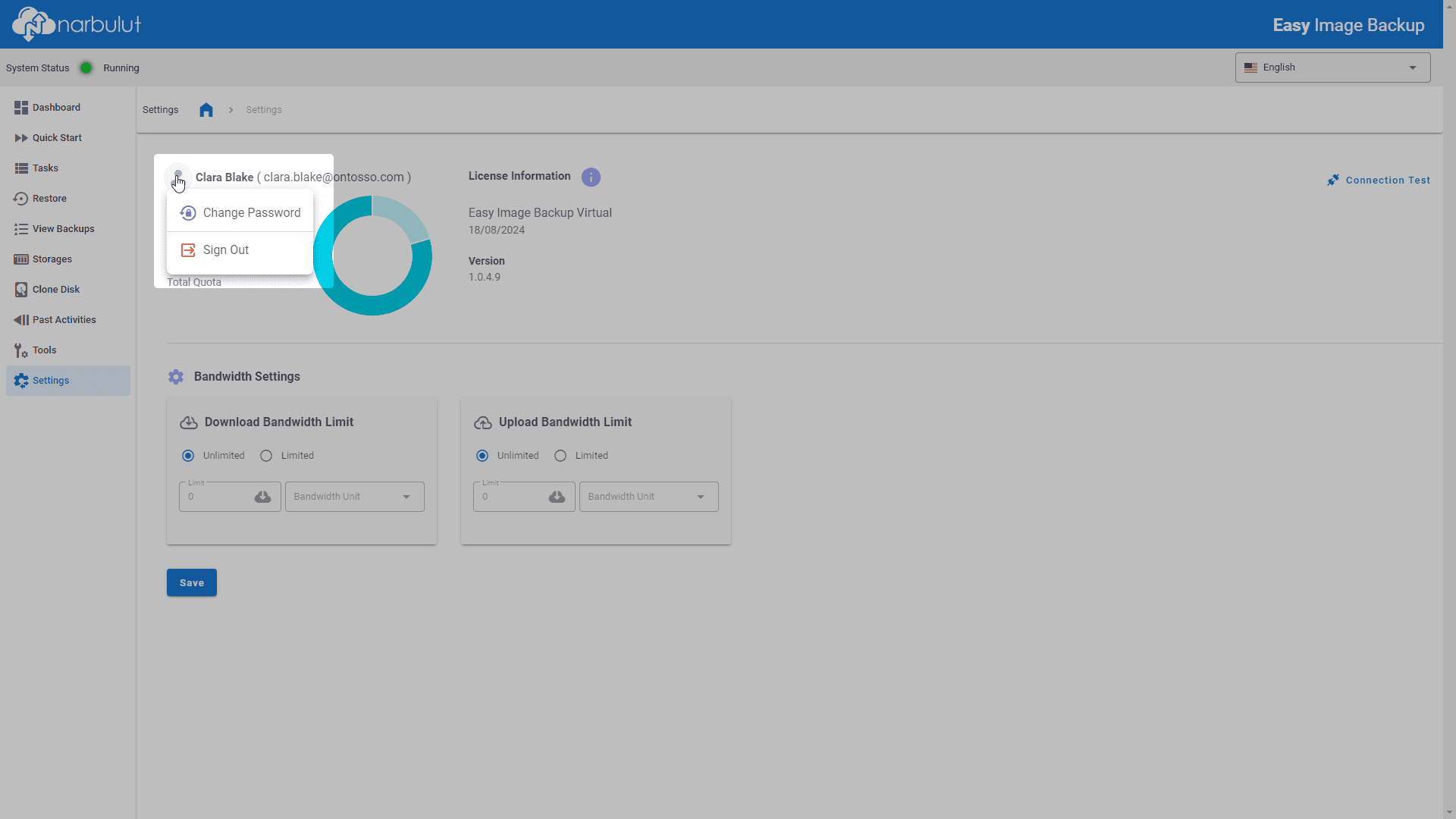
You can log out and change your password by clicking on the profile icon.
Logout / Change Password
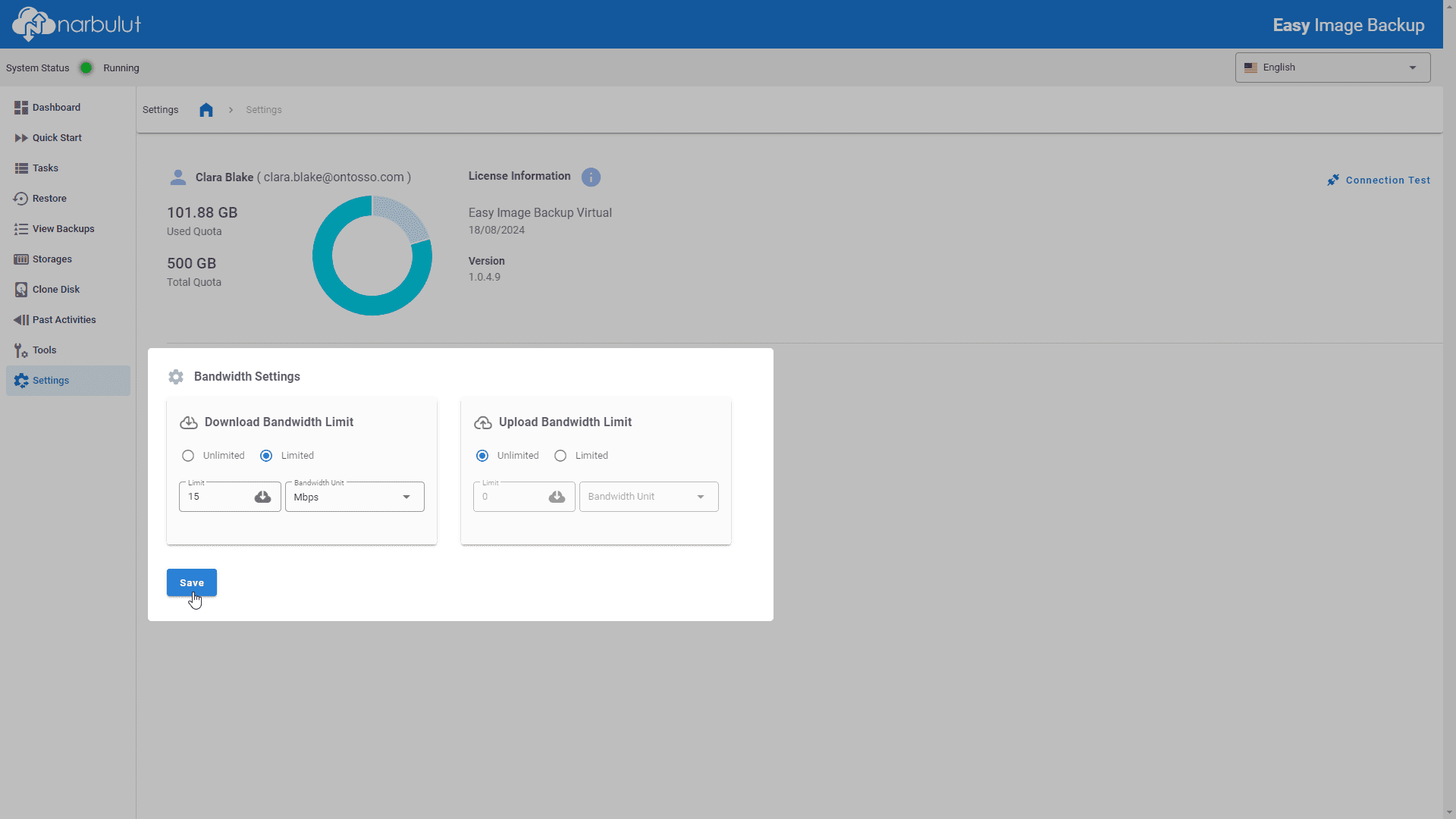
You can limit the bandwidth of the application from the Download Speed ​​and Upload Speed ​​sections.
Bandwidth
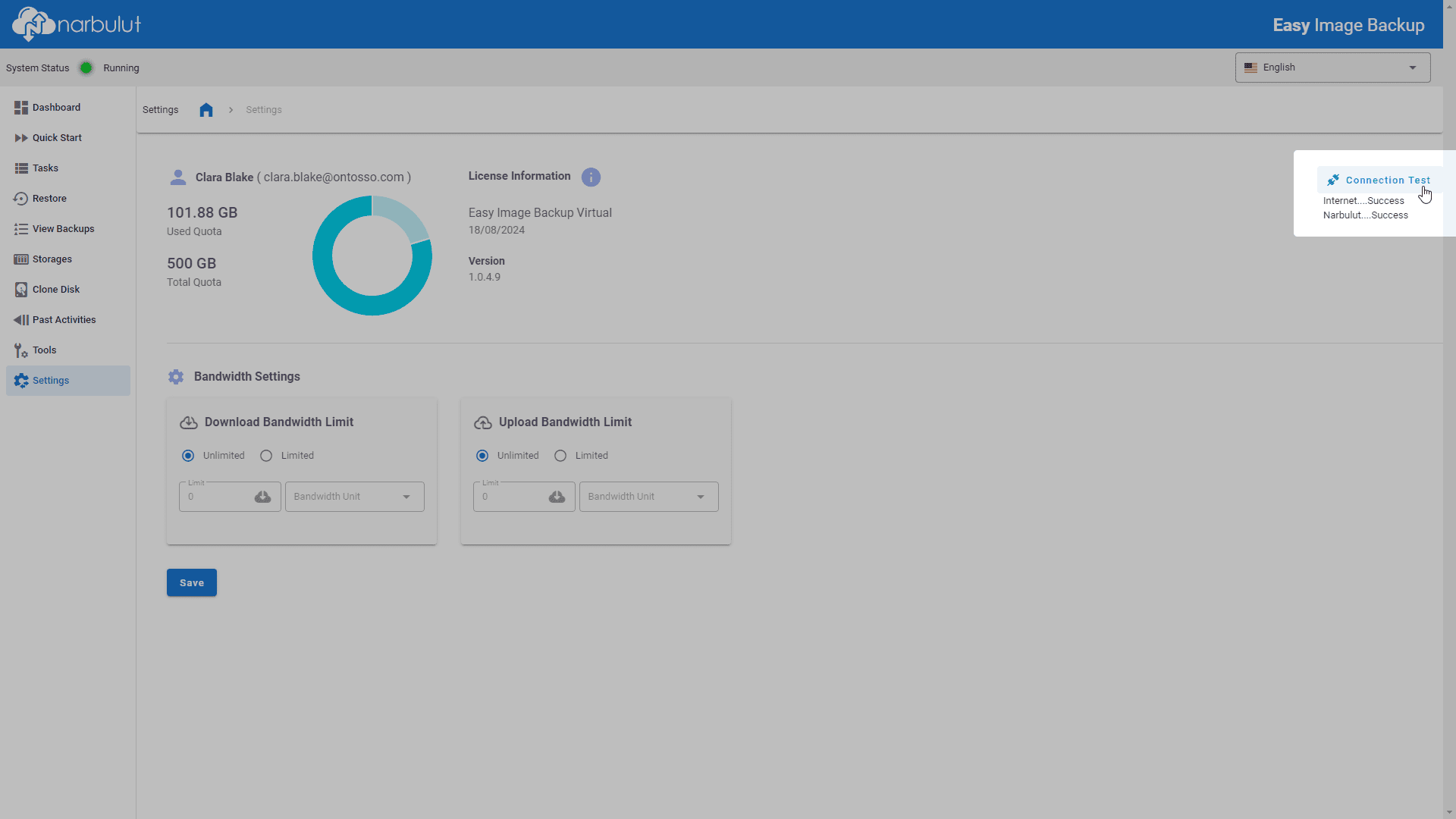
You can test the connections of Narbulut Easy Image application to the internet and Narbulut Cloud.

Connection Test

Narbulut Product Analysis

Step 1/12
What area of technological improvement are you planning for your company?
Data Security & BackupRansomware, deleted files and disaster recovery.
Cloud Server (IaaS)Website, ERP, CRM or application hosting.
Team CollaborationSecure file sharing and remote work.
Object Storage (S3)Object Storage for developers.
What industry does your company operate in?
Healthcare / MedicalPatient data (GDPR critical).
Finance / AccountingSensitive financial data.
Manufacturing / EngineeringCAD drawings and production plans.
Other / General ServicesOffice documents and general data.
What type of devices need to be protected?
Employee ComputersLaptop and desktop end-user devices.
Physical / Virtual ServersDatabase, Active Directory or File Server.
What should your backup strategy be?
File & Folder BasedOnly important business files (XLS, PDF, SQL) should be backed up.
Full Disk ImageBack up "Everything" including the operating system.
What is your upload speed for cloud backup?
Fiber / High SpeedI can send large data quickly.
Standard / ADSLMy speed is limited, compression is important.
Is ransomware a threat?
Yes, Very CriticalWe have experienced it before or are at risk.
Standard Protection is SufficientBasic backup measures are enough.
How long would you like to keep versions?
90
30 - 90 DaysTo fix recent errors.
365+
1 Year and AboveLegal requirements or archiving.
What will be the primary purpose of the server?
E-Commerce / WebsiteHigh uptime and speed required.
ERP / Accounting SoftwareDatabase performance is important.
Software DevelopmentFlexible resource management.
What infrastructure do you need?
Windows ServerASP.NET, MSSQL, RDP.
Linux (Ubuntu/CentOS)PHP, Python, MySQL, Docker.
What is the estimated user traffic?
Low / MediumEntry level or new project.
High TrafficHeavy campaigns or many users.
Who will manage the server?
I Will Manage ItI have a technical team, root access is enough.
I Need SupportManaged Services required.
How many people will work in the shared workspace?
1 - 10 UsersSmall teams.
10 - 50+ UsersDepartment-based permissions required.
Is remote access required?
Yes, DefinitelyField team needs to upload files from mobile.
No, Office OnlyAccess only from company computers.
Analyzing Your Responses...
BEST SOLUTION FOR YOU

Product Title

Description

Explore Product Now

Product Information Request

Fill out the form so our solution experts can contact you.

Size uygun Narbulut Cloud Server planlarına göz atın

Narbulut Cloud Server ile ihtiyaçlarınıza en uygun sunucuları yapılandırın.

    SUNUCU TEKLİF & YAPILANDIRMA FORMU

    1. KURUMSAL KİMLİK & İLETİŞİM
    2. TEKNİK GEREKSİNİMLER
    3. LİSANS YÖNETİMİ

    Check out Narbulut Cloud Server plans that suit you

    Configure the servers that best fit your needs with Narbulut Cloud Server.

      SERVER QUOTE & CONFIGURATION FORM

      1. CORPORATE IDENTITY & CONTACT
      2. TECHNICAL REQUIREMENTS
      3. LICENSE MANAGEMENT

      Narbulut Mobile’ı İndirin

      Uygulamayı indirmek istediğiniz platformu seçin

      Download Narbulut Mobile

      Select the platform you want to download the app

      ×