
- Company
-
Products
Products
New ProductCloud Server
Fully managed virtual server infrastructure. Setup in minutes, hourly billing and 24/7 expert support so you can focus on your business.
Try Now -
Solutions
Backup & Security
Data SecurityRansomware & encryptionCloud BackupSecure backup to data centersImage BackupFull disk image + fast recoveryOff-Site BackupOff-site disaster recoveryMobile BackupiOS & Android photos/contactsRansomware ProtectionAgainst ransomware attacksTwo-Factor Auth2FA account security - Plans
- Resources
- Partners
- Blog
What Is a Drive? How Does It Work?
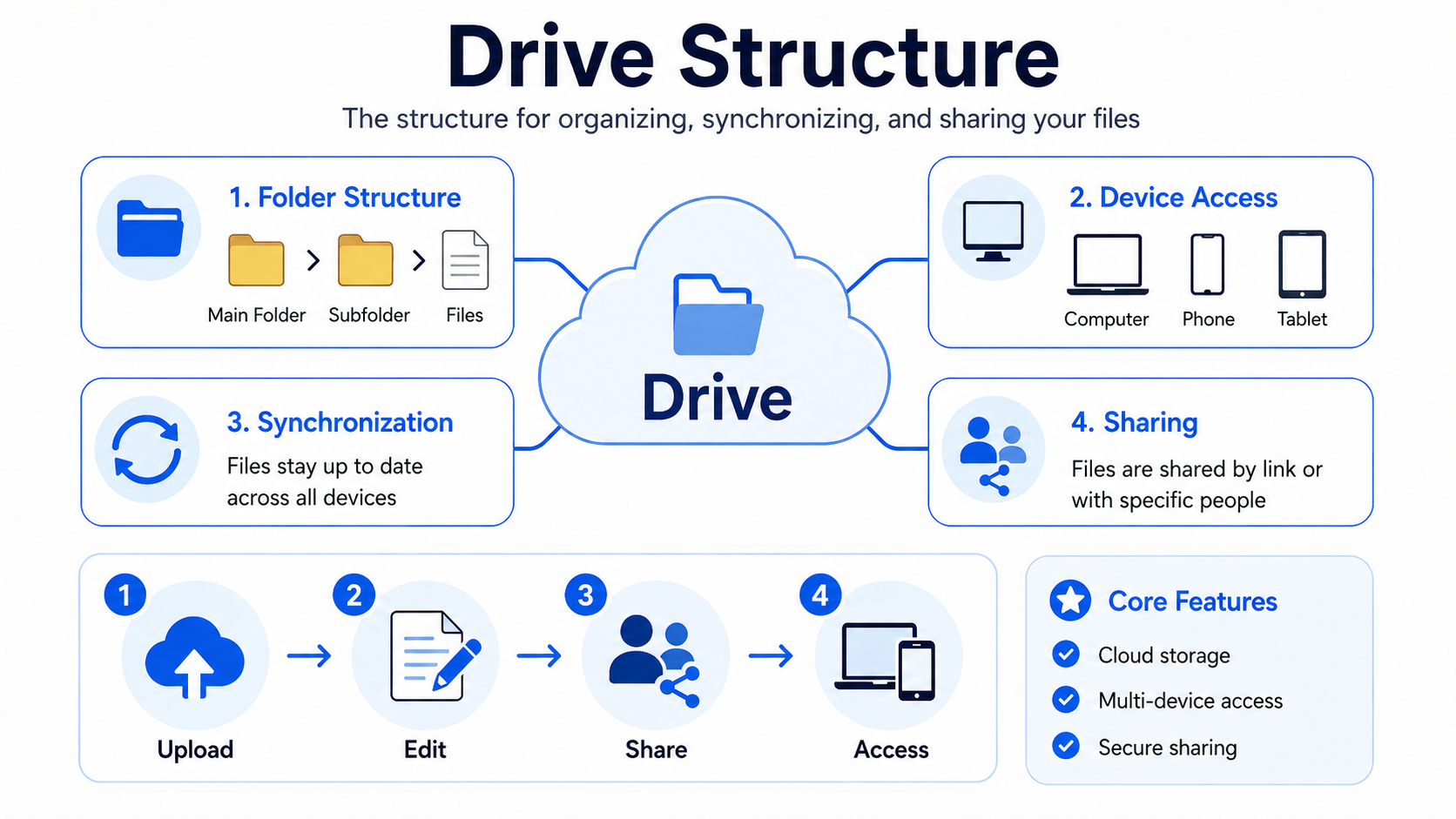
Preparing a file on the office computer and continuing it from your laptop at home, reaching a photo you took with your phone from your computer, everyone seeing the most up-to-date version of a team file at the same time… Behind all of this lies a single concept: the Drive. At the core of a Drive is synchronization that keeps your files continuously up to date across all your devices.
In this article, we explain step by step what a Drive is, how synchronization works, what types of synchronization exist, and what this technology gives us in everyday life.
What Is a Drive?
A Drive (cloud drive) is a service that stores your files and folders in a space accessible over the internet and automatically keeps these files up to date across all your connected devices. It establishes a live link between a folder on your computer and the space in the cloud; while you keep working, the Drive constantly keeps these two sides aligned in the background.
In its simplest form, you can think of a Drive as “a folder that is connected to the internet, can be opened from any device, and keeps itself up to date.” When you change a file on your computer, that change appears on your phone and your other devices within a few seconds. The technology that provides this liveness is called synchronization.
How Does a Drive Work? (The Heart of Synchronization)
At the heart of a Drive is a synchronization engine (sync engine). This engine continuously watches the synced folder on your computer; when a file is added, changed, or deleted, it detects this instantly and carries the change to the cloud. At the same time, it downloads changes that happen in the cloud to your device. This two-directional flow is called two-way synchronization.
Types of Synchronization
Not every Drive synchronizes the same way; there are different types depending on the need:
- Two-way synchronization: The most common type. No matter which device a change is made on, it is reflected on both sides; this is the behavior you see in everyday use.
- One-way synchronization: Changes flow in only one direction (for example, from computer to cloud). Used when you want to mirror a specific folder to the cloud only.
- Selective synchronization: You sync only the folders you choose, not everything. This way you don’t have to download an entire large cloud space to your disk.
- Files on-demand / placeholders: Files appear on your computer only as “placeholders” and take up no disk space; when you double-click, they are downloaded at that moment. This way you can access a large number of files without downloading them all.
Conflicts and Version History
What happens if you edit the same file on two different devices while both are offline? The Drive recognizes this as a conflict. Most services try to determine which change is newer by looking at timestamps; when they can’t be sure, they keep the second version as a separate copy so that no change is lost. This way both versions remain in your hands, and you decide which one to keep.
Most Drives also keep a version history: they store the previous states of a file. When you accidentally change content, or want to return to an earlier state after a conflict, you can select and restore the version from the relevant date in the version history. This feature is especially convenient for teams where multiple people work on the same file.
Benefits of a Drive and Who Is It For?
The most visible benefit a Drive provides is freedom of access: your files are not locked to a single device; they can be reached from anywhere with an internet connection. Thanks to synchronization, there is a single, up-to-date copy on every device; the “which one was the latest version?” confusion disappears. With shared folders and sharing, teams work together on the same files in an organized way. And with the files-on-demand feature, you access a large number of files without having to keep them all on disk, saving disk space.
With these aspects, a Drive is suitable for a wide audience — from individual users who want to access their files from anywhere, to teams that want to keep their shared files organized and up to date, to remote and hybrid teams working without interruption from outside the office.
For those who want to combine this flexibility of working in the cloud with a local and secure infrastructure, Narbulut Drive is the right address. Your data is stored in a secure manner in data centers in Türkiye; two-way synchronization, selective synchronization, version history, and team sharing are offered on a single platform.
Narbulut Drive (nDocs Workspace)
A local, secure cloud workspace. Synchronization, selective sync, version history, team sharing, and authorization on a single platform.
