Narbulut Backup Now Installation Guide
Narbulut Backup Now is a modern, fast and manageable backup solution that enables corporate data to be backed up securely in the cloud. In this guide, the initial installation process of the Narbulut Backup Now application is explained step by step.
Scope: This document relates only to the installation process. For usage instructions, review the Narbulut Backup Now Getting Started Guide document.
System Requirements
Before starting the installation, make sure your device meets the following minimum requirements:
Component Requirement:
Operating System: Windows 10, 11 or Windows Server 2016 and above (64-bit)
RAM: Minimum 2 GB, recommended 4 GB+
Disk Space: At least 500 MB free space
Internet Connection: Stable and constant connection
Note: In networks with proxy or firewall, make sure that the relevant connection permissions are open before installation.
Downloading the Setup File
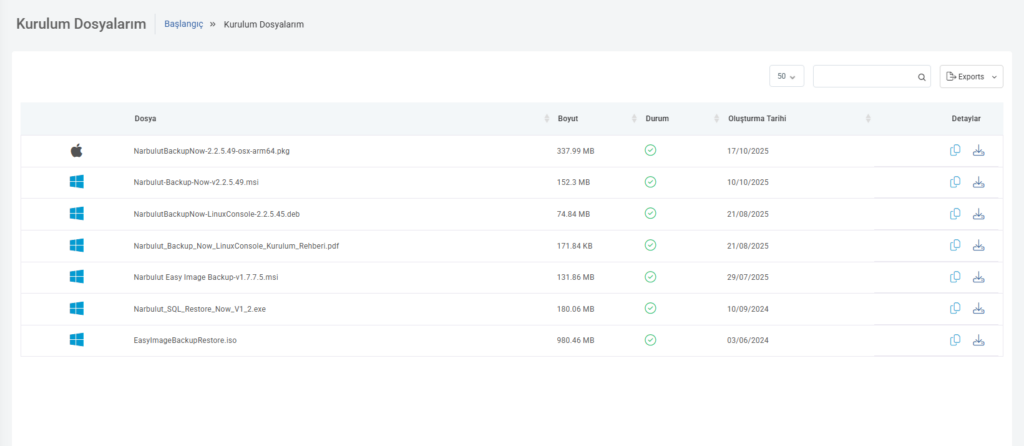
www.login.narbulut.comLog in with your user information.
- In the left menuMy Installation FilesClick the tab.
- Find the installation file suitable for your operating system.
- It can be downloaded by clicking the Download button to the right of the file, or you can copy the link to your clipboard to use in another environment with the Copy Download Link option.
Tip: It is recommended that your internet connection be uninterrupted while downloading the installation file. Otherwise, the file may be downloaded incompletely and an error may occur during installation.
Running the Setup File
you have downloadedNarbulutBackupNowSetup.exeRight-click the file and click Run as administrator.
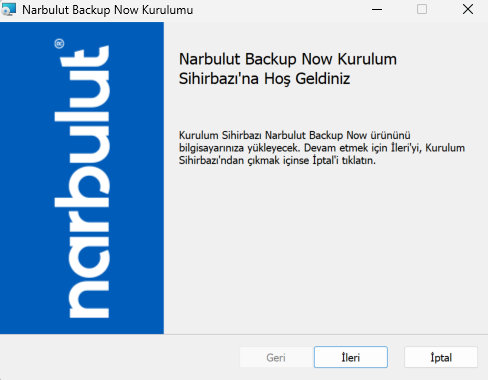
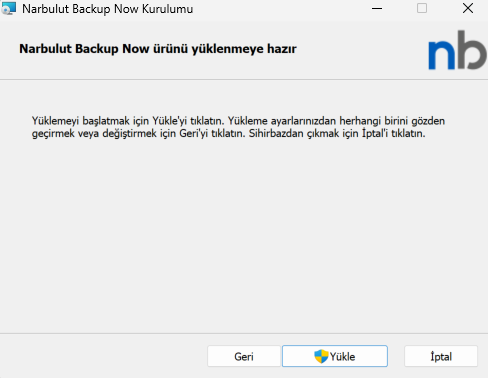
The first screen you see is titled Welcome to the Installation. Continue from here by clicking the “Next” button. Then the License Agreement screen opens. Read Narbulut License Terms and check the “I Accept” box. Click the “Install” button to continue the installation. The installation process may take several minutes. When the installation is completed, the following option will appear on the screen:
Run Narbulut Backup Now interface
When this option is selected, when you click the “Finish” button, the application will be launched automatically.
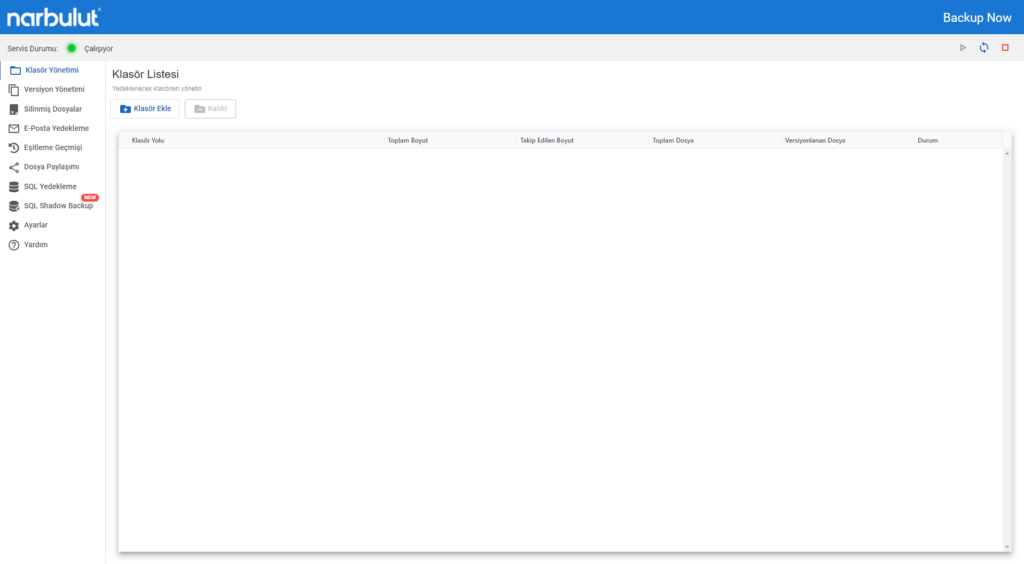
When the installation is completed, the first screen that opens is the Folder Management menu. Via this menu:
 Warning: Some software (e.g. antivirus) running on your system during installation may slow or block the installation.
If you experience problems, consider temporarily disabling these software.
 Recommendation: It is recommended to reboot your system after the installation is completed. Thus, the services start in the background without any errors.
Initial Login and Configuration
After the installation is completedNarbulut Backup NowWhen the application is launched for the first time, you will be greeted by the Login Screen.
Sign in by entering your email address and password. If you do not remember your password, you can send a reset e-mail with the Forgot My Password option. After logging in, the system checks whether it has been previously installed on your device:
- If this device has not been installed before, the system will automatically direct you to New Installation mode.
- If there is an existing configuration, the system will give you options such as “Continue” or “Reinstall”.
Term Explanation – Fresh Installation: It means that the application is installed for the first time and there is no backup configuration before.
When the installation is completed, the system starts the necessary services and directs you to the home screen.
Post-Installation Screens
When the installation is completed, the first screen that opens is the Folder Management menu. Via this menu:
- Define folders to back up
- Determine backup frequency
- Configure backup schedule and rules
You can also edit backup plans, excluded files and network connection settings from this screen.
Recommendation: It is recommended to reboot your system after the installation is completed. Thus, the services start in the background without any errors.
Frequently Asked Questions (FAQ)
The installation file does not work, what should I do?
Make sure you open the installation file with the “Run as administrator” option. Your antivirus software may be blocking the file.
I cannot log in to the application, why?
If the user information you enter is incorrect, the system will not allow login. Also make sure that the date-time settings of your device are correct.
What settings should I make after installation?
In the first stage, determine the folders to be backed up, then set the backup frequency as weekly/daily.
Do I need to enter a license after installation?
No. The system automatically identifies your license through your user login information.
I am on a proxy network, I am having connection problems.
Request your network administrator to define permissions to access the login.narbulut.com domain.
Which folders should I back up?
Make sure to include documents, desktop, accounting data and SQL backup folders. You can exclude video folders for unnecessary sizes.
Support and Contact
For technical support on installation, feel free to contact us:
support@narbulut.com
www.narbulut.com
Was this page helpful?
Yes No