narbulut

Narbulut ECS Virtual Machine (VM) Creation Guide

Table of Contents
1. Prerequisites
2. Accessing the Virtual Machines Page
3. Step 1: Resources
4. Step 2: Configuration
5. Step 3: Basics
6. Step 4: Confirm
7. After VM Creation
8. Recommended Configurations

1. Prerequisites

Before creating a virtual machine, make sure the following requirements are met:

  • A user account with access to the ECS platform
  • At least one Image (operating system image) uploaded
  • Sufficient resource quota (CPU, RAM, Disk)
  • VPC and Subnet configuration completed

2. Accessing the Virtual Machines Page

After logging in to the ECS platform, there are two ways to access the Virtual Machines page:

Method 1: Hamburger Menu
Click the hamburger menu (three-line icon) in the top left corner. From the mega menu, select Compute > Virtual Machines.

Method 2: Direct URL
https://ecs.narbulut.com/#/mod-computer/index

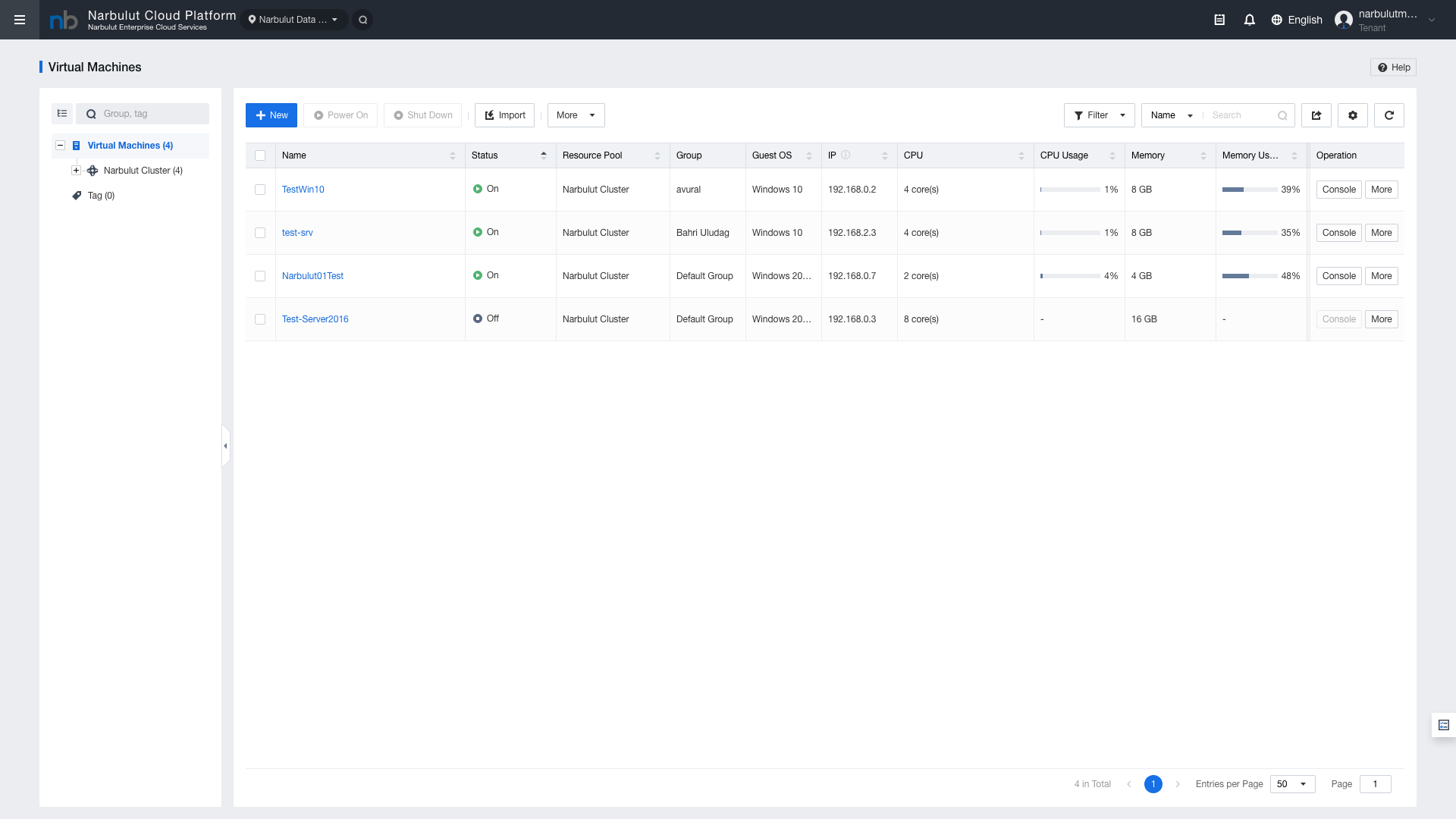
Figure 1 — Virtual Machines list

Figure 1 — Virtual Machines list

ButtonDescription
NewOpens the new virtual machine creation wizard
Power OnStarts the selected VMs
Shut DownShuts down the selected VMs
ImportImports an external VM image
MoreAdditional actions (Restart, Suspend, Clone, etc.)
ConsoleConsole access to the VM

To create a new VM, click the blue "New" button. A 4-step wizard will open: Resources → Configuration → Basics → Confirm

3. Step 1: Resources

When you click the “New” button, a 4-step creation wizard opens.

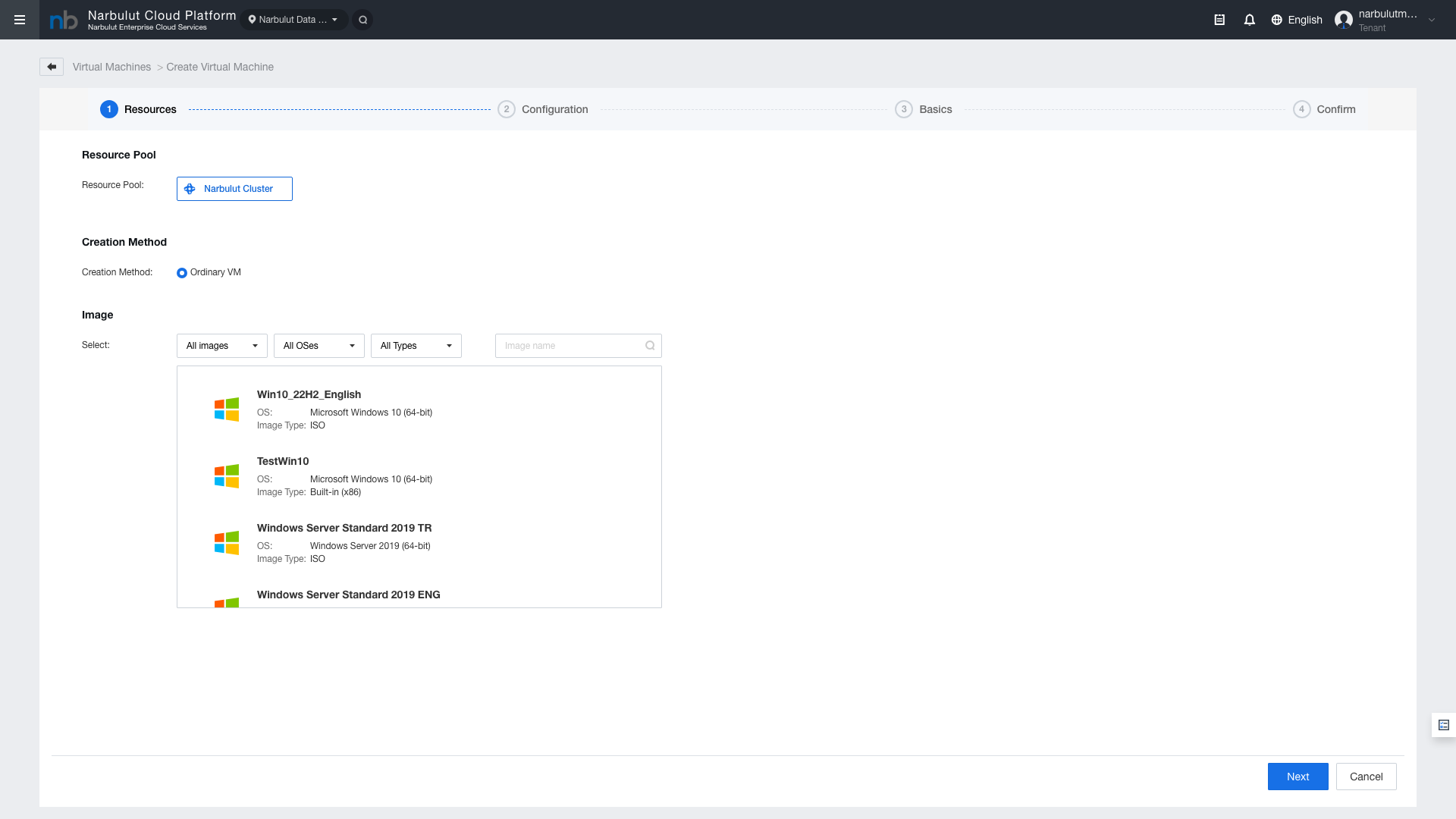
Figure 2 — Step 1: Resources (Resource Selection)

Figure 2 — Step 1: Resources (Resource Selection)

Resource Pool

Select the cluster where the virtual machine will be created. Default: Narbulut Cluster

Creation Method

Choose the VM creation method. Default: Ordinary VM (standard virtual machine).

Image Selection

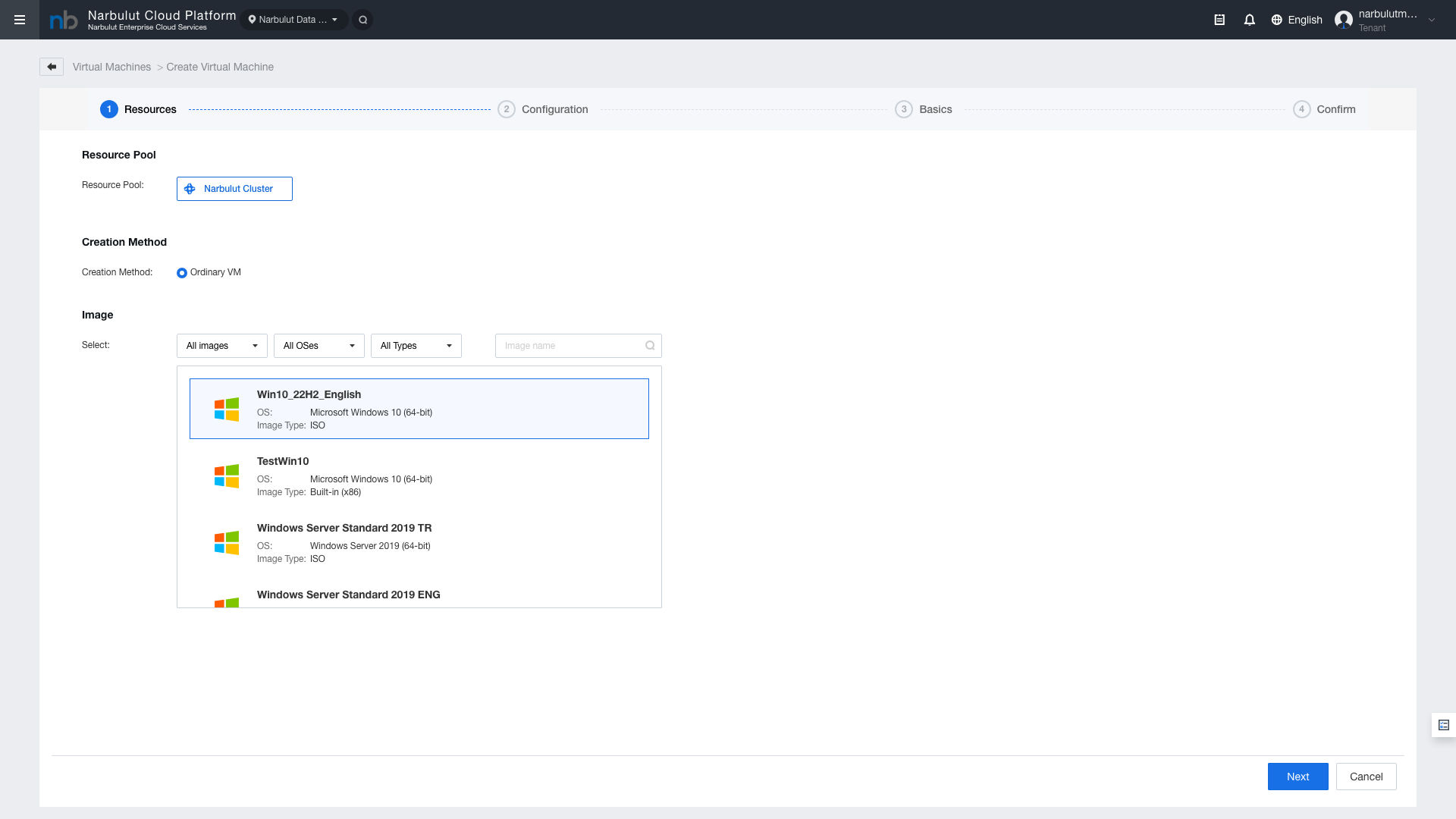
Select the operating system image for the virtual machine. Click on an image in the list to select it — the selected image is highlighted with a blue border.

Figure 3 — Image selection: selected image highlighted with blue border

Figure 3 — Image selection: selected image highlighted with blue border

Image TypeDescriptionUsage
ISOImages booted from installation diskOS installation is performed manually
Built-in (x86)Pre-installed, ready-to-use imagesRecommended for quick start

Deployment Method

When a Built-in image is selected, deployment method options appear:

MethodDescriptionAdvantage
Full DeploymentCreates a full copy of the imageStable performance, independent disk
Quick DeploymentUses linked cloneFaster creation, less disk usage

Note: When Quick Deployment is selected, some features such as disk editing and cloning are limited.

4. Step 2: Configuration

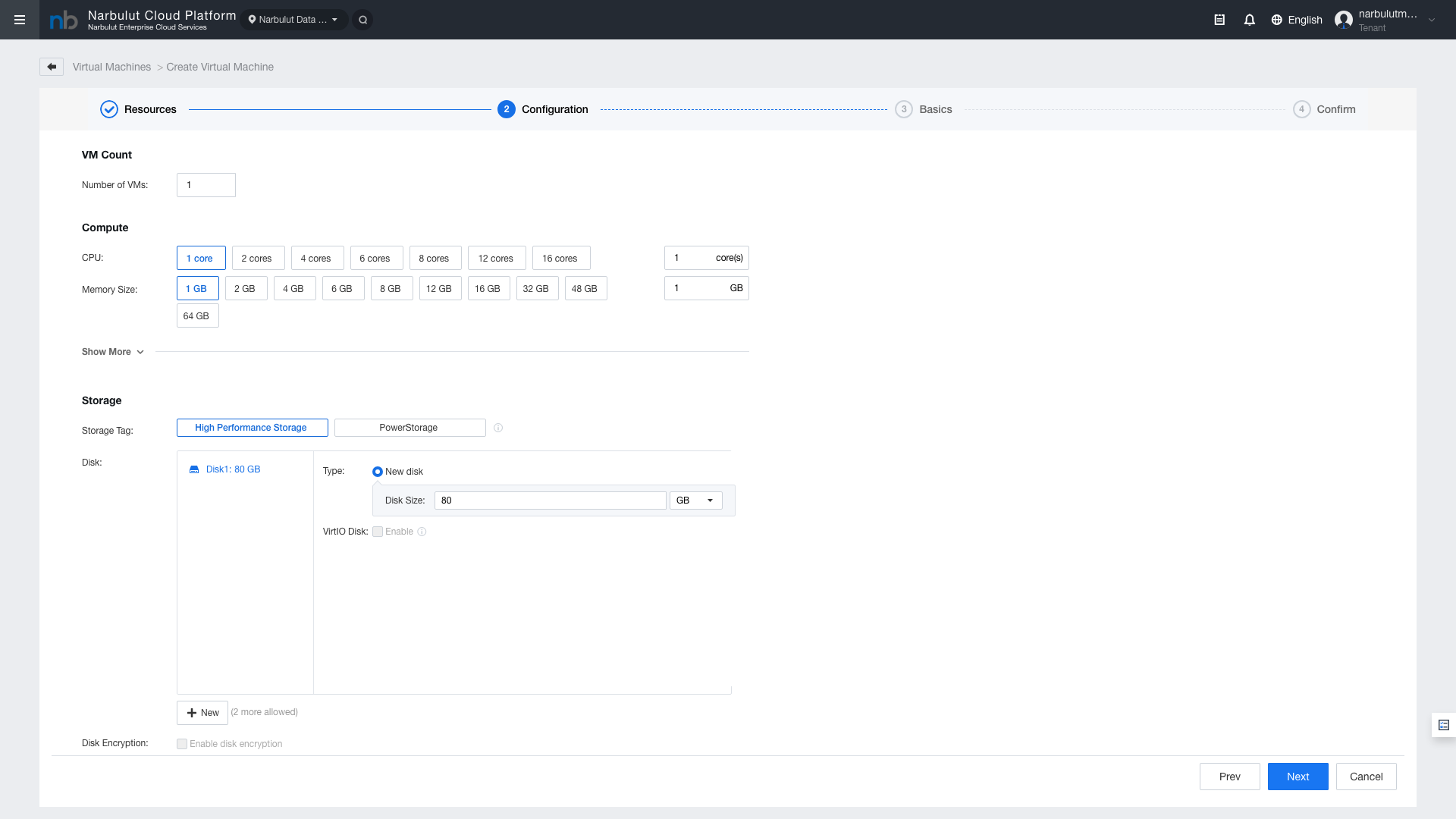
In this step, you configure the hardware resources (CPU, RAM, Disk, Network) for the virtual machine.

Figure 4 — Step 2: Configuration (Compute and Storage)

Figure 4 — Step 2: Configuration (Compute and Storage)

Compute (CPU and RAM)

FieldOptionsDefault
CPU1, 2, 4, 6, 8, 12, 16 cores or custom value1 core
Memory Size1, 2, 4, 6, 8, 12, 16, 32, 48, 64 GB or custom value1 GB

Storage

FieldDescription
Storage TagStorage pool: High Performance Storage or PowerStorage
DiskSystem disk size. Default 120 GB
+ NewAdd additional disk (up to 64 disks total)
VirtIO DiskVirtIO disk driver. Recommended to keep enabled for performance
Disk EncryptionDisk encryption. Can be enabled for security

Note: When Disk Encryption is enabled, cloning, image creation, export, CDP backup, and disaster recovery are not supported.

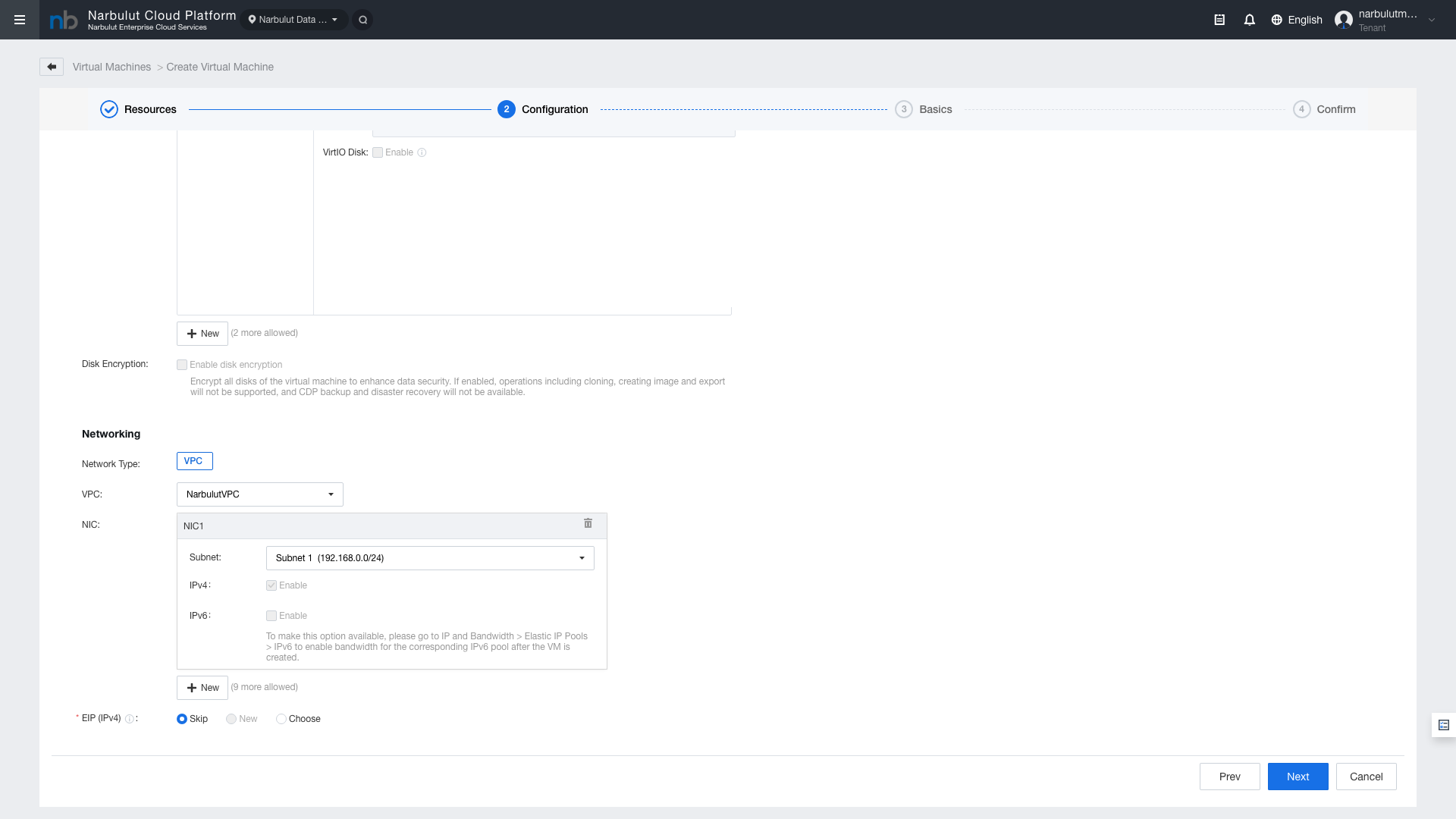
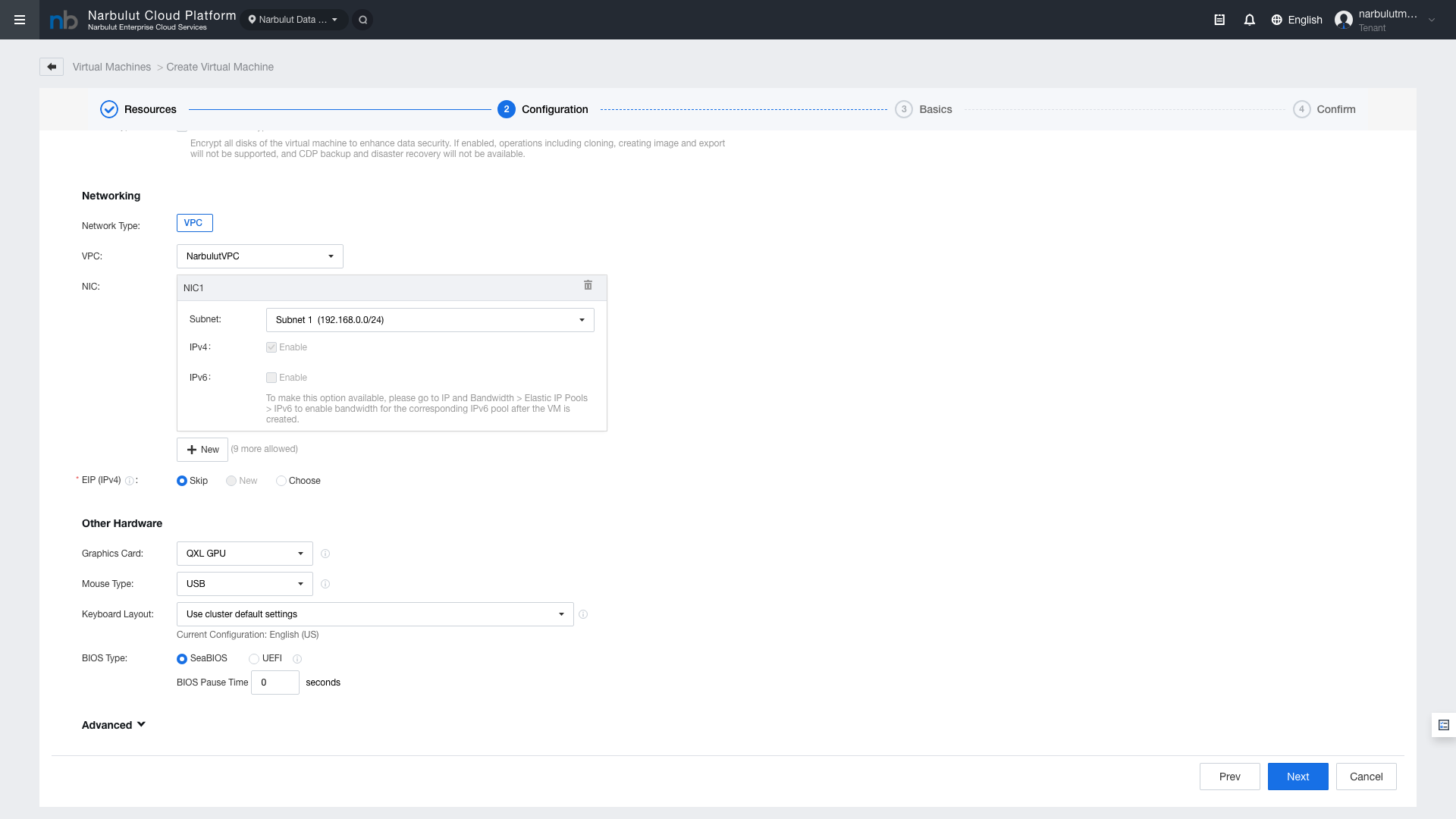
Networking

Figure 5 — Network Configuration: VPC, Subnet, NIC settings

Figure 5 — Network Configuration: VPC, Subnet, NIC settings

FieldDescription
Network TypeNetwork type: VPC (Virtual Private Cloud)
VPCVPC selection
NICNetwork interface. Add up to 10 NICs with "+New"
SubnetSubnet selection
IPv4IPv4 protocol (default: enabled)

Other Hardware

Figure 6 — Other Hardware settings

Figure 6 — Other Hardware settings

FieldDescription
CD/DVD DriveVirtual CD/DVD drive — for mounting ISO files
USBUSB device support
Graphics CardGraphics card type (VGA, QXL, VirtIO-GPU)
Mouse TypeMouse type
Keyboard LayoutKeyboard layout (default: English US)
BIOS TypeBIOS type (Legacy BIOS or UEFI)

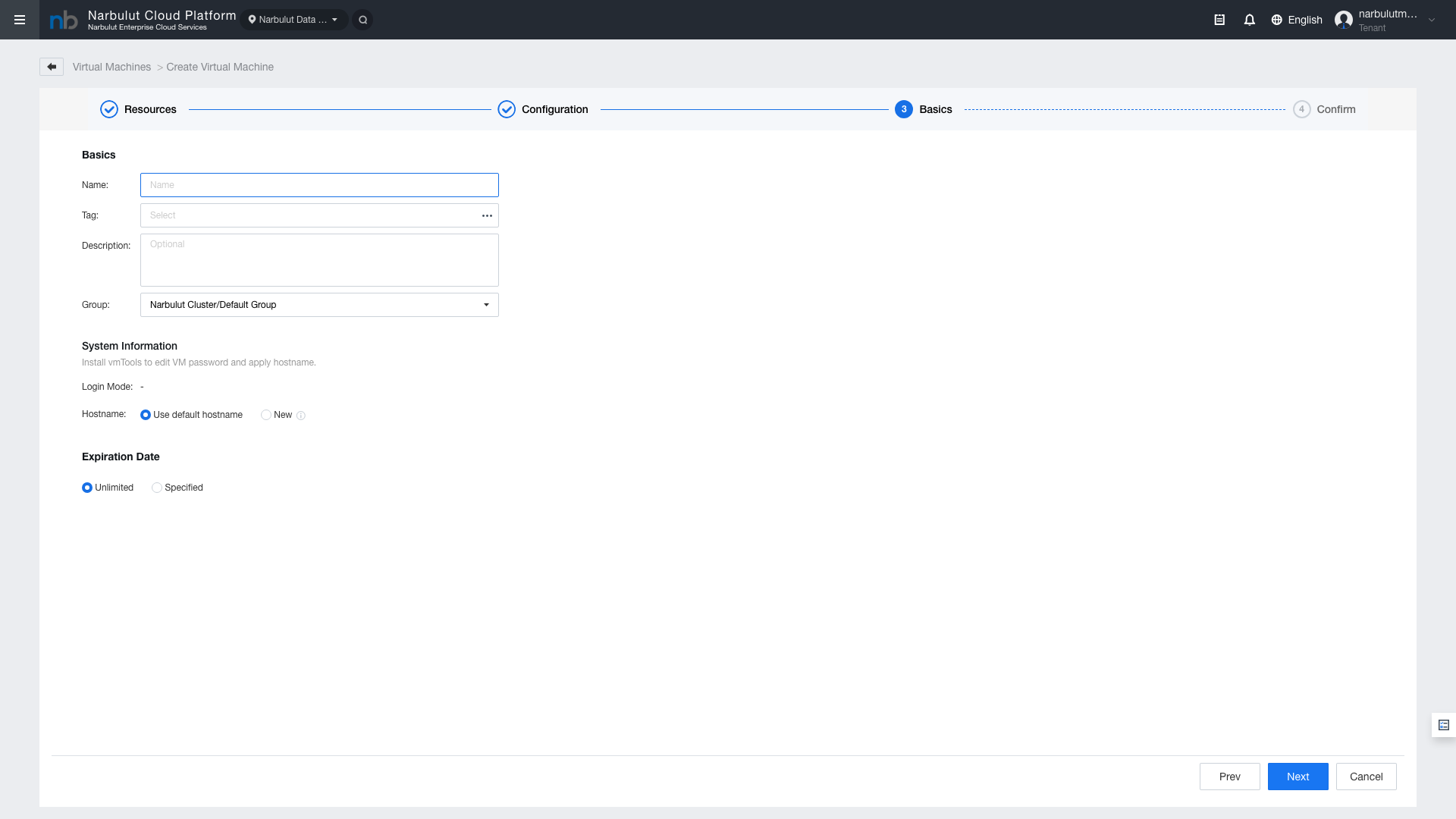
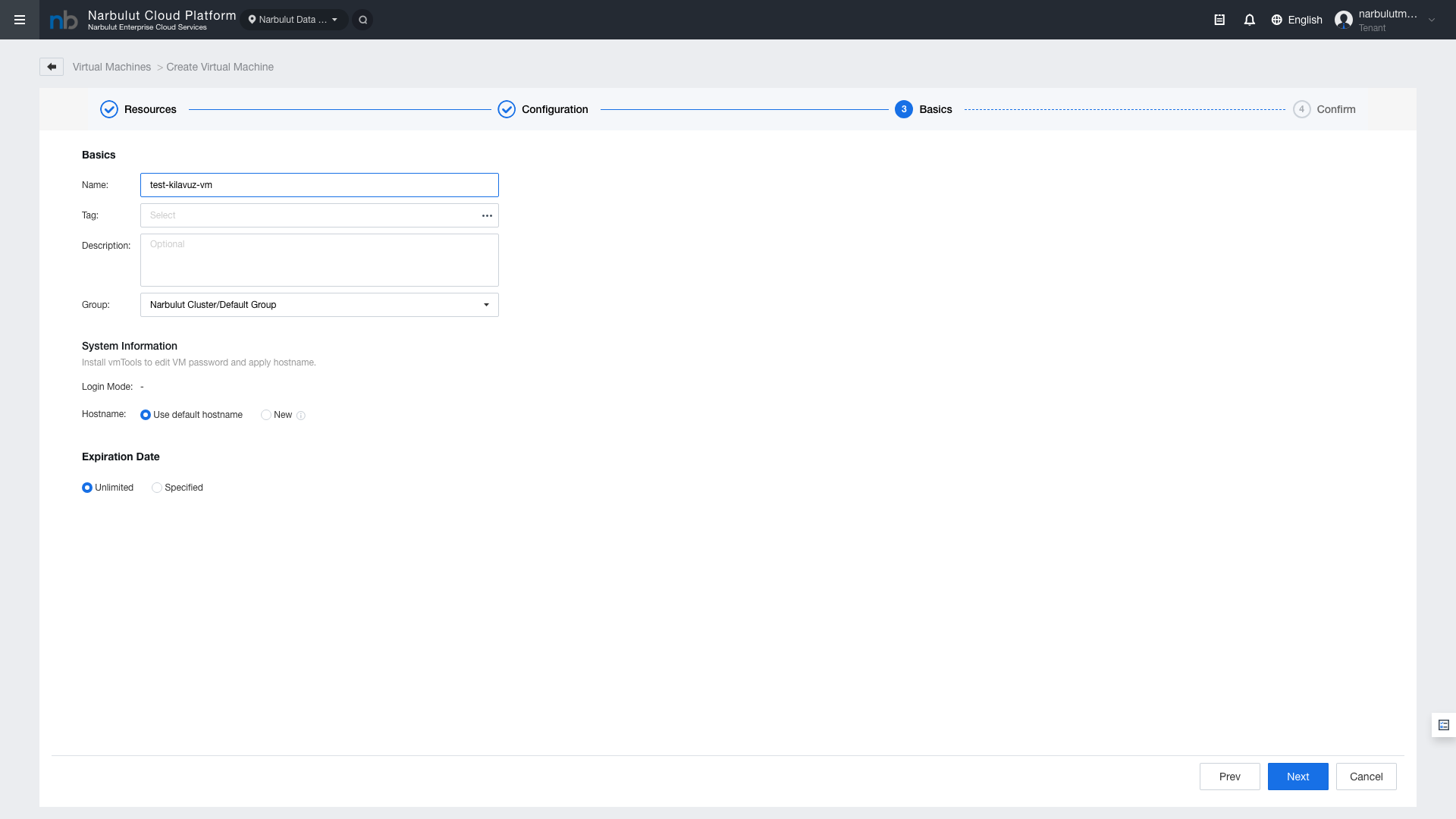
5. Step 3: Basics

Enter the virtual machine name, description, group, and other basic information.

Figure 7 — Step 3: Basics

Figure 7 — Step 3: Basics

FieldDescriptionRequired
NameVirtual machine nameYes
TagTag — for categorizing VMsNo
DescriptionDescription textNo
GroupVM group (default: Default Group)No

System Information

FieldDescription
Computer NameComputer name within the operating system
Administrator PasswordAdministrator password (for Built-in images)

Tip: The Computer Name field is the computer name that appears within the operating system after the VM is created. Choose a name that follows your organization's naming conventions.

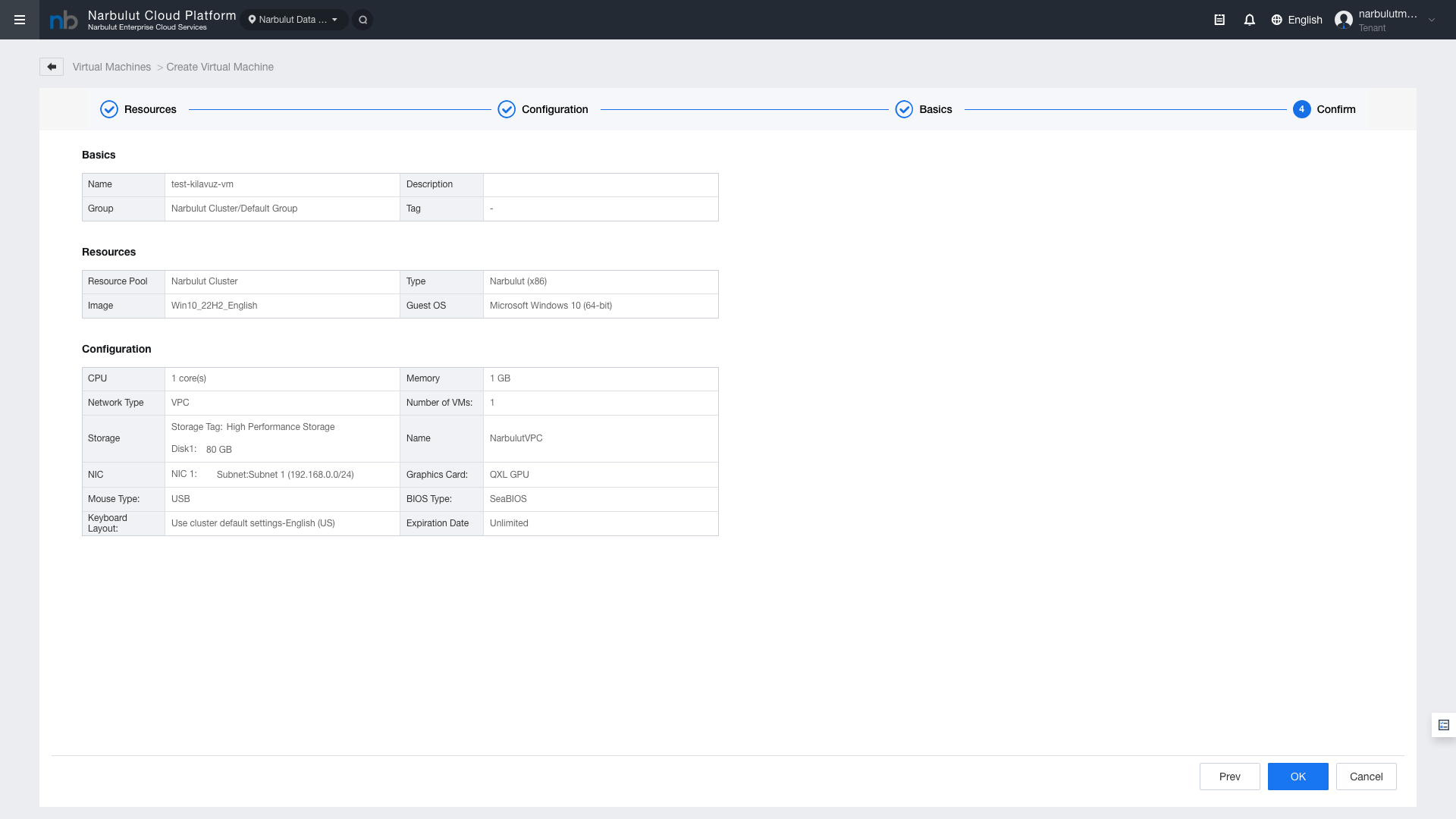
6. Step 4: Confirm

In the final step, review the summary of all your configuration settings. If the settings are correct, click “Confirm” to create the virtual machine.

Figure 8 — Step 4: Confirm (Configuration Summary)

Figure 8 — Step 4: Confirm (Configuration Summary)

Figure 9 — Confirm: Detailed configuration table

Figure 9 — Confirm: Detailed configuration table

7. After VM Creation

After the VM is created, follow these steps:

  1. Check VM Status — Verify that the new VM is in Running state in the Virtual Machines list.
  2. Console Access — Click the Console button on the VM row to access the operating system.
  3. IP Address Verification — Verify that the VM has received an IP address matching the network configuration.
  4. Network Connectivity — If external access is needed, configure Elastic IP assignment and ACL rules.

8. Recommended Configurations

Use CaseCPURAMDiskNetwork
Web Server2 Cores4 GB120 GB SSD1 NIC
Database Server4 Cores8 GB250 GB SSD1 NIC
Application Server4 Cores8 GB120 GB SSD1 NIC
Development/Test2 Cores4 GB80 GB SSD1 NIC

Tip: These values are starting recommendations. Actual resource requirements may vary depending on your application's workload profile. CPU and RAM values can be increased after VM creation.

Related Guides

After creating a VM, refer to the ECS Network Management Guide for network configuration, and the ECS Backup Guide for backup settings.

Technical support: destek@narbulut.com  |  www.narbulut.com

Narbulut Product Analysis

Step 1/12
What area of technological improvement are you planning for your company?
Data Security & BackupRansomware, deleted files and disaster recovery.
Cloud Server (IaaS)Website, ERP, CRM or application hosting.
Team CollaborationSecure file sharing and remote work.
Object Storage (S3)Object Storage for developers.
What industry does your company operate in?
Healthcare / MedicalPatient data (GDPR critical).
Finance / AccountingSensitive financial data.
Manufacturing / EngineeringCAD drawings and production plans.
Other / General ServicesOffice documents and general data.
What type of devices need to be protected?
Employee ComputersLaptop and desktop end-user devices.
Physical / Virtual ServersDatabase, Active Directory or File Server.
What should your backup strategy be?
File & Folder BasedOnly important business files (XLS, PDF, SQL) should be backed up.
Full Disk ImageBack up "Everything" including the operating system.
What is your upload speed for cloud backup?
Fiber / High SpeedI can send large data quickly.
Standard / ADSLMy speed is limited, compression is important.
Is ransomware a threat?
Yes, Very CriticalWe have experienced it before or are at risk.
Standard Protection is SufficientBasic backup measures are enough.
How long would you like to keep versions?
90
30 - 90 DaysTo fix recent errors.
365+
1 Year and AboveLegal requirements or archiving.
What will be the primary purpose of the server?
E-Commerce / WebsiteHigh uptime and speed required.
ERP / Accounting SoftwareDatabase performance is important.
Software DevelopmentFlexible resource management.
What infrastructure do you need?
Windows ServerASP.NET, MSSQL, RDP.
Linux (Ubuntu/CentOS)PHP, Python, MySQL, Docker.
What is the estimated user traffic?
Low / MediumEntry level or new project.
High TrafficHeavy campaigns or many users.
Who will manage the server?
I Will Manage ItI have a technical team, root access is enough.
I Need SupportManaged Services required.
How many people will work in the shared workspace?
1 - 10 UsersSmall teams.
10 - 50+ UsersDepartment-based permissions required.
Is remote access required?
Yes, DefinitelyField team needs to upload files from mobile.
No, Office OnlyAccess only from company computers.
Analyzing Your Responses...
BEST SOLUTION FOR YOU

Product Title

Description

Explore Product Now

Product Information Request

Fill out the form so our solution experts can contact you.

Size uygun Narbulut Cloud Server planlarına göz atın

Narbulut Cloud Server ile ihtiyaçlarınıza en uygun sunucuları yapılandırın.

    SUNUCU TEKLİF & YAPILANDIRMA FORMU

    1. KURUMSAL KİMLİK & İLETİŞİM
    2. TEKNİK GEREKSİNİMLER
    3. LİSANS YÖNETİMİ

    Check out Narbulut Cloud Server plans that suit you

    Configure the servers that best fit your needs with Narbulut Cloud Server.

      SERVER QUOTE & CONFIGURATION FORM

      1. CORPORATE IDENTITY & CONTACT
      2. TECHNICAL REQUIREMENTS
      3. LICENSE MANAGEMENT

      Narbulut Mobile’ı İndirin

      Uygulamayı indirmek istediğiniz platformu seçin

      Download Narbulut Mobile

      Select the platform you want to download the app

      ×