Table of Contents 1. Prerequisites 2. Overview 3. Scheduled Backup Policy 4. Creating a New Backup Policy 5. Editing an Existing Policy 6. VM Backups 7. CDP Policy (Continuous Data Protection) 8. Manual Backup from VM 9. Disaster Recovery 10. Backup Best Practices
1. Prerequisites
Before starting backup operations, make sure the following requirements are met:
A user account with access to the ECS platform
At least one virtual machine (VM) created and running
Backup and disaster recovery operations on the ECS platform are managed under the Disaster Recovery module. To access this module:
Method 1: Hamburger Menu Click the hamburger menu (three-line icon) in the top left corner. From the mega menu, select Disaster Recovery > Scheduled Backup.
Method 2: Direct URL https://ecs.narbulut.com/#/mod-business-protect/backup-strategy/index
Figure 1 — Scheduled Backup main page
The Disaster Recovery module contains three main tabs and a sub-page:
Additionally, disaster recovery policies and protection groups can be managed through the Disaster Recovery page.
3. Scheduled Backup Policy
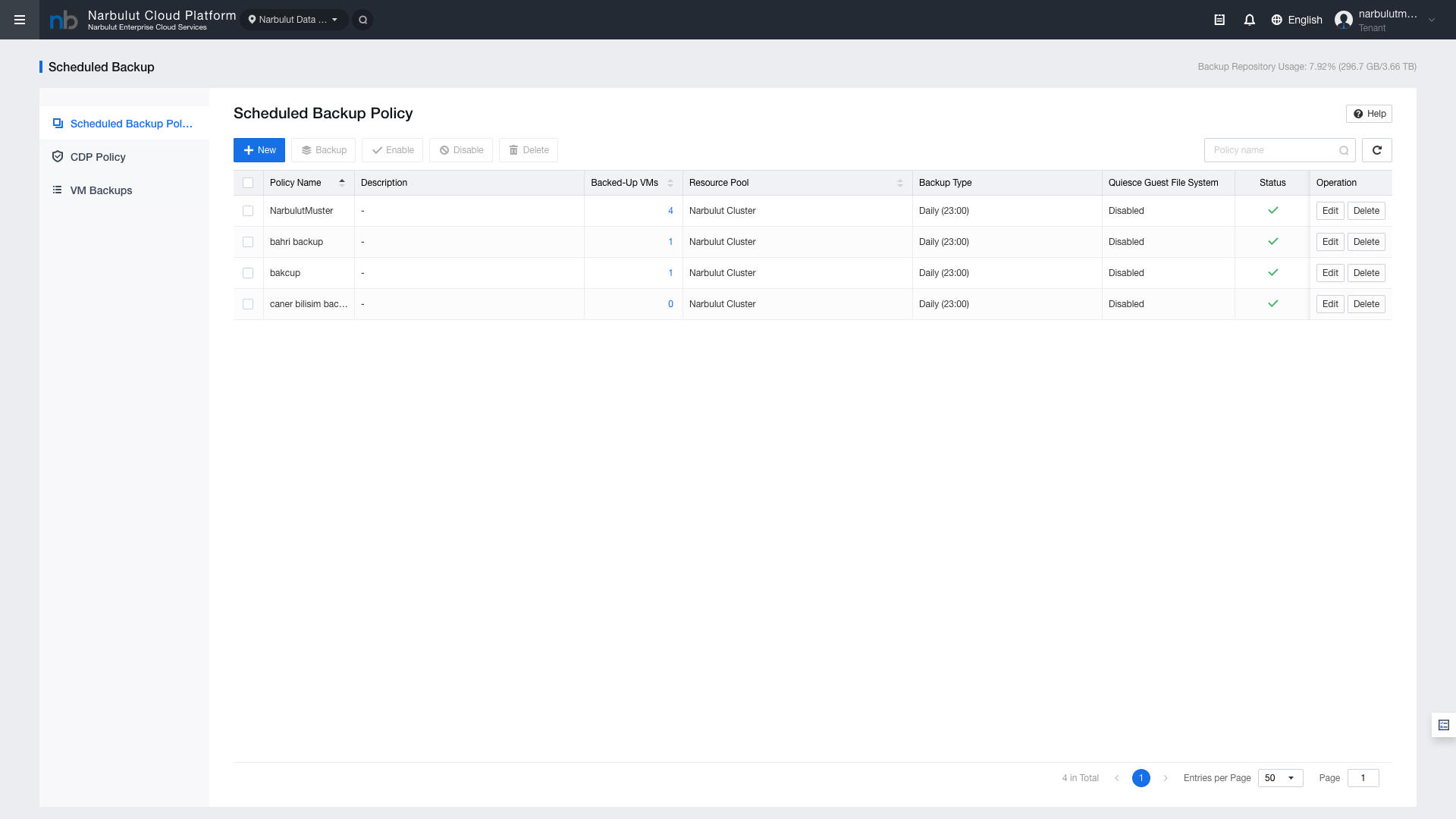
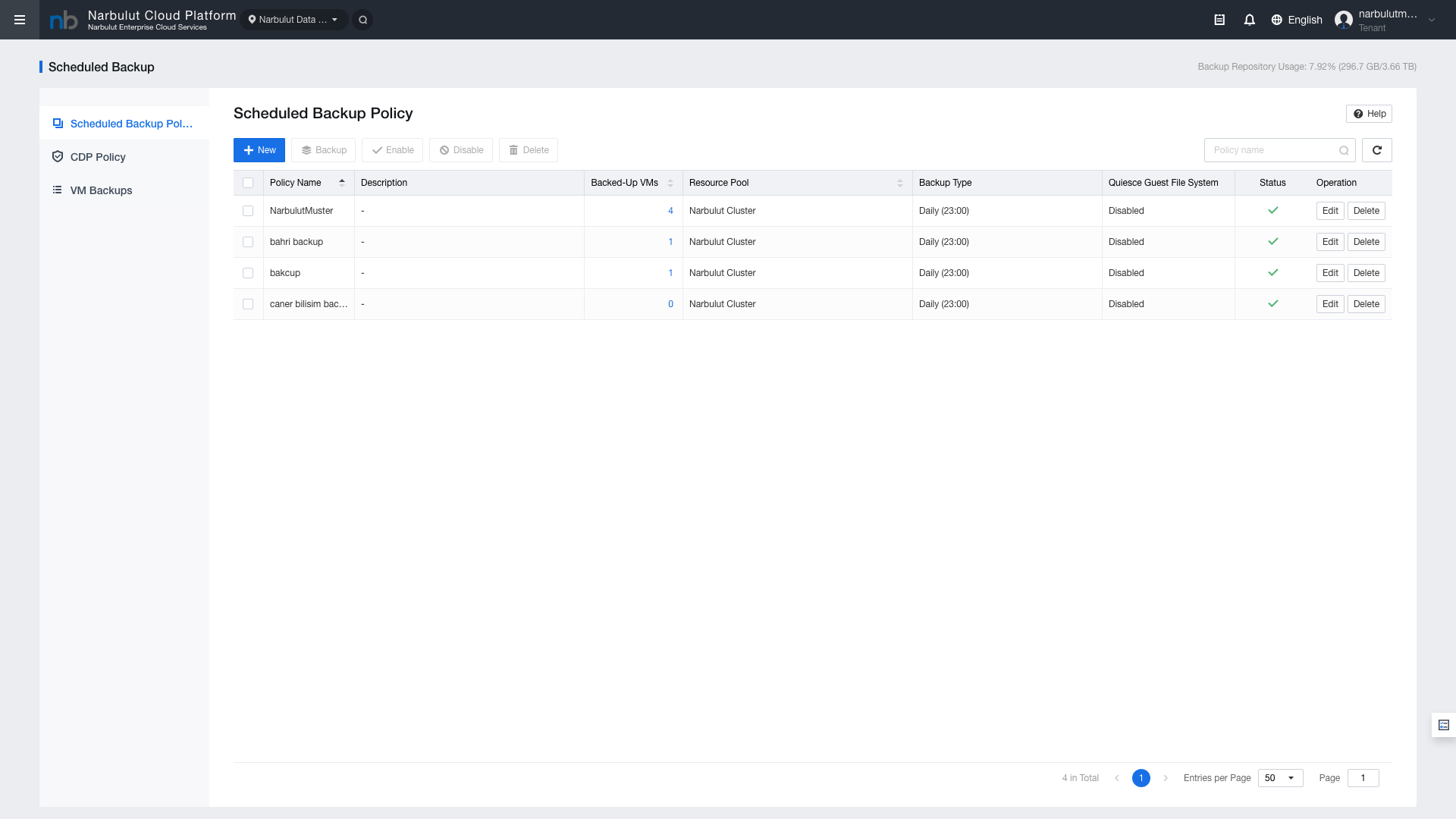
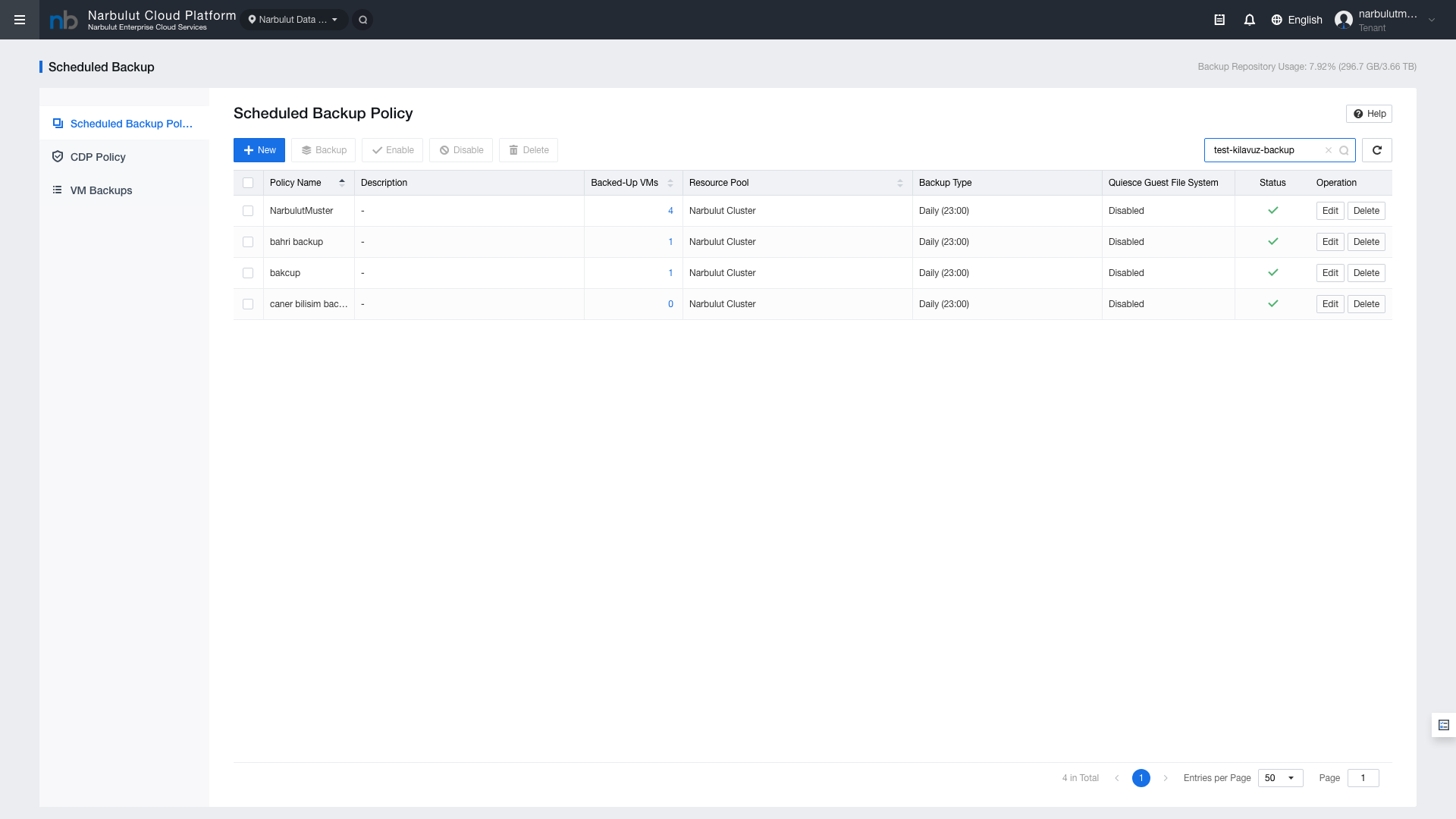
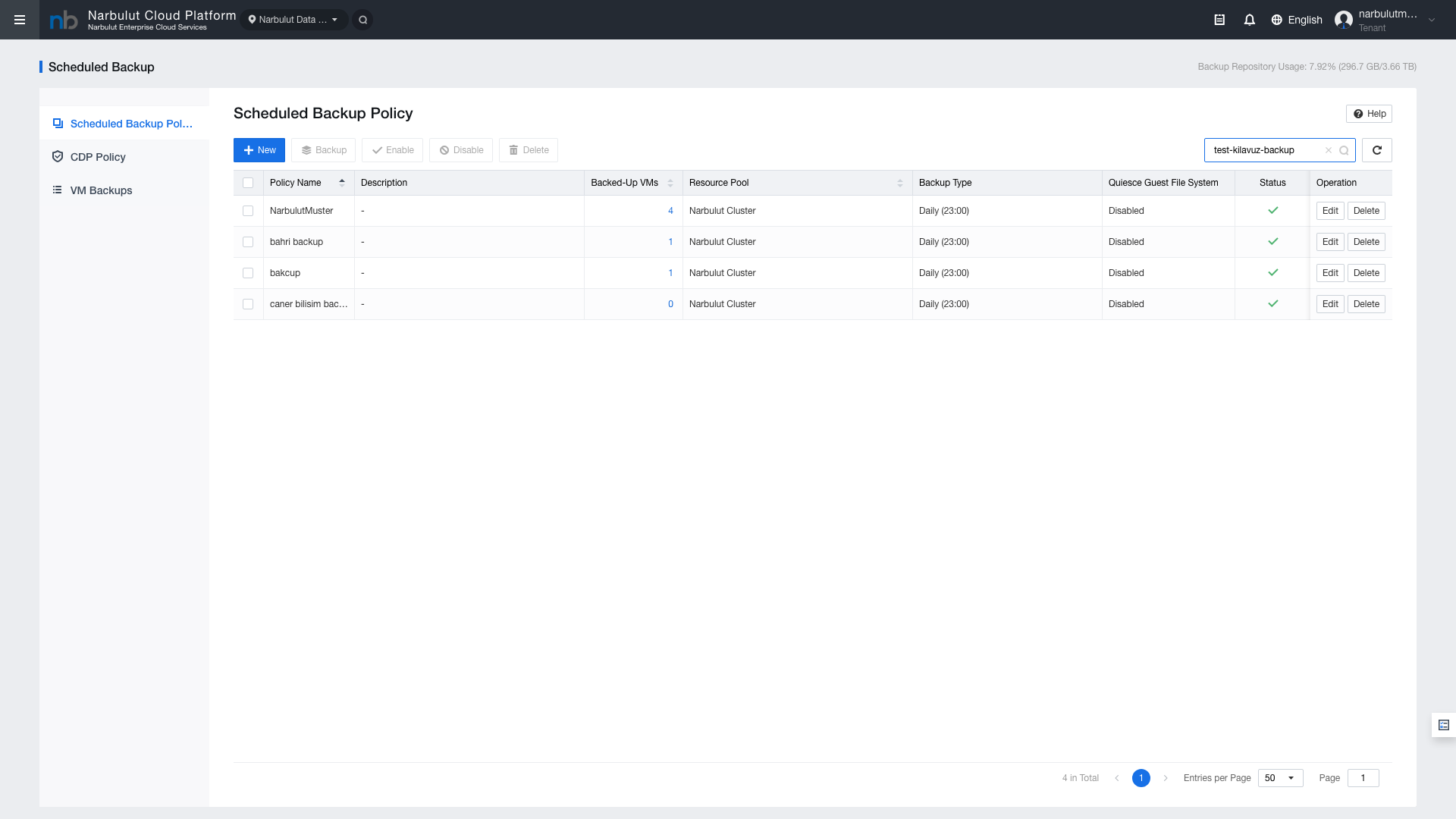
The Scheduled Backup Policy tab lists the defined backup policies. At the top of the page, the Backup Repository Usage indicator shows total and used storage space.
Figure 2 — Backup Repository usage indicator
Toolbar Buttons
Button
Description
New
Opens the new backup policy creation wizard
Backup
Runs the selected policy immediately (instant backup)
Enable
Enables the selected policy
Disable
Disables the selected policy
Delete
Deletes the selected policy
Table Columns
Column
Description
Policy Name
Policy name
Description
Policy description
Backed-Up VMs
Number of VMs included in the policy
Resource Pool
Resource pool
Backup Type
Backup type and schedule information
Quiesce Guest File System
File system quiescing status during backup
Status
Policy status (Enabled / Disabled)
Operation
Action buttons (Edit, Delete, etc.)
4. Creating a New Backup Policy
When you click the “New” button, a 4-step policy creation wizard opens.
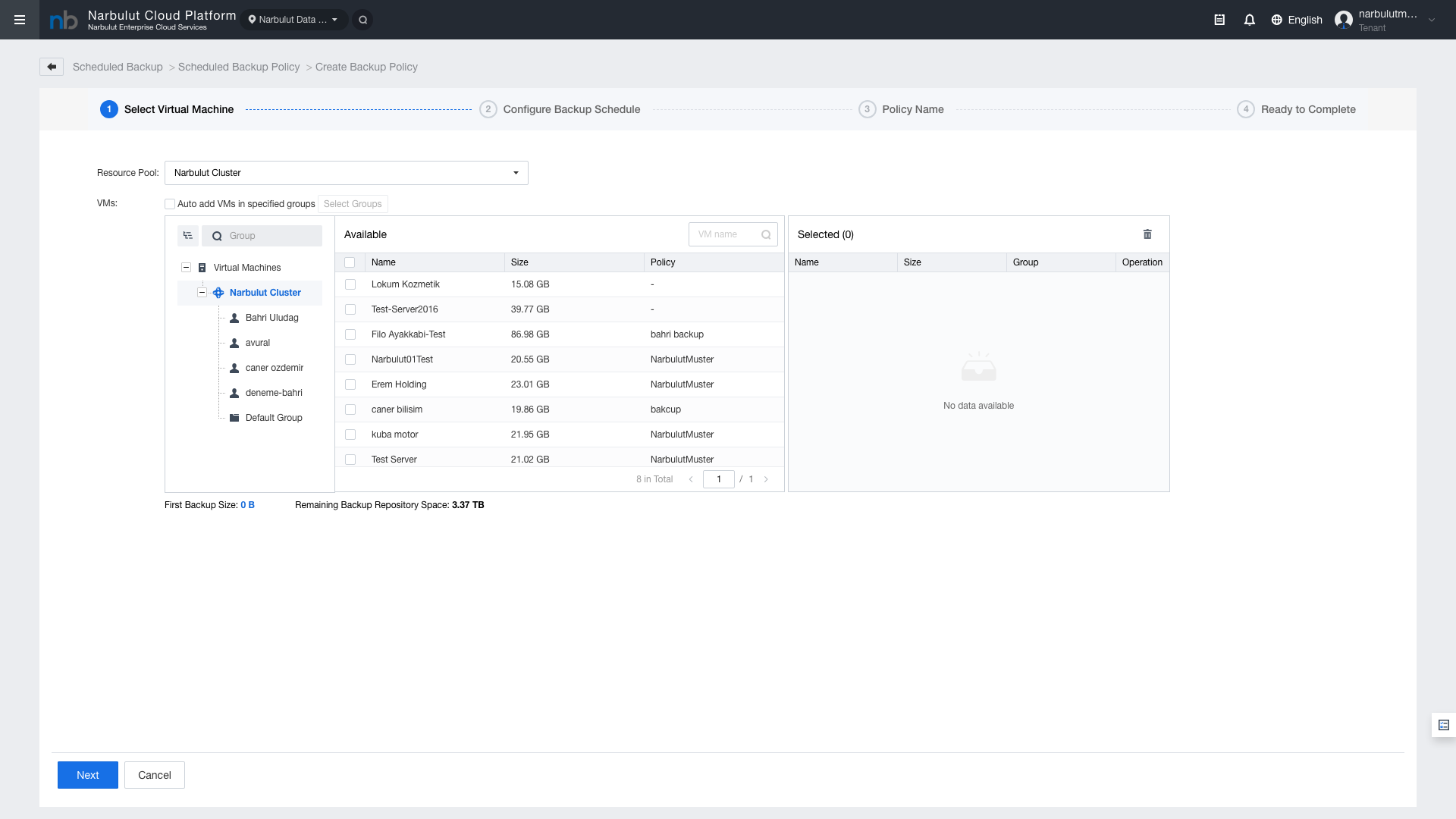
Step 1: Select Virtual Machine
Select the virtual machines to include in the backup policy.
Resource Pool: Select the resource pool
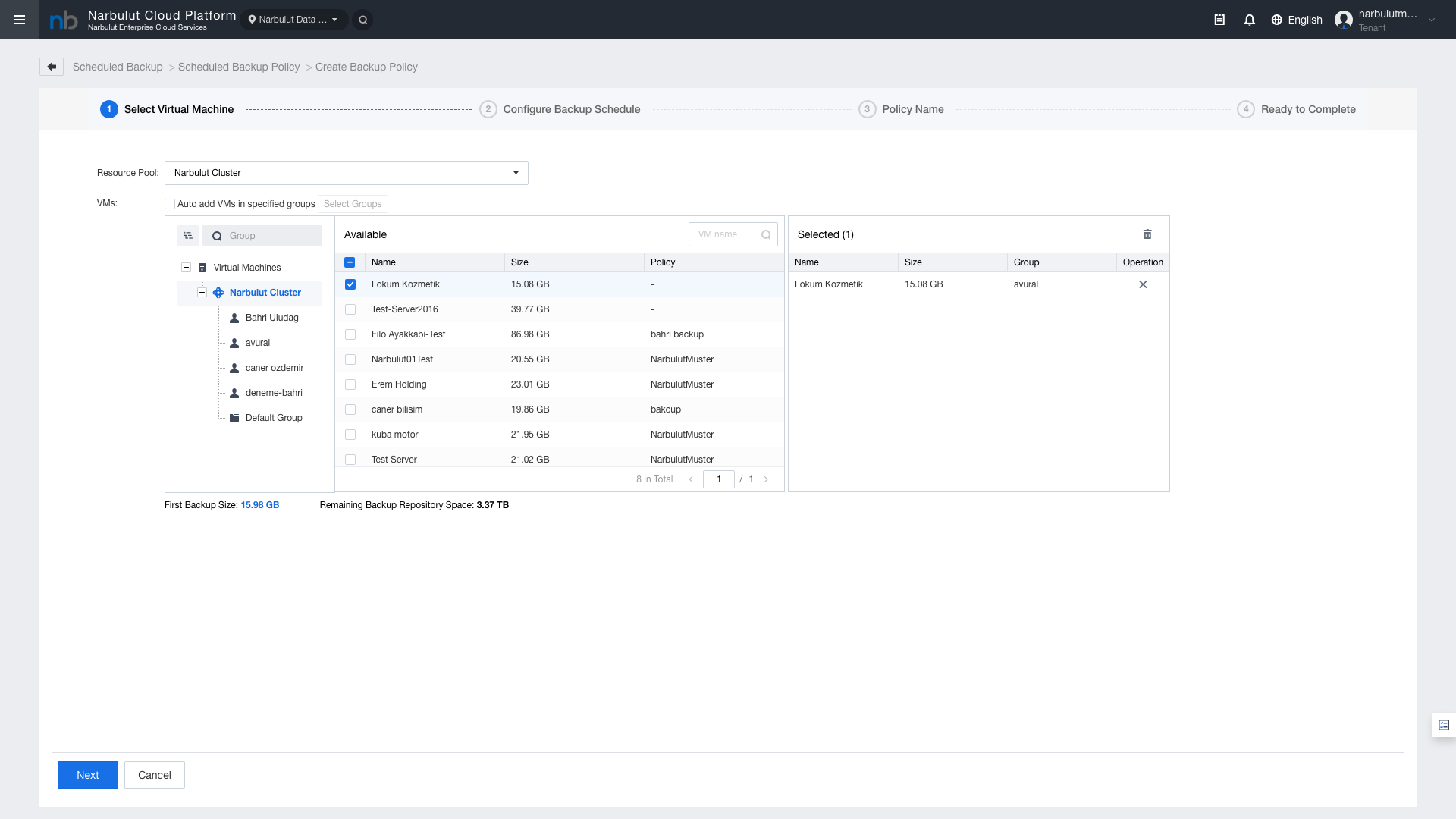
VM Selection: Check the VMs to be backed up from the list
Auto-add Groups: Define groups so that newly added VMs are automatically included in the policy
Figure 3 — Step 1: Virtual machine selection
Figure 4 — Selected virtual machines
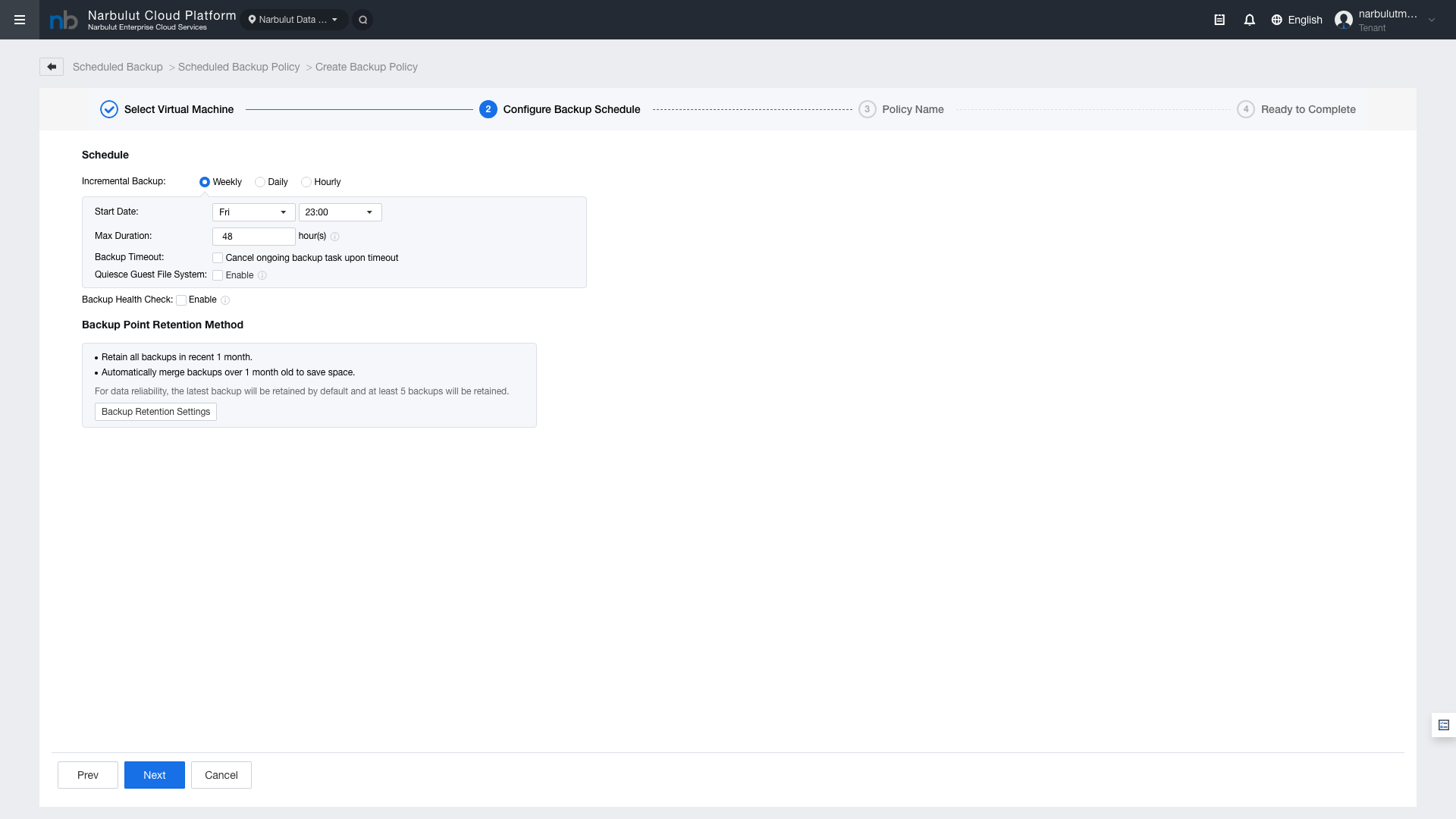
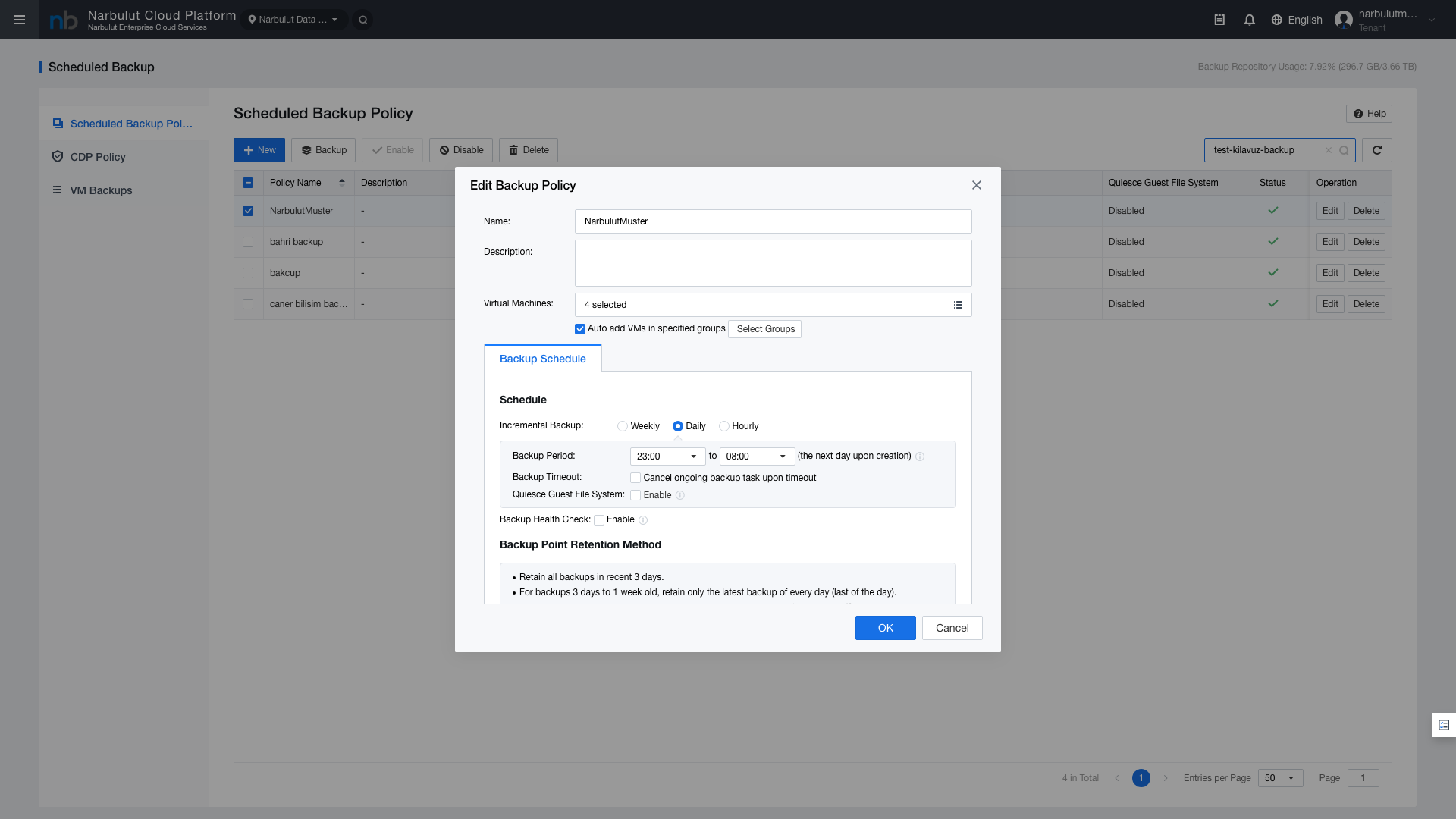
Step 2: Configure Backup Schedule
Configure the backup frequency, retention policy, and additional settings.
Figure 5 — Backup schedule settings
Backup Frequency
Option
Description
Weekly
Weekly backup — specific day and time are selected
Daily
Daily backup — time is selected
Hourly
Hourly backup — time interval is defined
Figure 6 — Retention policy settings
Retention Policy: Determines how long backups are retained. After the specified period, old backups are automatically cleaned up.
Quiesce Guest File System: Freezes the VM’s file system during backup to ensure a consistent backup. Especially recommended for database servers.
Health Check: Runs an automatic health check after backup completion.
Step 3: Policy Name
Provide a name and description for the policy.
Figure 7 — Policy name and description
Tip: Choose a policy name that is easily identifiable. For example: Daily-WebServer-Backup or Weekly-DB-Backup
Step 4: Ready to Complete
Review the summary of all your settings. If the settings are correct, click “Finish” to create the policy.
Figure 8 — Policy summary and confirmation
5. Editing an Existing Policy
To edit an existing backup policy:
Select the policy you want to edit from the Scheduled Backup Policy list
Click the Edit button in the Operation column
Make the necessary changes in the wizard (add/remove VMs, change schedule, etc.)
Click “Finish” to save the changes
Note: Editing a policy does not affect existing backup points. Changes take effect from the next backup cycle.
6. VM Backups
The VM Backups tab displays a list of all backed-up virtual machines. Backup points and restore operations for each VM are managed from this screen.
Figure 9 — VM Backups list
Available operations from this screen:
View Backup Points: Click on a VM row to list all backup points
Restore: Restore a VM from a specific backup point
Delete Backup: Clean up backup points that are no longer needed
Warning: The restore operation replaces the VM's current state with the state from the backup point. This action cannot be undone — consider backing up the current state before restoring.
7. CDP Policy (Continuous Data Protection)
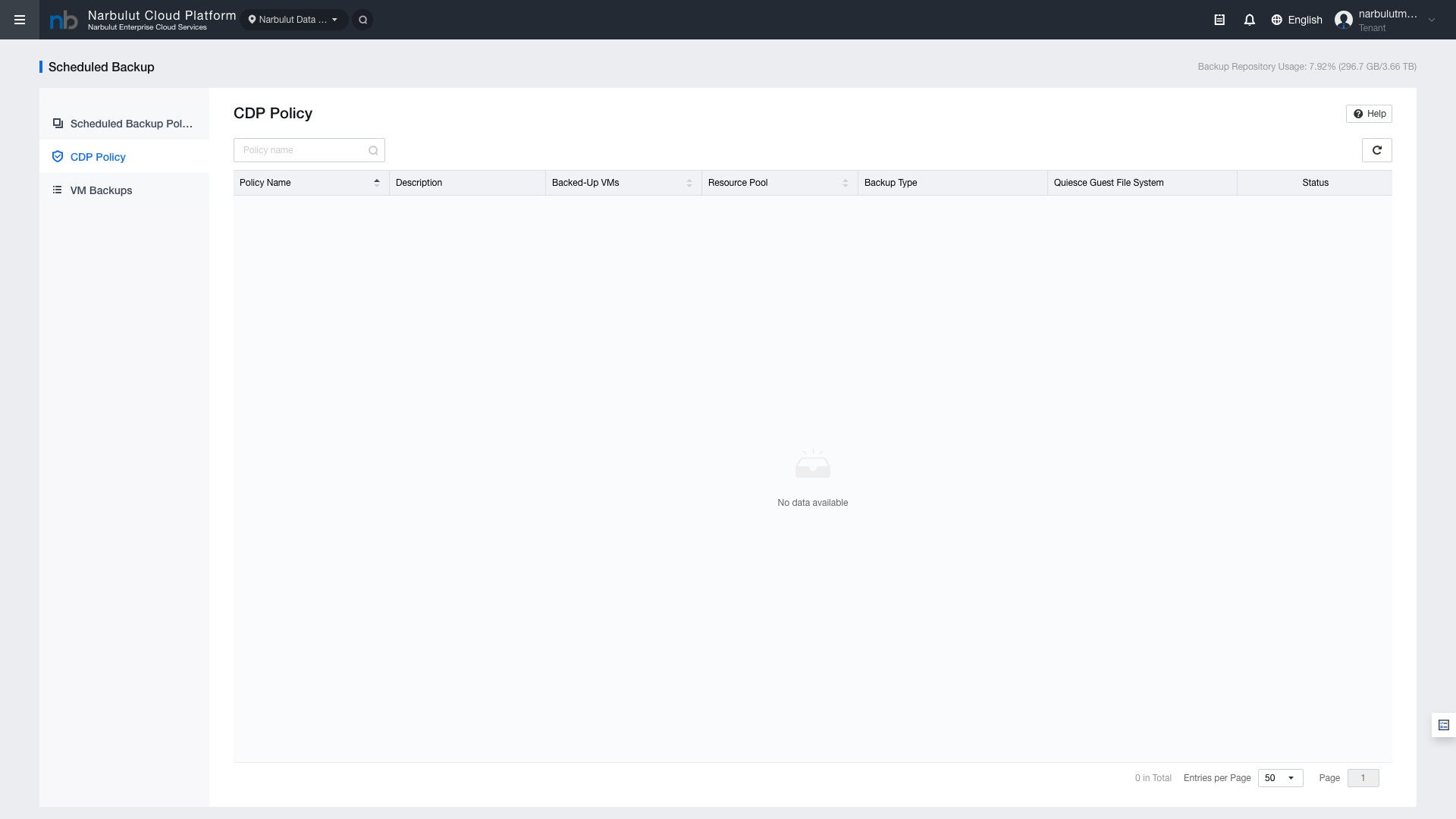
CDP (Continuous Data Protection) is an advanced backup method that continuously protects virtual machine data. Unlike scheduled backup, CDP captures data changes in real-time or at very short intervals.
Figure 10 — CDP Policy page
CDP Policy features:
Near Real-Time Protection: Reduces data loss to seconds
RPO (Recovery Point Objective): Achieves very low RPO values
Continuous Replication: Changes are instantly transferred to the backup repository
Note: CDP uses more storage space and bandwidth than scheduled backup. Recommended for critical workloads.
8. Manual Backup from VM
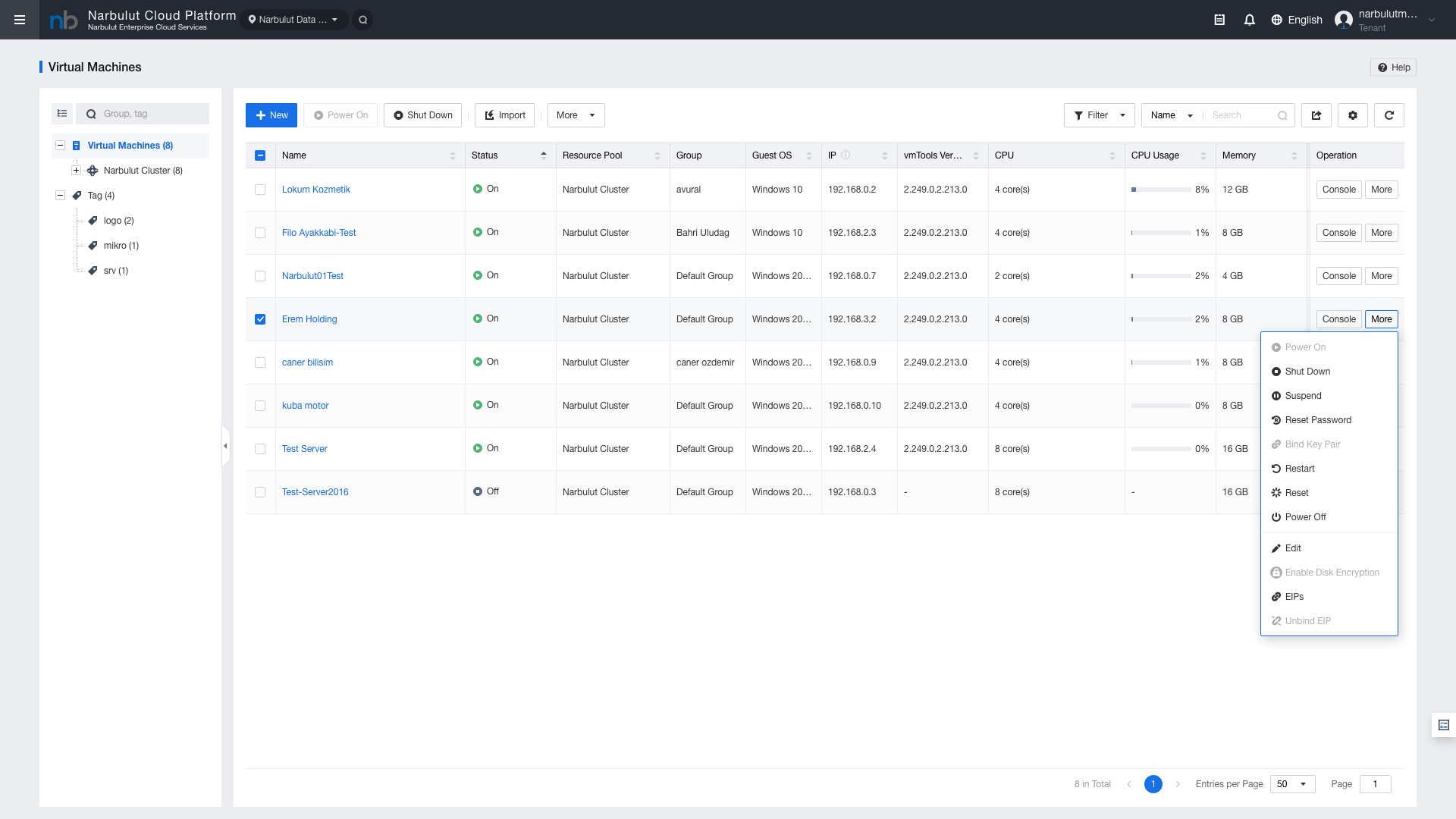
Outside of scheduled policies, you can initiate a manual backup for a specific VM from the Virtual Machines page.
Select the relevant VM from the Virtual Machines list
Right-click on the VM row or open the More menu
Click the Backup option
Confirm the backup settings and start
Figure 12 — Manual backup from VM context menu
Tip: Manual backup is ideal for providing instant protection before making significant changes (OS updates, application upgrades, etc.).
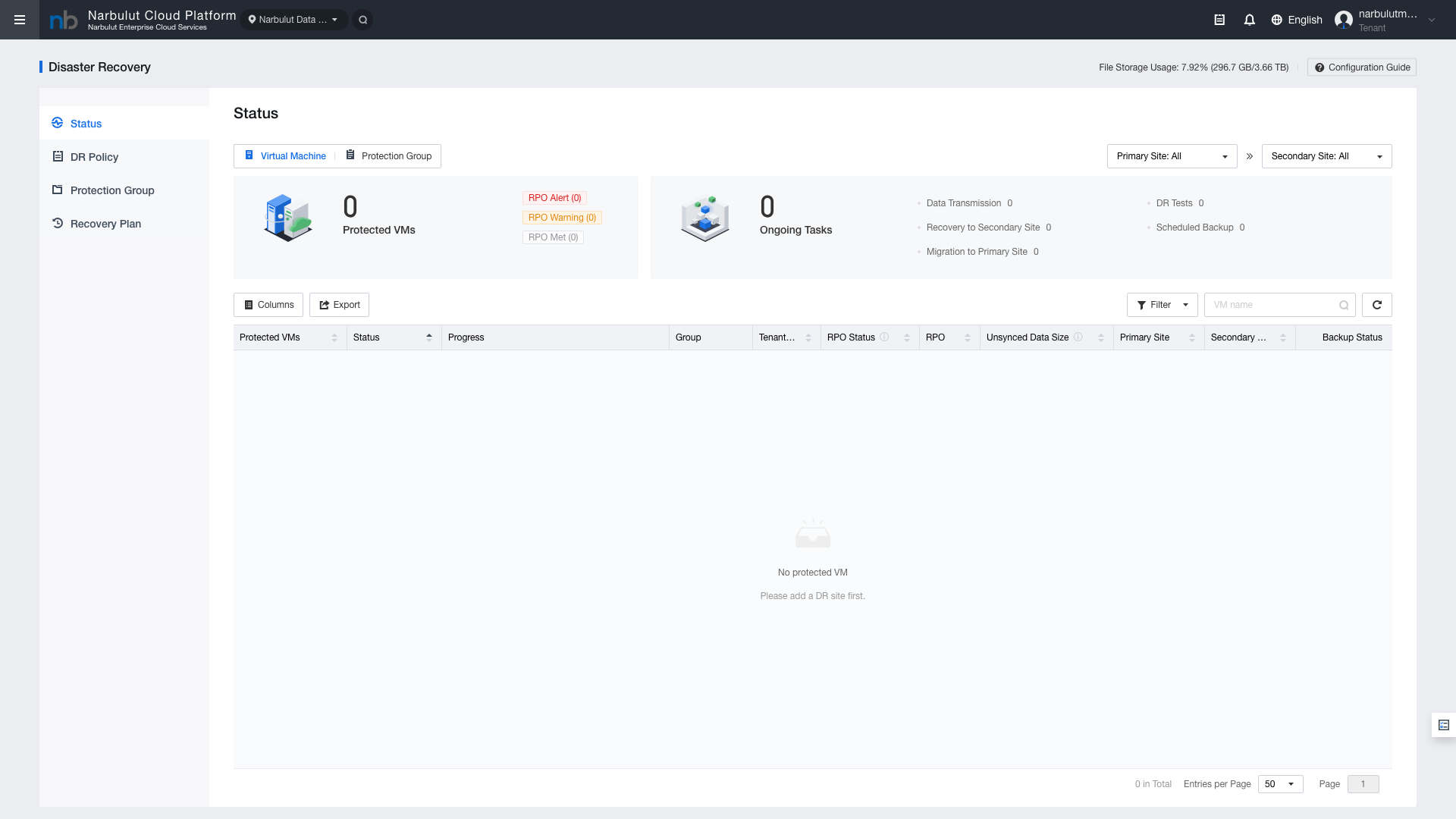
9. Disaster Recovery
The Disaster Recovery module protects your virtual machines against disaster scenarios by replicating them to a different location.
Figure 11 — Disaster Recovery page
Disaster Recovery features:
DR Policies: Define which VMs are replicated and the replication frequency
Protection Groups: Manage VMs that need to be protected together as groups
Failover: Automatic switch to the DR location when the primary location becomes unreachable
Failback: Transfer data back when the primary location is restored
Warning: Disaster Recovery configuration requires proper planning of network and storage resources. For network configuration, refer to the ECS Network Management Guide.
10. Backup Best Practices
Follow these recommendations to maintain the highest level of data protection:
3-2-1 Rule: At least 3 copies, on 2 different media types, with 1 at a remote location
Regular Testing: Periodically perform restore tests from backups
Use Quiesce: Enable file system quiescing on database servers
Retention Policy: Set retention periods appropriate for your business requirements
CDP + Scheduled: Use CDP together with scheduled backup for critical VMs
DR Plan: Define disaster recovery policies and test them regularly
Monitoring: Regularly check backup statuses and Backup Repository usage