
- Company
-
Products
Products
New ProductCloud Server
Fully managed virtual server infrastructure. Setup in minutes, hourly billing and 24/7 expert support so you can focus on your business.
Try Now -
Solutions
Backup & Security
Data SecurityRansomware & encryptionSilent Ransom: TDEProtection against TDE abuseCloud BackupSecure backup to data centersImage BackupFull disk image + fast recoveryOff-Site BackupOff-site disaster recoveryMobile BackupiOS & Android photos/contactsRansomware ProtectionAgainst ransomware attacksTwo-Factor Auth2FA account security - Plans
- Resources
- Partners
- Blog
How to Back Up a FirebirdSQL Database?
FirebirdSQL is a lightweight yet powerful open-source database server that quietly runs beneath ERP, accounting, POS, and industry-specific software. Because it often runs for years without any maintenance, administrators tend to make a mistake in just one area: taking the backup with the wrong method. Compressing a running Firebird database file with WinZip, or simply copying it, in most cases produces a corrupt backup that cannot be restored.
In this guide we explain step by step how to back up Firebird 5.0 databases correctly, reliably, and automatically: including logical backup with gbak, physical and incremental backup with nbackup, restore scenarios, and tying the backup to a scheduled task.
Why Does Firebird Backup Require Special Tools?
Firebird continuously writes to the database file even while users are connected. When you copy the file directly while the database is running, at the moment of copying the file may contain half old and half new data. The result is an inconsistent file that will most likely fail when you try to restore it.
The correct approach is one of three options:
- Using official tools that know how Firebird works, such as gbak or nbackup,
- Putting the database into backup mode with
ALTER DATABASE BEGIN BACKUP(and exiting afterwards withEND BACKUP), - or shutting the database down completely with
gfixand only then copying the file.
WinZip, copy, xcopy, or tar. A “backup” taken this way has a very low chance of restoring properly. The only exception is nbackup’s lock mode — which we explain below.
Firebird ships with two official command-line tools for backup, both located in the bin subdirectory of the installation folder:
| Feature | gbak | nbackup |
|---|---|---|
| Backup type | Logical (data + schema) | Physical (database pages) |
| Incremental backup | No | Yes (level 0/1/2…) |
| Cross-platform portable | Yes | No |
| Speed | Medium | Very high |
| Multi-file DB support | Yes | Not recommended |
| Typical use | Daily full backup, migration, ODS upgrade | Frequent incremental backup on large DBs |
In short: gbak for routine full backups and migration, nbackup for frequent and fast incremental backups on large databases. Using both together is also a common strategy.
Preparation: Tool Location and Command-Line Access
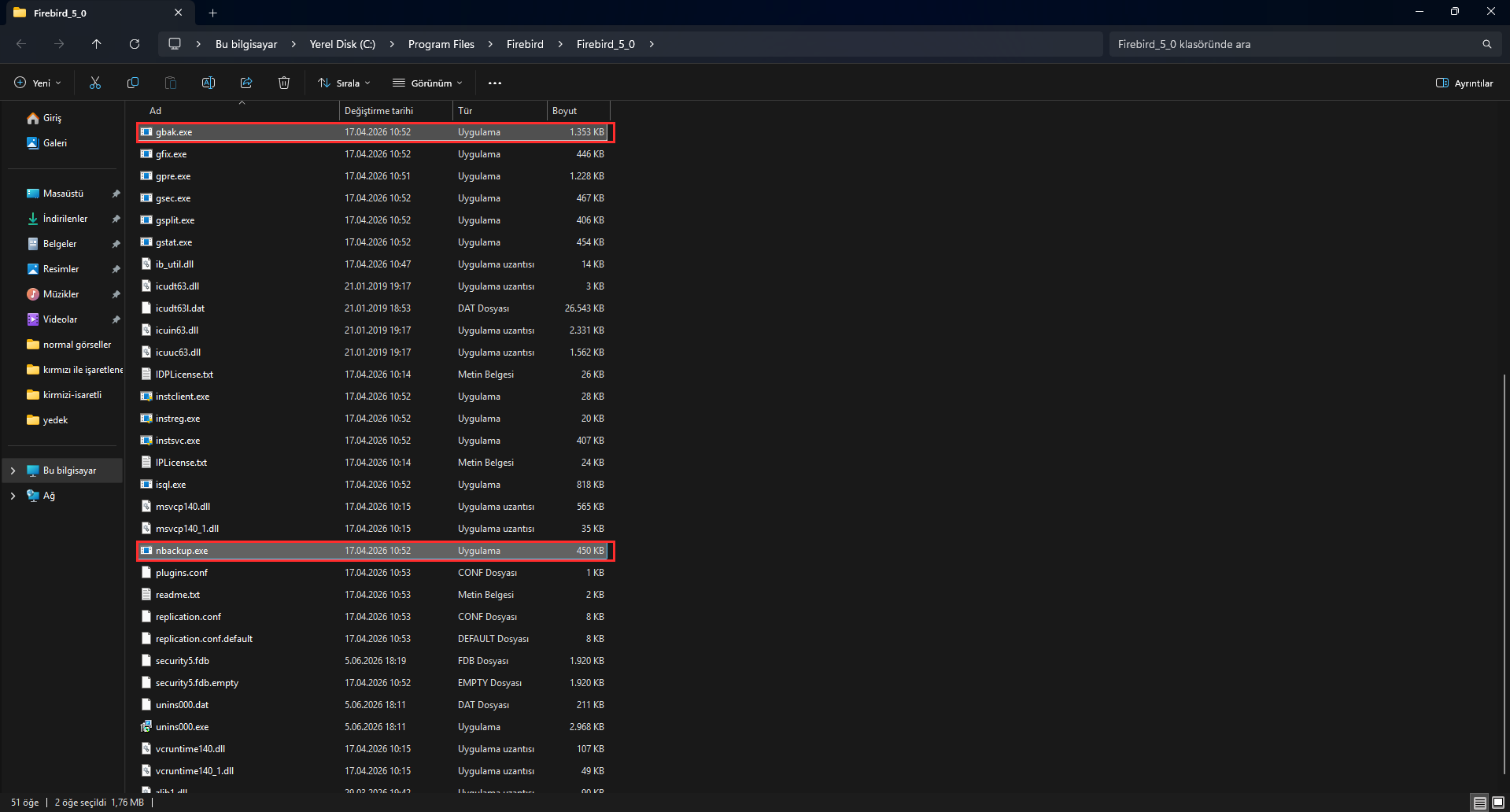
Firebird 5.0 tools are by default located at:
- Windows:
gbak.exeandnbackup.exeunderC:\Program Files\Firebird\Firebird_5_0\ - Linux: under
/opt/firebird/bin/
Adding this folder to your system PATH variable makes it easier to run the commands from anywhere. If you haven’t added it, you can also run the commands by giving the full path.
In all the examples below, the default administrator user SYSDBA and the sample password masterkey are used. In your own environment, use your real password and avoid writing the password openly in scripts (we explain the secure way to do this in the automation section).
Logical Backup with gbak
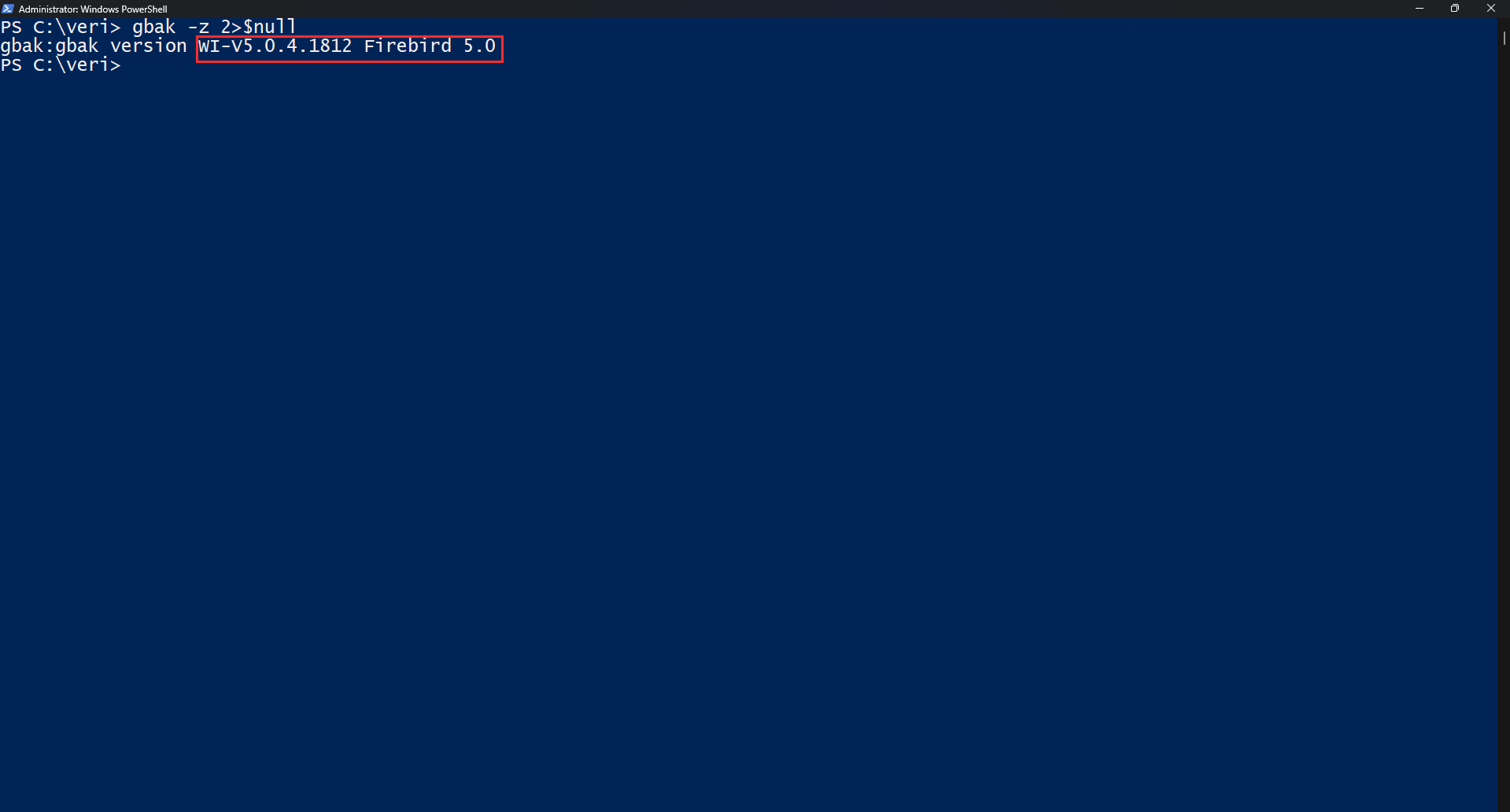
gbak creates a logical backup file (usually with a .fbk extension) containing the data and schema of the database. This file is not an exact copy of the database; it contains the data and object definitions. Its key advantage is being cross-platform portable: you can restore a gbak backup taken on Windows on Linux.
The basic backup command:
gbak -b -user SYSDBA -password masterkey C:\veri\firma.fdb C:\yedek\firma.fbkThe parts of the command:
-b→ backup mode-user/-password→ credentials- First path → source database (.fdb)
- Second path → backup file to be created (.fbk)
To see the process step by step on screen, add -v (verbose); to write to a log file, use -Y:
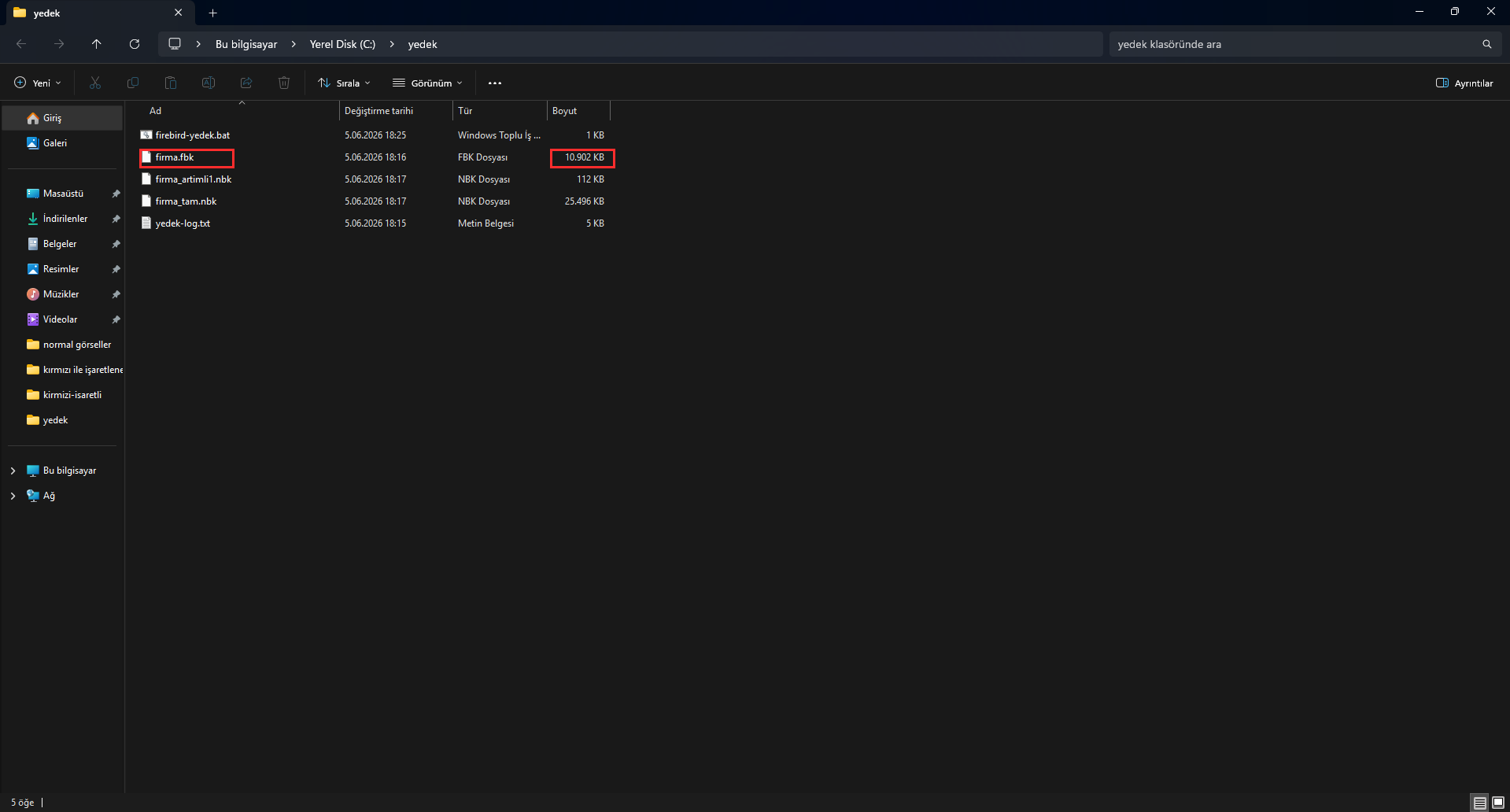
gbak -b -v -user SYSDBA -password masterkey C:\veri\firma.fdb C:\yedek\firma.fbk -Y C:\yedek\yedek-log.txt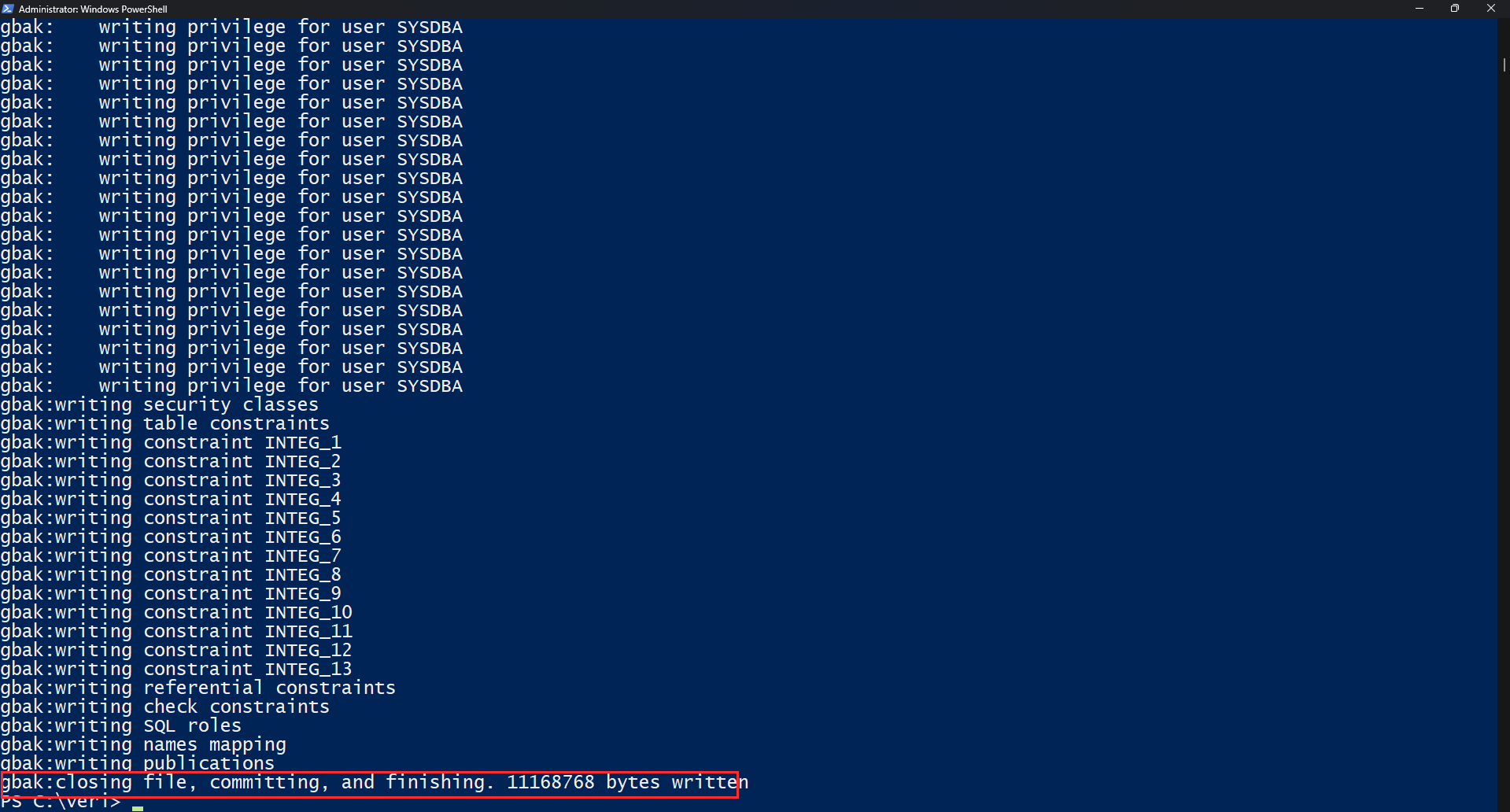
When the backup finishes, your .fbk file is created in the folder you specified. This file is usually smaller than the database because indexes are kept in the backup only as definitions and are rebuilt during restore.
Restoring with gbak
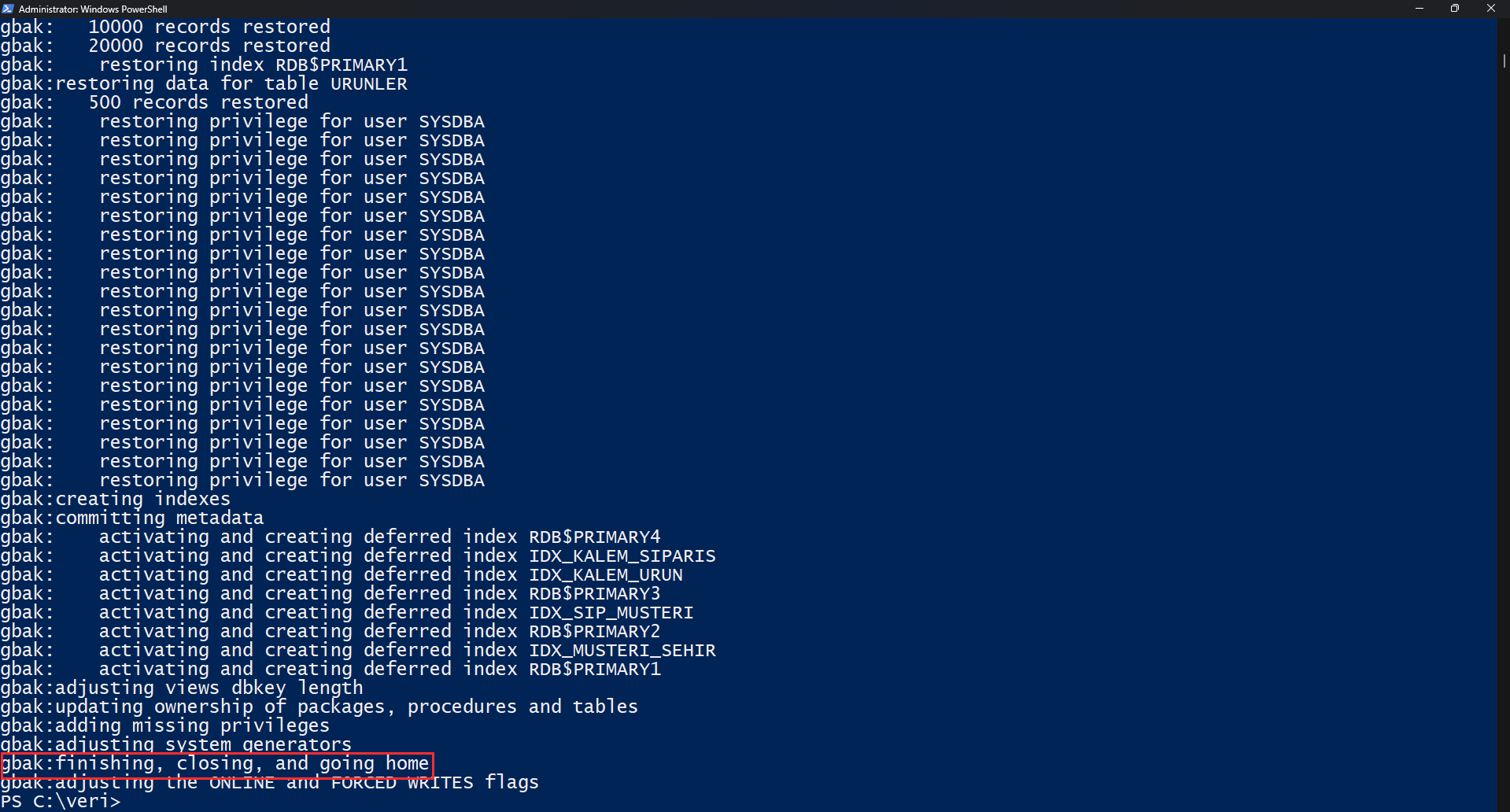
When gbak restores a backup, it rebuilds the database from scratch: it recreates all tables, data, and indexes. That is why a restore is also an operation that “refreshes” the database.
Restoring as a new database file:
gbak -c -user SYSDBA -password masterkey C:\yedek\firma.fbk C:\veri\firma_yeni.fdbHere -c (create) creates a new database. If you want to overwrite an existing file, -r (replace) is used — but this is a command to be very careful with, since it will delete the database at the target:
gbak -r -user SYSDBA -password masterkey C:\yedek\firma.fbk C:\veri\firma.fdb-c) first and testing it is the safest way to avoid accidentally overwriting your production database.
Parallel Backup Introduced with Firebird 5.0 (New)
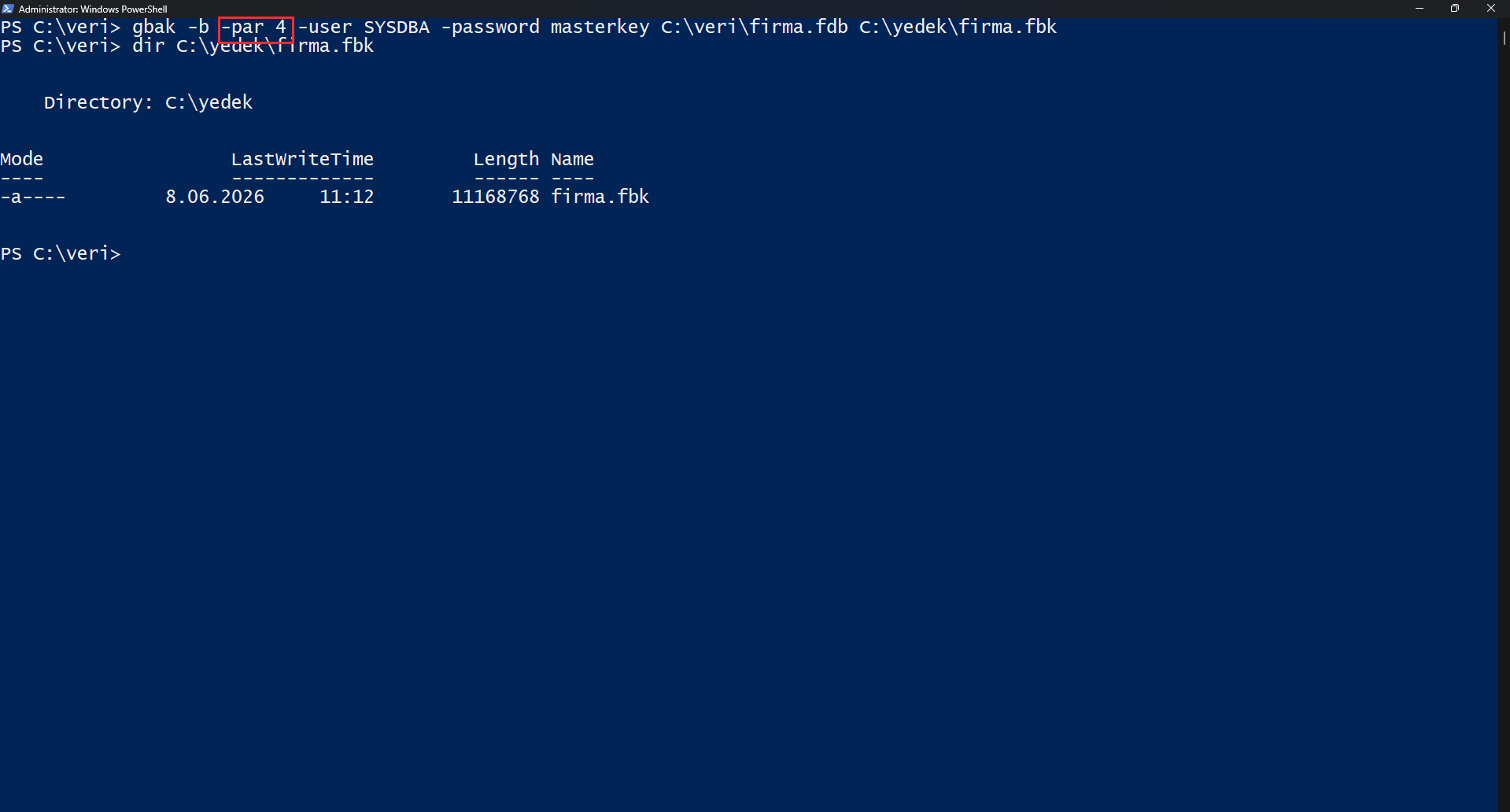
One of the most notable new features in Firebird 5.0 is parallel backup and restore support for gbak. The new -par (or -parallel) switch determines how many parallel threads are used in the operation. On large databases, this can cut the restore time in particular by several times, depending on the hardware.
Backup with 4 parallel workers:
gbak -b -par 4 -user SYSDBA -password masterkey C:\veri\firma.fdb C:\yedek\firma.fbkRestore with 4 parallel workers:
gbak -c -par 4 -user SYSDBA -password masterkey C:\yedek\firma.fbk C:\veri\firma_yeni.fdbMaxParallelWorkers parameter in the firebird.conf file. It is recommended to set this value equal to the number of physical/logical cores of your processor. If you don’t specify -par, the operation runs single-threaded.
Physical and Incremental Backup with nbackup
nbackup backs up the physical pages of the database and, because it doesn’t look at the data individually, it is very fast. Its real power is its incremental backup capability: it saves only the pages that have changed since the last backup.
The level logic works as follows:
- Level 0: Full backup. Covers the entire database.
- Level 1: Contains everything that has changed since the last level 0 backup.
- Level 2: Contains what has changed since the last level 1 backup, and so on.
Full backup (level 0):
nbackup -B 0 C:\veri\firma.fdb C:\yedek\firma_tam.nbk -user SYSDBA -password masterkey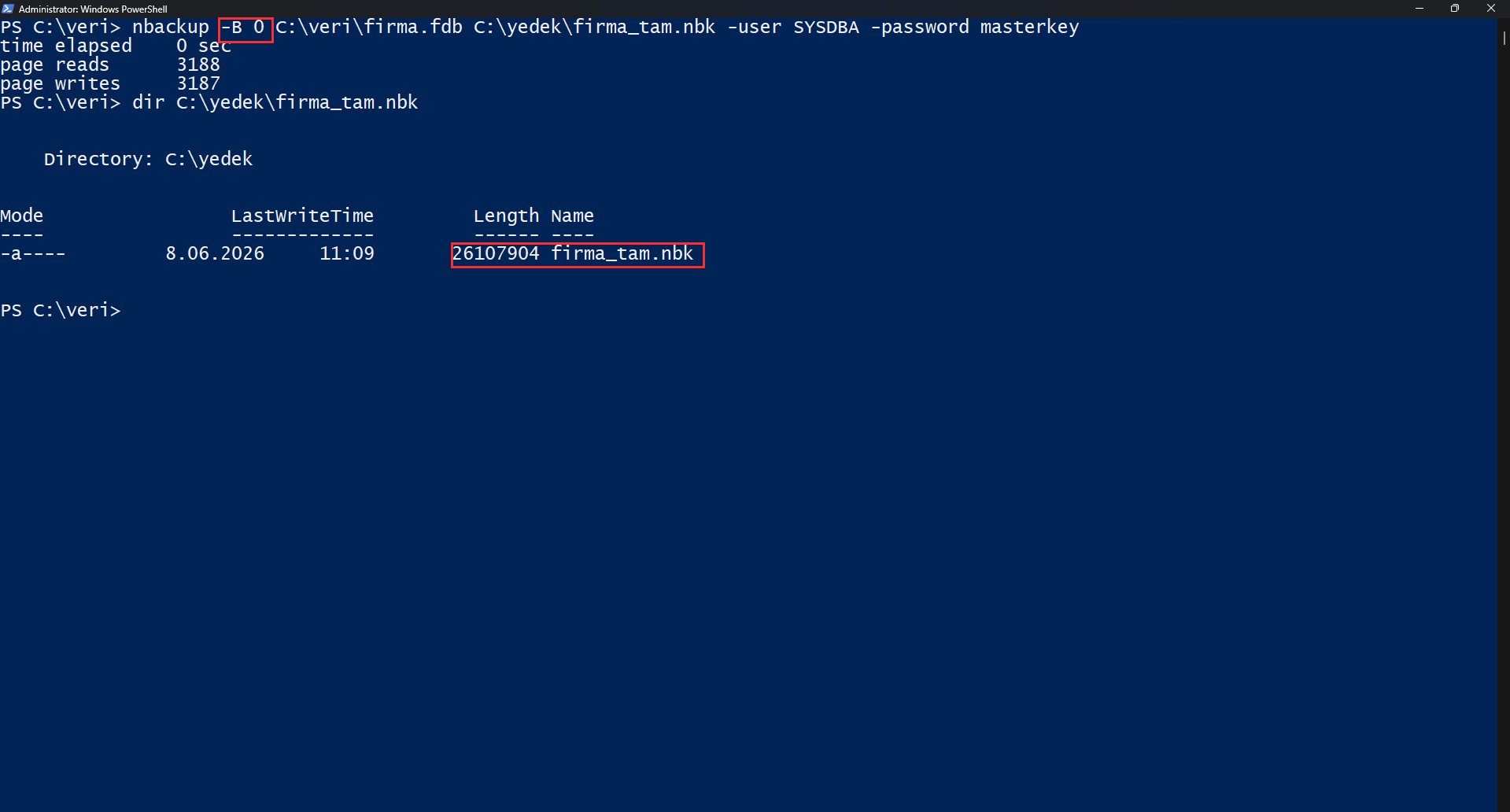
Incremental backup (level 1) — only what has changed since the last full backup:
nbackup -B 1 C:\veri\firma.fdb C:\yedek\firma_artimli1.nbk -user SYSDBA -password masterkeyWith this structure you can set up a strategy such as one full backup per day and an incremental backup every hour, saving significant storage space and time.
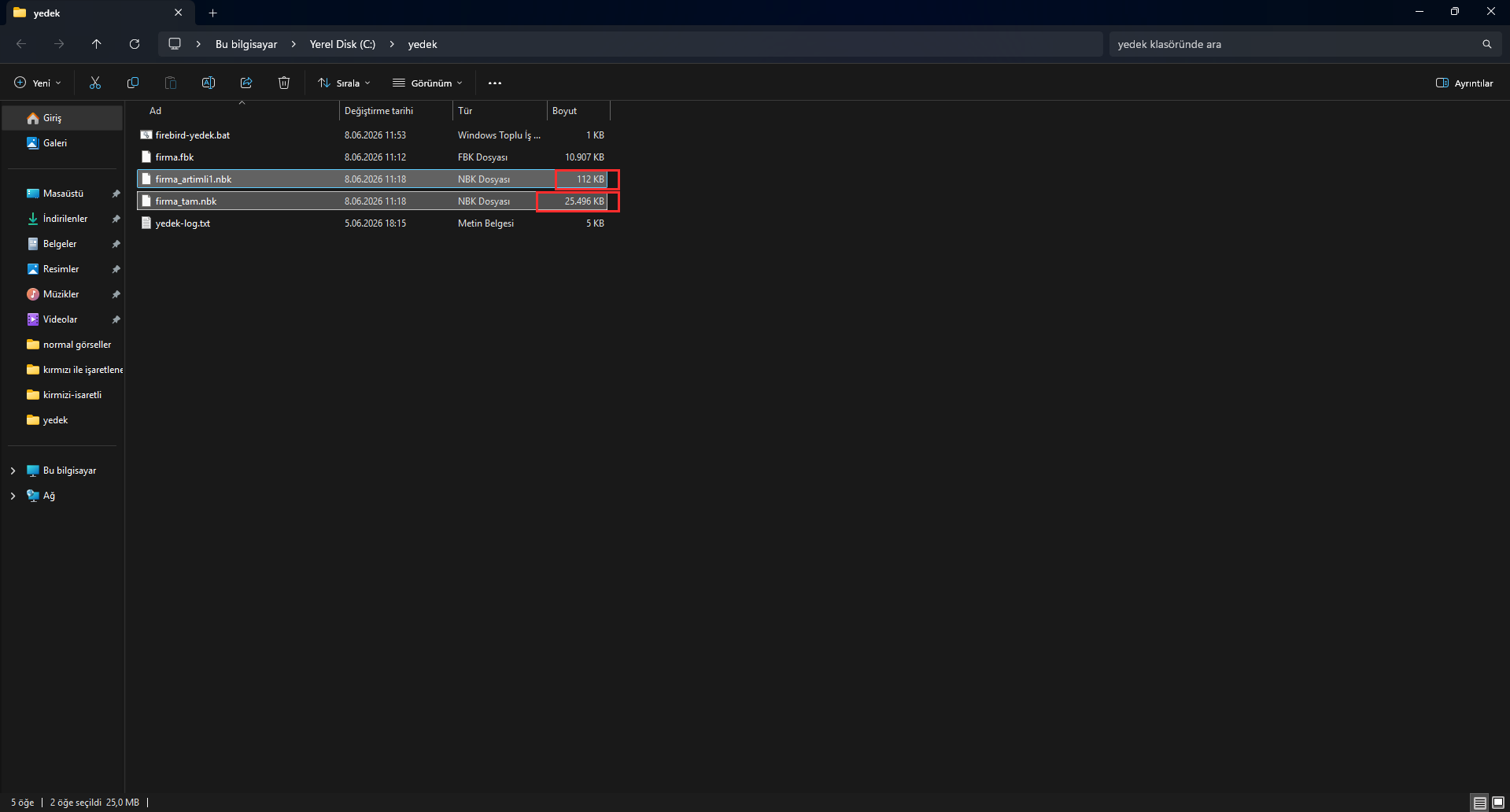
Restoring with nbackup
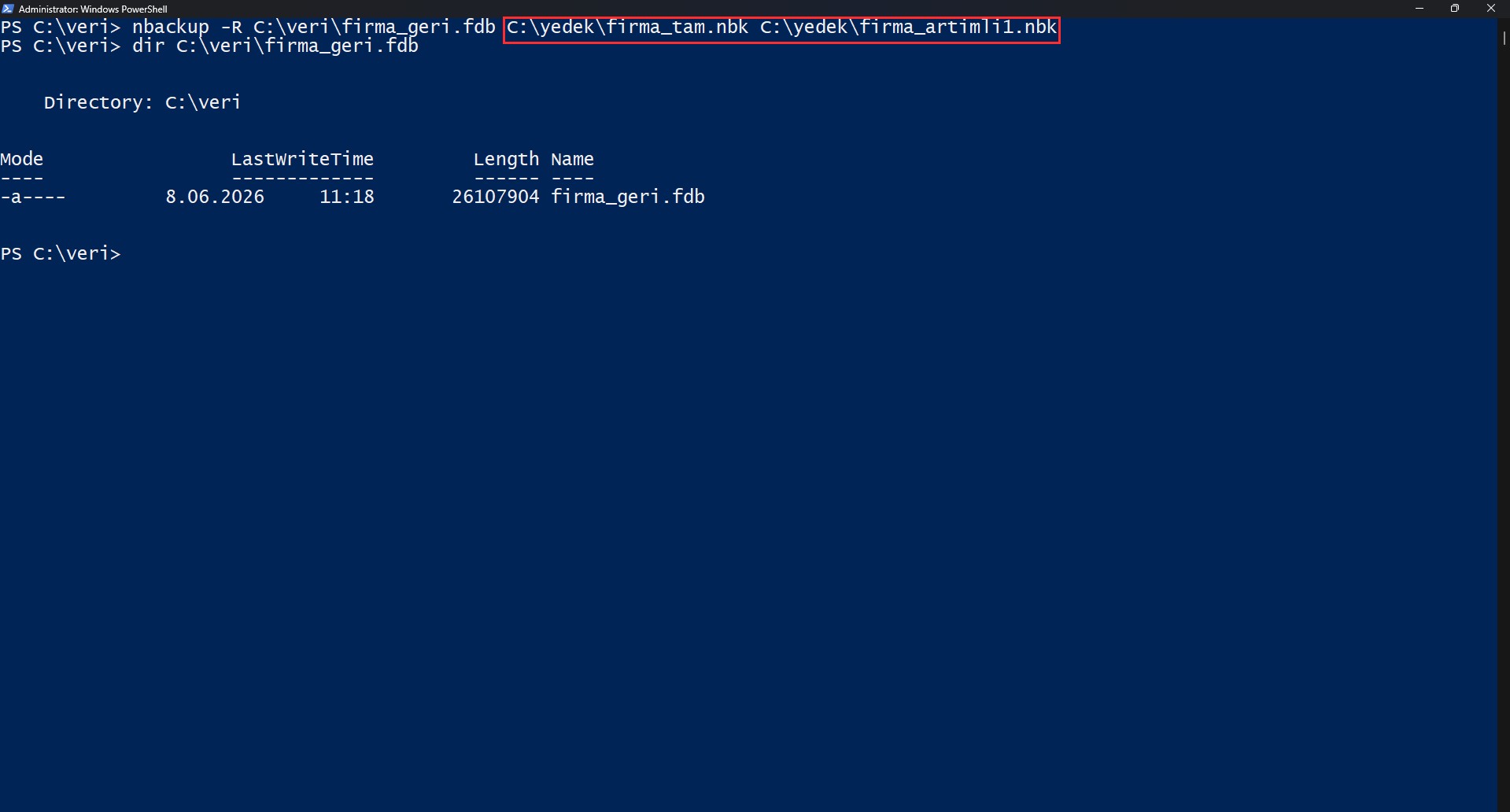
In an nbackup restore, you specify the full backup and all subsequent incremental backups in order. The chain order is critical: list the backups from lowest to highest — first level 0 (the full backup), then level 1, level 2, and so on. Because each incremental backup builds on the previous one, restoring fails if this order is broken.
nbackup -R C:\veri\firma_geri.fdb C:\yedek\firma_tam.nbk C:\yedek\firma_artimli1.nbkThis command merges the full backup and the incremental backup to create a working database named firma_geri.fdb.
gbak for moving across servers and versions.
nbackup Lock Mode: Virtual Machine and File Copy Scenario
If you want to use your own backup tools or take a virtual machine snapshot, nbackup’s lock mode comes into play. This mode backs up nothing; it only puts the database file into a state where you can safely copy it.
This is especially critical for virtual machine backups: if you don’t lock the database before a VM backup, the file inside the backup may be inconsistent.
The typical flow is three steps:
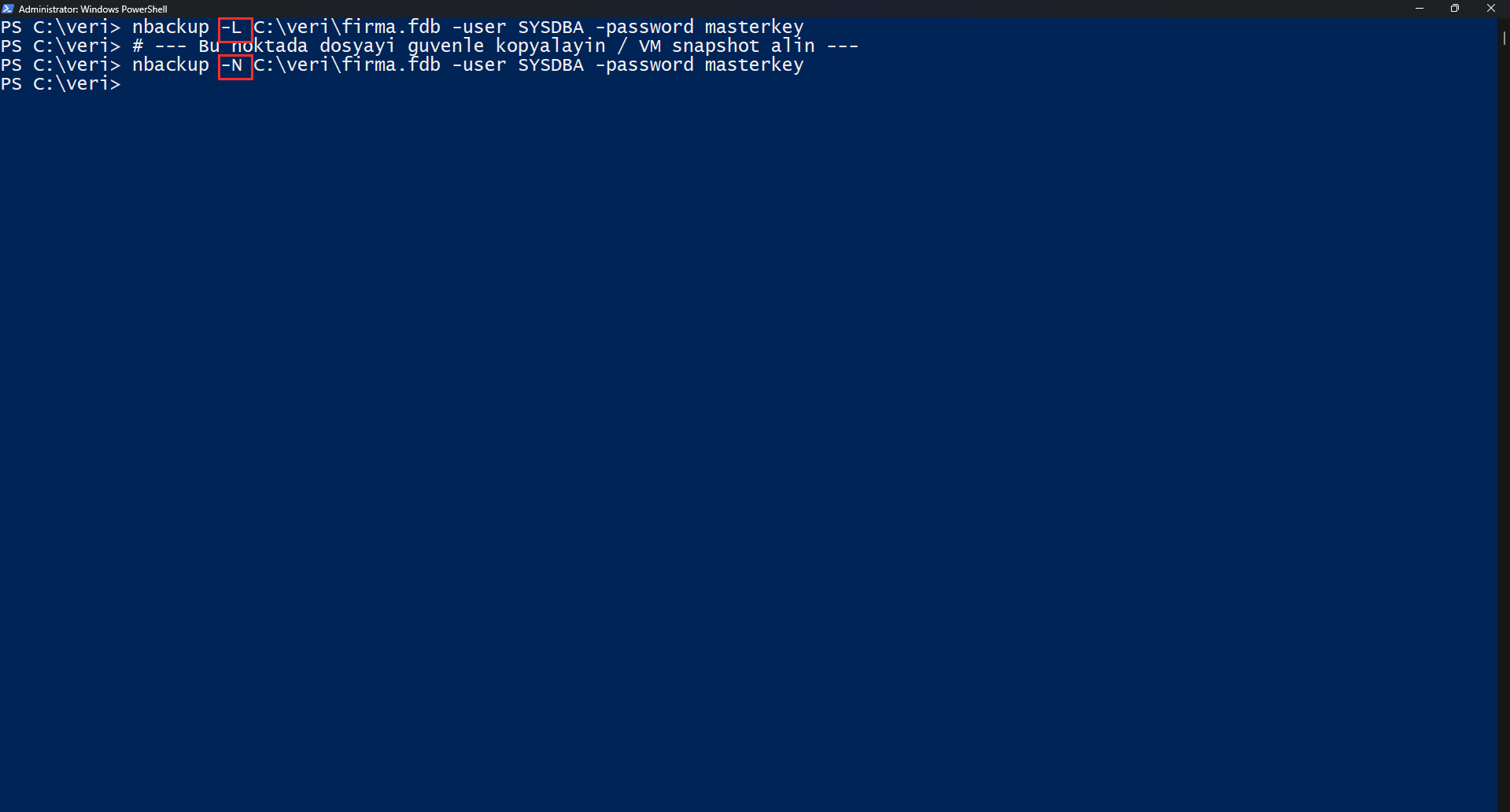
- 1. Lock the database (writes to the original file are redirected to a temporary delta file):
nbackup -L C:\veri\firma.fdb -user SYSDBA -password masterkey - 2. Copy the file with your own tool — a simple copy, a VM snapshot, or compression. The database keeps running during this time.
- 3. Unlock the database (the changes in the delta file are merged back into the main file):
nbackup -N C:\veri\firma.fdb -user SYSDBA -password masterkey
If you later need to use the file you copied, that copy is still in a “locked” state. To make it usable, run fixup on the copy:
nbackup -F C:\veri\firma_kopya.fdb-F works only at the file level and can be executed even when the Firebird server is not running.
Automating Backups
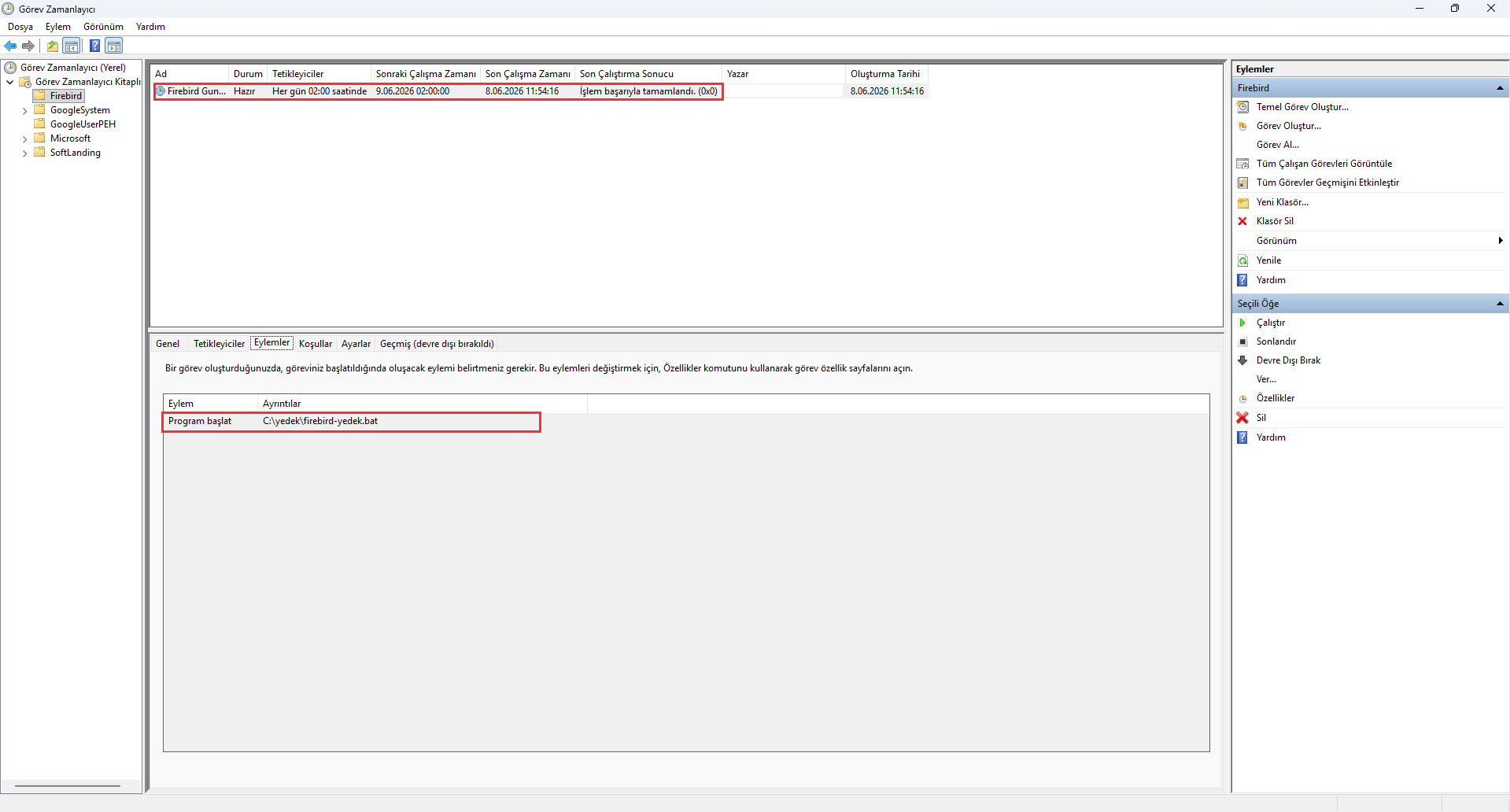
Manual backup is sooner or later forgotten. The correct approach is to tie the backup to a script and add it to a scheduled task.
Example .bat script for Windows:
@echo off
set DATE=%date:~-4%-%date:~3,2%-%date:~0,2%
set GBAK="C:\Program Files\Firebird\Firebird_5_0\gbak.exe"
%GBAK% -b -user SYSDBA -password masterkey C:\veri\firma.fdb C:\yedek\firma_%DATE%.fbk -Y C:\yedek\log_%DATE%.txt
You can run this script every night at a specific time with Task Scheduler. Since the date is added to the file name, each backup is stored as a separate file.
Example cron entry for Linux (every night at 02:00):
0 2 * * * /opt/firebird/bin/gbak -b -user SYSDBA -password masterkey /veri/firma.fdb /yedek/firma_$(date +\%F).fbkISC_USER and ISC_PASSWORD environment variables on Linux, or Firebird’s secure credential methods. Also be sure to restrict the access permissions of the folder where the backup files are stored.
Whichever Method You Choose: 5 Golden Rules
- Apply the 3-2-1 rule: Keep 3 copies of your data, on 2 different storage types, with 1 copy off-site.
- Test your backup: A backup that has never been restored is really just an assumption. Practice your restore procedure regularly.
- Automate it: Manual backups sooner or later fail because of human error. Automate them with scheduled tasks.
- Encrypt and restrict access: Backups are a full copy of your production data; they must be protected with the same security rigor.
- Distribute the load: If possible, take the backup not from the primary (production) server but from a replica/standby server, so you don’t impact production performance.
Keep Your Firebird Backups Safe in the Cloud with Narbulut
The methods above let you create a healthy backup of your Firebird database. But where, how safely, and how accessibly are those backups stored? This is exactly where the “off-site” and “immutable copy” steps of the 3-2-1-1-0 rule come into play.
Narbulut Backup automatically moves backups of your critical business databases such as Firebird to data centers in Türkiye, in a PDPL-compliant way. Thanks to scheduled backup, immutable storage, and version history:
- It automatically copies the
.fbkand.nbkbackups you keep on your local disk off-site, - It provides untouchable backup copies against ransomware attacks,
- It monitors and reports that your backups were taken successfully,
- It lets you quickly access your data in the event of a disaster.
Move Your Firebird Backups to the Cloud
To build the cloud layer that completes your Firebird backup strategy and keep your data safe in every scenario, you can explore Narbulut solutions.
Explore the Firebird Backup Solution
