
- Company
-
Products
Products
New ProductCloud Server
Fully managed virtual server infrastructure. Setup in minutes, hourly billing and expert support so you can focus on your business.
Try Now -
Solutions
Backup & Security
Data SecurityRansomware & encryptionSilent Ransom: TDEProtection against TDE abuseCloud BackupSecure backup to data centersImage BackupFull disk image + fast recoveryOff-Site BackupOff-site disaster recoveryMobile BackupiOS & Android photos/contactsRansomware ProtectionAgainst ransomware attacksTwo-Factor Auth2FA account security - Plans
- Resources
- Partners
- Blog
How to Choose the Right Cloud Server Plan
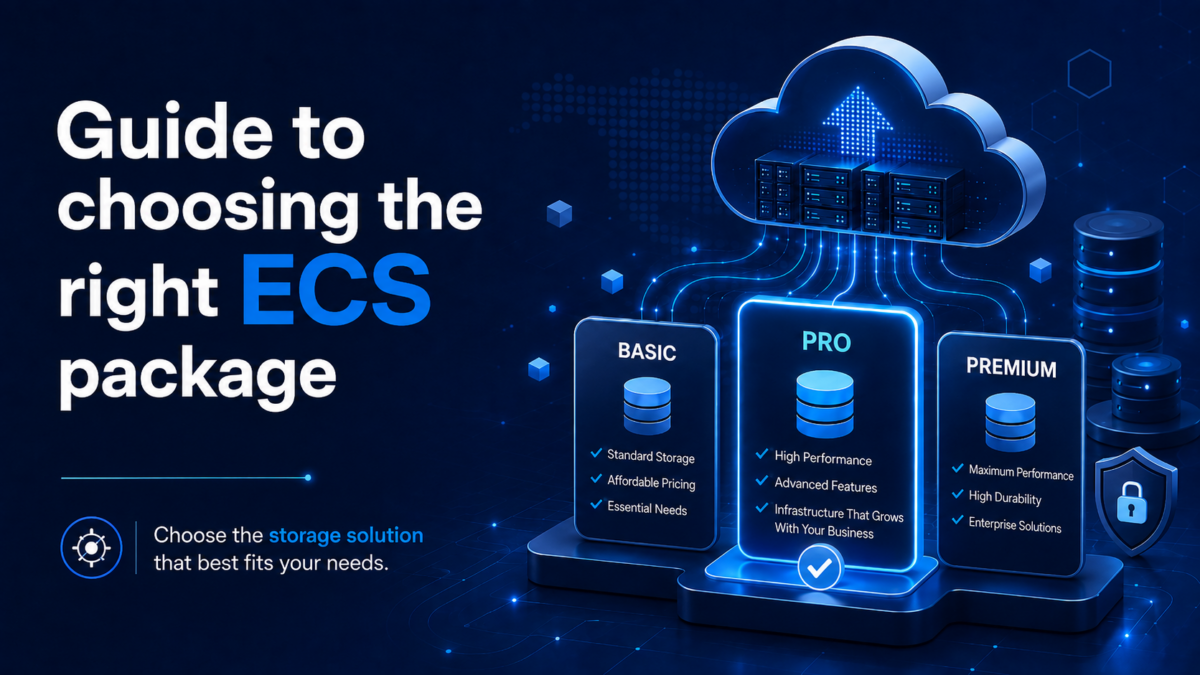
Three questions that decide your plan
Whether or not you have a technical team, the decision always rests on the same three inputs. If you don’t have the answers yet, it is too early to start comparing plans.
- What will run on the server? A corporate website, a database, ERP software or remote desktop sessions all have different resource profiles. A processor-heavy workload and a memory-heavy one do not belong on the same plan.
- How many people connect at once? A five-person accounting team and a sixty-user application server need very different amounts of memory. What matters is the number of concurrent users, not your total headcount.
- How much data do you have, and how fast does it grow? Today’s disk usage alone is misleading. Look at how much it grew over the past year and project the next twelve months — disk sizing follows that number.
Narbulut ECS plans at a glance
Narbulut Cloud Server plans are numbered from ECS 1 to ECS 5. All five run on NVMe storage, and the cloud management panel is included with every plan.
| Plan | Level | vCPU | RAM | NVMe Disk |
|---|---|---|---|---|
| ECS 1 | Starter | 2 vCPU | 4 GB | 200 GB |
| ECS 2 | Standard | 4 vCPU | 8 GB | 300 GB |
| ECS 3 | Professional | 8 vCPU | 16 GB | 500 GB |
| ECS 4 | Pro Plus | 12 vCPU | 24 GB | 500 GB |
| ECS 5 | Enterprise | 16 vCPU | 32 GB | 1 TB |
Beyond these five levels there is also a “Custom Architecture” option. If your requirement falls between the preset plans — plenty of cores but modest storage, for example — you can specify vCPU, vRAM and disk values separately.
Which workload fits which plan?
The mapping below is based on scenarios that come up frequently in comparable deployments. Read it as a starting point rather than a strict rule.
| Plan | Typical scenario |
|---|---|
| ECS 1 | A single corporate website, a file server for a small team, test and development environments |
| ECS 2 | Entry-level accounting or small-scale ERP, an application server for 10-20 users, medium-traffic e-commerce |
| ECS 3 | A database in production, an ERP deployment for 20-50 users, high-traffic e-commerce |
| ECS 4 | Application and database on the same server, regular reporting workloads, remote desktop sessions |
| ECS 5 | Multi-user production environments, heavy database workloads, deployments running several services side by side |
If the vendor of your software publishes minimum system requirements, always follow that document instead of the table. ERP and database vendors usually give a clear memory recommendation tied to user count.
Which one becomes the bottleneck: vCPU, RAM or disk?
Plans scale all three resources together, but what slows a system down is usually just one of them. Knowing which is critical for you tells you whether moving up a plan is actually necessary.
- vCPU determines how many operations run at the same time. Batch calculations, overnight reports and web applications handling many concurrent requests all push the processor. A CPU bottleneck rarely feels like “everything is slow” — it shows up as specific operations taking longer.
- RAM is in practice the limit you hit most often. Databases and remote desktop sessions live on memory; once memory runs short the system starts spilling to disk, and performance drops abruptly rather than gradually.
- Disk speed stops being a concern in most scenarios thanks to NVMe storage. The real question here is capacity: database backups, log files and archives grow far faster than the operating system does.

What if I choose wrong? Scaling resources later
What makes plan selection feel so high-stakes is the assumption that the decision is permanent. With Narbulut Cloud Server it isn’t: you can increase vCPU and vRAM without rebuilding the server or migrating to another machine. The Hot-Add capability on the VM management side lets you add processor and memory without shutting the server down.
So the right strategy is not “buy the largest one just in case” — it is to pick slightly above your current need and then watch actual usage. Idle capacity is money you don’t get back; a resource that runs tight can be expanded from the panel within minutes.
Three items you decide outside the plan
Choosing vCPU, RAM and disk is only part of the job. There are three more items you set in the configuration form independently of the plan, and they are often remembered too late.
- Backup storage. Server disk and backup space are two separate things. You can tick the “I want Backup” box and choose between 50 GB and 1 TB, or specify a custom size. For retention and frequency decisions, see the backup policy section.
- Licenses. “Windows Server Std.”, “MSSQL Server Std. License” and “RDS (Remote Desktop)” are requested separately in the form. If you are running Linux this item drops out entirely; on the Windows side it is a decision independent of server resources.
- Static IP. If you are planning a service reachable from outside or domain routing, request “Dedicated (Static) IP” from the start. Adding it later is possible, but handling it during setup saves you configuring things twice.
Monitoring resource usage to right-size your server
The final step of plan selection happens after deployment: measuring real usage. The resource usage panel shows CPU, RAM and disk consumption on live graphs, so within a few weeks you can see how close your estimate was.
- Sign in to the panel and select the relevant server.
- On the resource monitoring screen, widen the time range to at least one week — a daily view hides peak hours.
- Read the CPU, RAM and disk curves separately and see which one is approaching its ceiling.
- Define alerts for critical thresholds so you are notified when a limit is exceeded.
Watch for two signals in particular: CPU staying consistently high during working hours means it is time to move up a plan. Memory usage sitting permanently near the ceiling is more urgent — at that point the system may already be spilling to disk. Conversely, if all three resources stay low for weeks, you can move down a plan and put those resources to work elsewhere.
Decision summary and filling in the request form
Once you have answered the three opening questions, the choice is largely settled: the type of workload tells you which resource is critical, the number of concurrent users sets your memory requirement, and your data growth rate determines disk size. Match those three against the scenarios in the table and treat the resulting plan as your starting point.
Then select your choice from the “Preferred Package Structure” list in the configuration form. If none of the preset levels fits exactly, use the “Custom Architecture” option and enter vCPU, vRAM and disk values yourself. Remember to specify the backup, license and static IP items in the same form.
With the plan settled, setup comes next. The virtual machine creation guide walks you through your first server step by step, covering everything from operating system selection to network settings.
Narbulut Cloud Server
Start with exactly the resources you need, without investing in hardware — then grow your server from the panel as your business grows.
Request a quote
Pick the plan that fits your workload and fill in the form; our team will get back to you with the configuration and pricing.

