
- Company
-
Products
Products
New ProductCloud Server
Fully managed virtual server infrastructure. Setup in minutes, hourly billing and expert support so you can focus on your business.
Try Now -
Solutions
Backup & Security
Data SecurityRansomware & encryptionSilent Ransom: TDEProtection against TDE abuseCloud BackupSecure backup to data centersImage BackupFull disk image + fast recoveryOff-Site BackupOff-site disaster recoveryMobile BackupiOS & Android photos/contactsRansomware ProtectionAgainst ransomware attacksTwo-Factor Auth2FA account security - Plans
- Resources
- Partners
- Blog
What Is Narbulut Secure Area Sharing? How to Use It?
Sharing a file is easy; the hard part is controlling what the person you share with can do with it. When you send someone a document, do you want them to only view it, edit it, or download it? Classic sharing methods cannot make these distinctions clearly. Narbulut nDocs offers a comprehensive secure-sharing infrastructure that leaves control in your hands at every step.
In nDocs, sharing not only lets you choose who to share with, but also lets you define what permissions that person will have, down to the finest detail. On top of that, a record is kept of every action taken on your files. In this article we explore nDocs’ secure sharing features step by step.
See at a Glance Who You Share What With
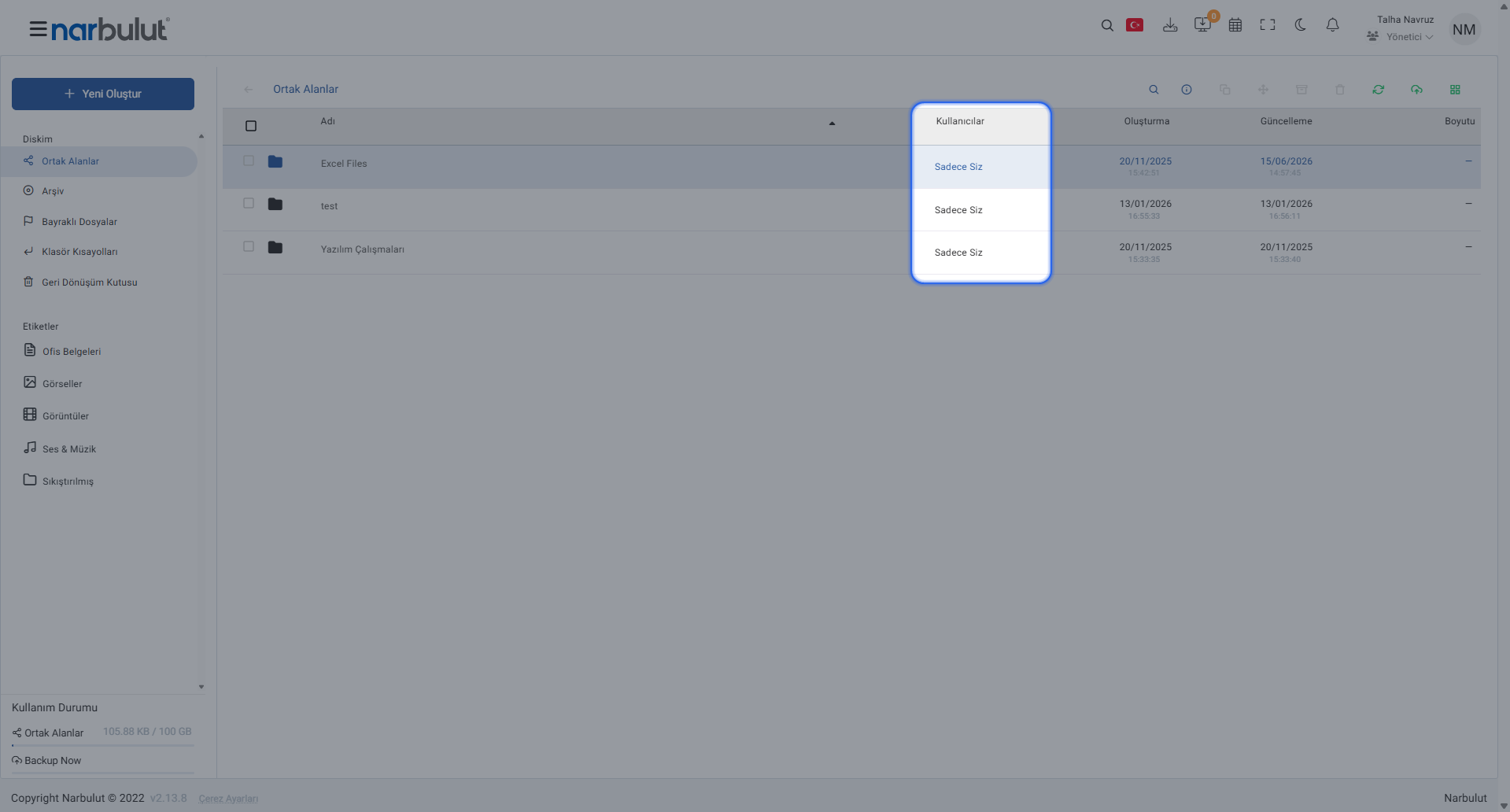
In nDocs, every shared space and file has a “Users” column next to it. If an item belongs only to you, you see “Only You”; once it is shared, who it is shared with is listed in this column. This way you can instantly track, from the panel, which content is shared with whom, and be sure no sharing has slipped through unnoticed.
File Sharing: Fast and Targeted
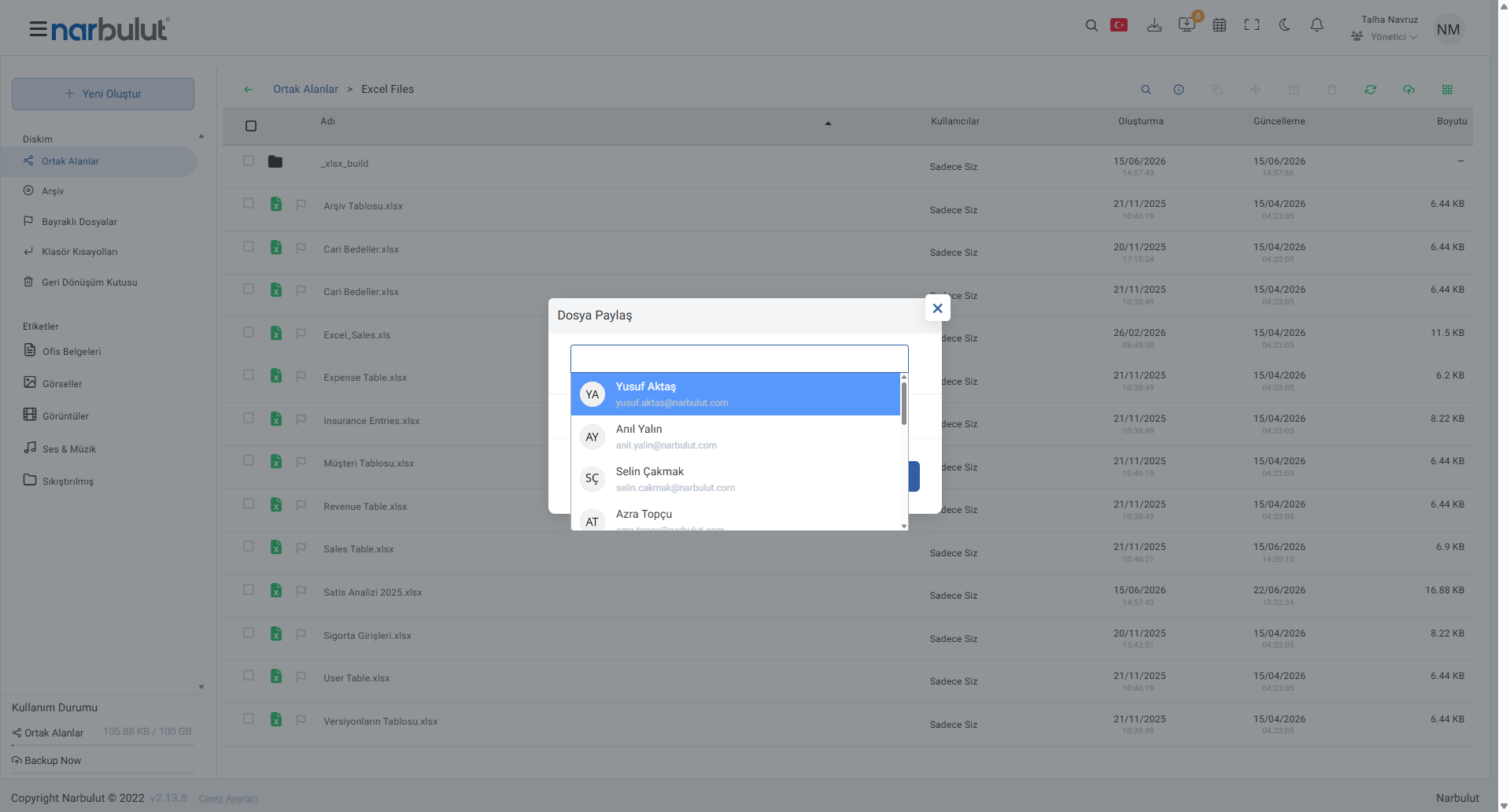
When you want to share a single file, you just click the share icon that appears when you hover over the file. In the “Share File” window that opens, the users in your organization are listed; you select the person you are looking for and complete the share. Sharing is limited to only the people you select; your file does not leave the organization.
Share with a Person or a Group
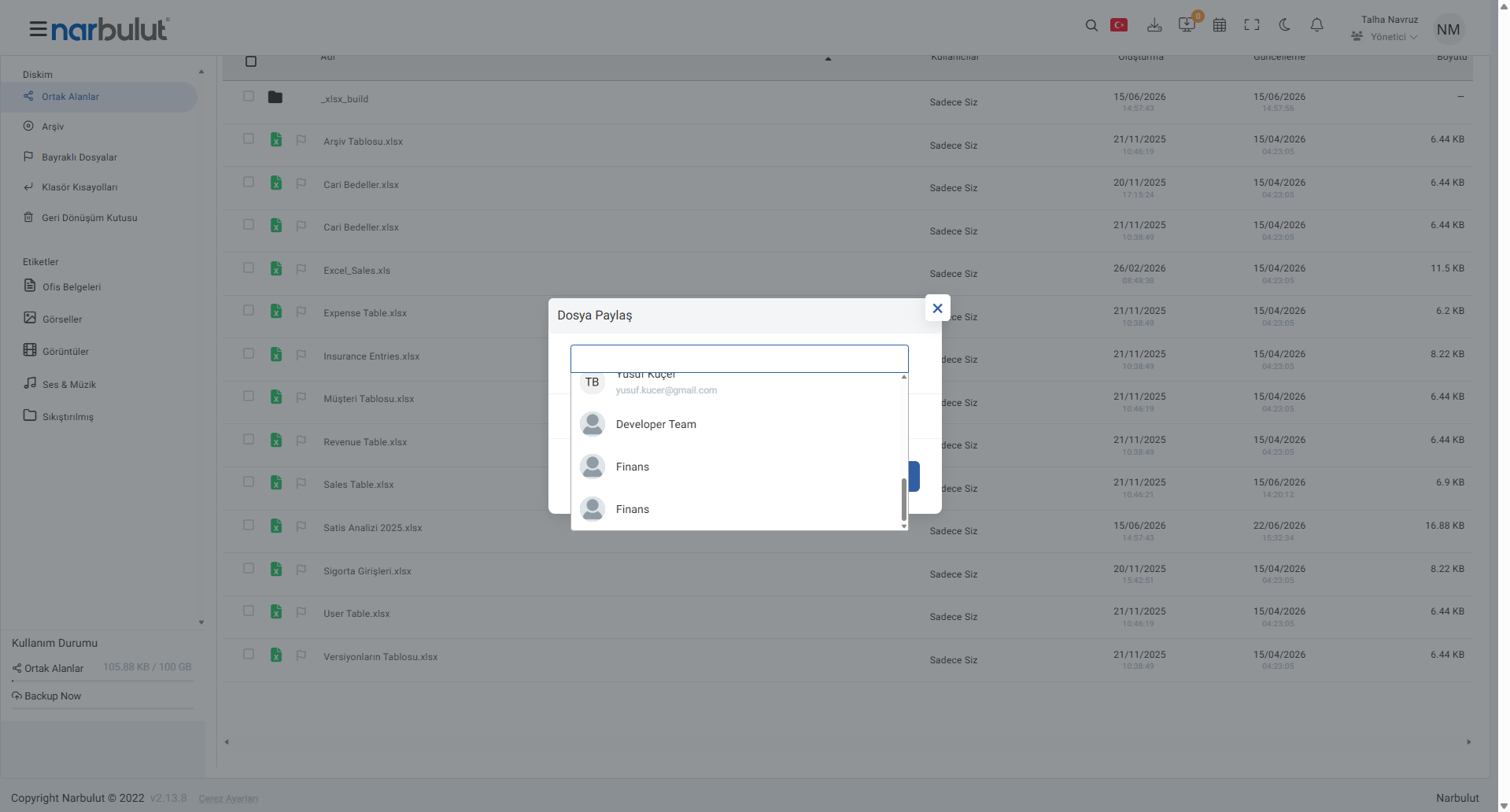
The share list includes not only individual users but also groups you have defined in advance. For example, by selecting a team such as “Finance” or “Developer Team” for a document, you can grant access to everyone on that team at once. This way you don’t have to add people one by one in large teams.
Secure Space Sharing: Share a Folder as a Whole
When you want to share an entire folder instead of individual files, the “Share Secure Space” option comes into play. When you right-click a folder and select this option, a window opens where you can specify the user you want to share with. This way you can open all the documents of a project to your teammates at once.
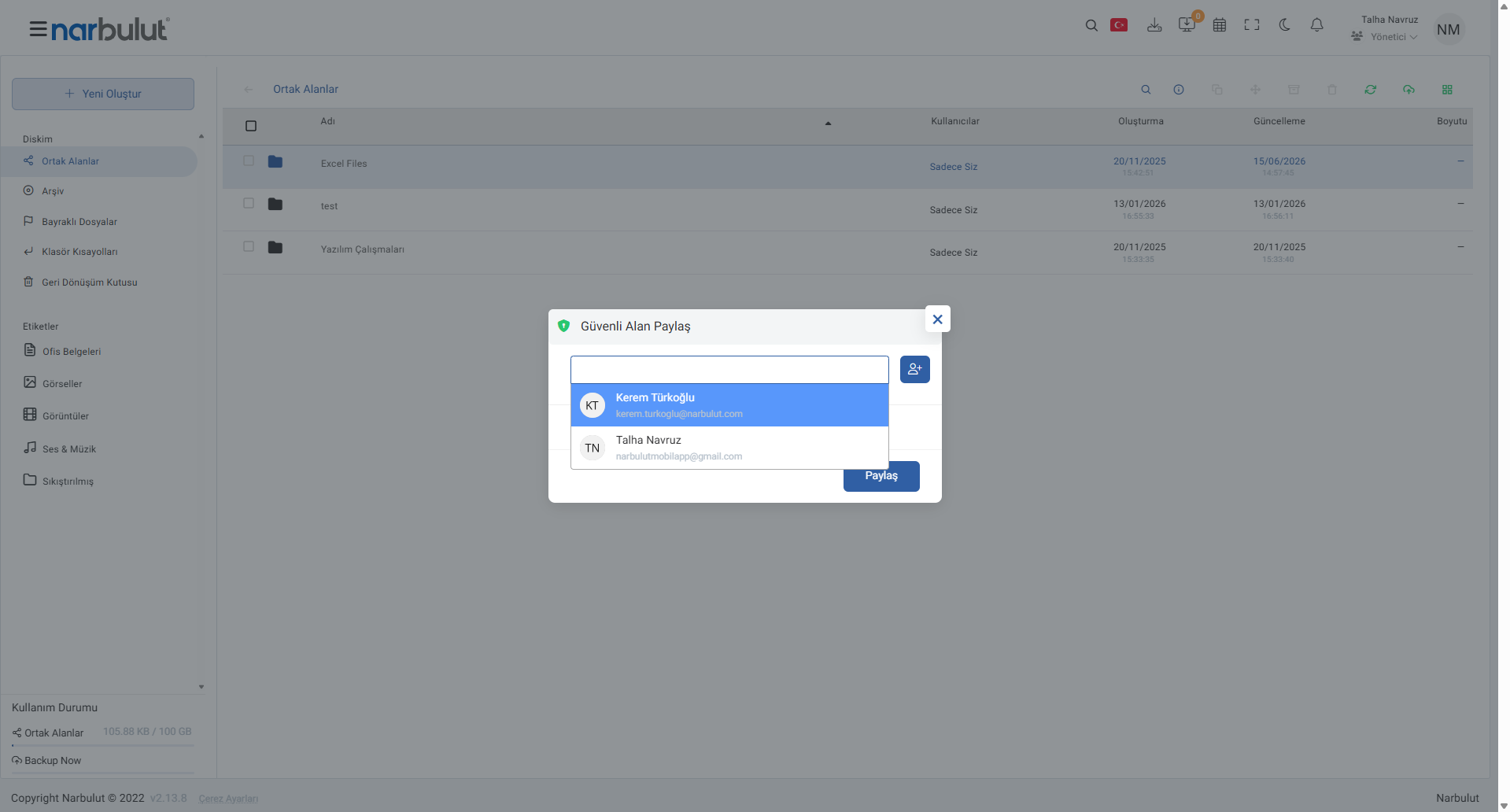
Authorization: Set Permissions Down to the Finest Detail
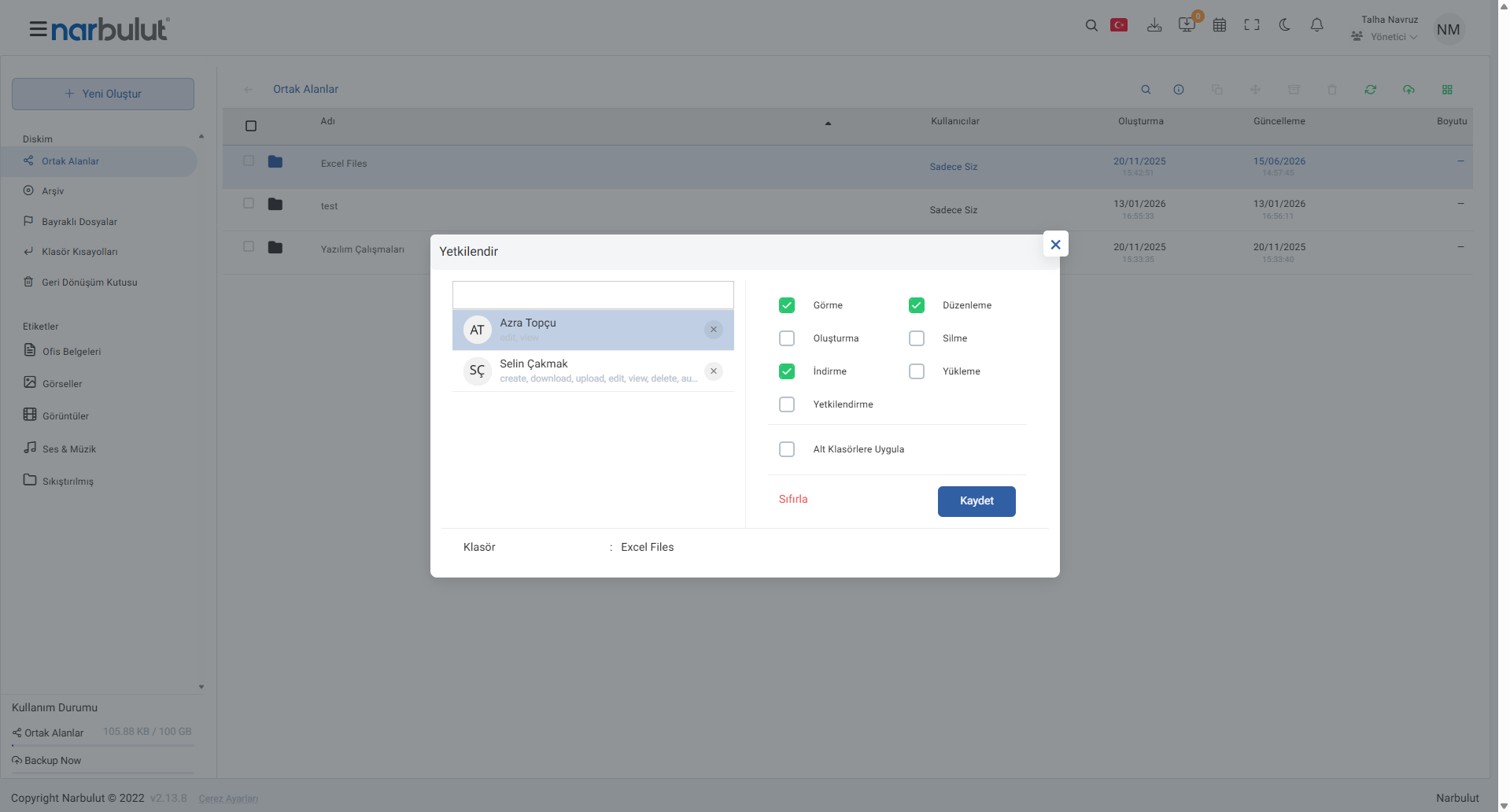
nDocs shows the strongest side of its secure sharing on the “Authorize” screen. When you right-click a file or folder and choose “Authorize”, a matrix opens where you can define permissions separately for each user. From here you can give one user view-only rights while granting another editing and download permission.
The permissions you can define are: “View”, “Edit”, “Create”, “Delete”, “Download”, “Upload” and “Authorize”. In addition, with the “Apply to Subfolders” option you can reflect the permissions you grant to all content under the folder in a single move. This way the answer to “who can do what?” is entirely under your control.
This screen is used not only to grant new permissions but also to view and change existing ones. The permissions each authorized user has are summarized under their name. When needs change, you can update permissions, rearrange them with “Reset”, or remove a user’s access.
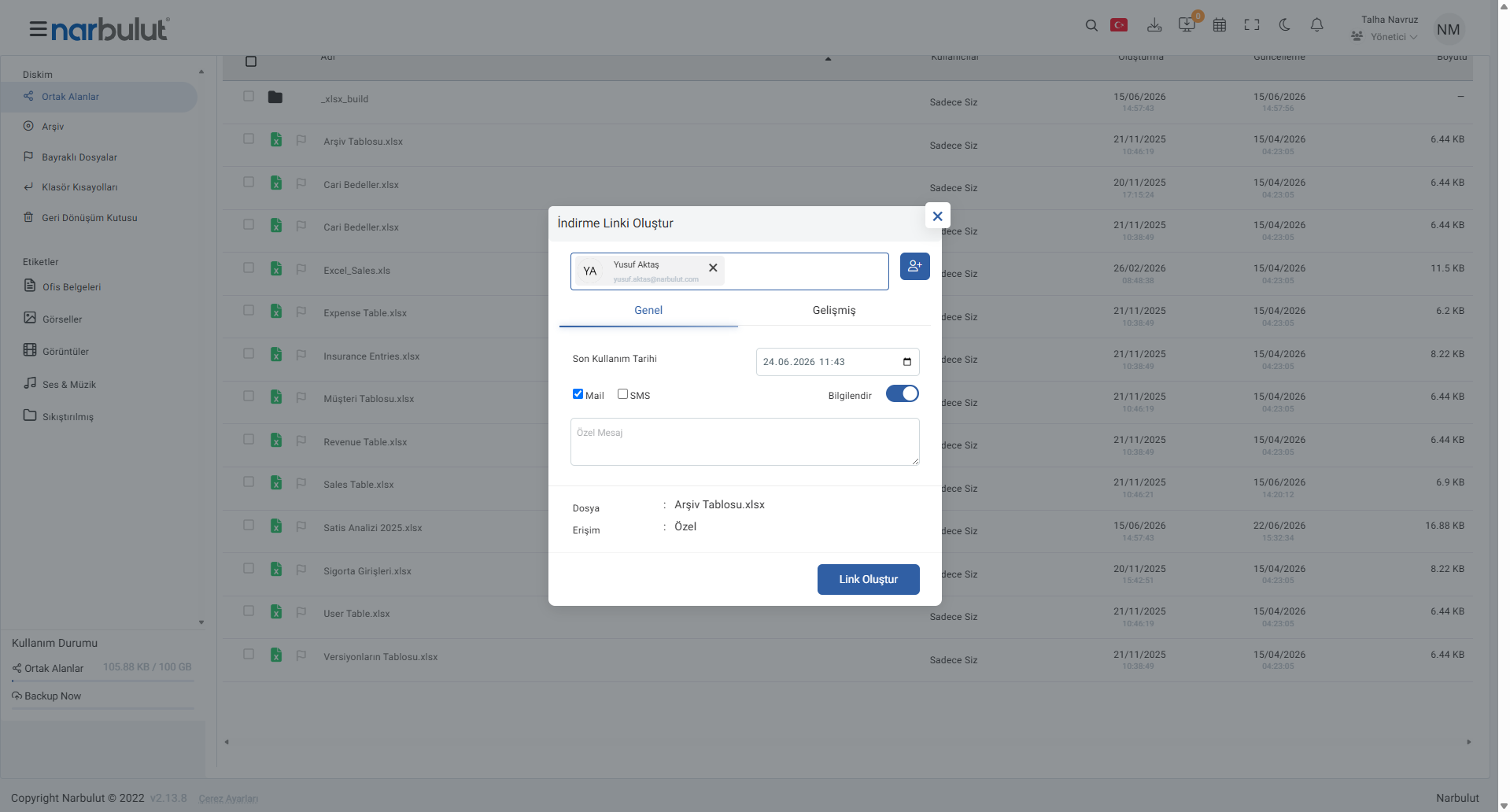
Time-Limited and Private Sharing with Download Links
When you want to send a file outside the organization or to a specific person in a controlled way, you can use the “Create Download Link” feature. You can make the link public or restrict it to only a person you choose. Most importantly, by setting an “Expiry Date” you ensure access ends automatically on the set date. You can also notify the recipient by email or SMS and, if you wish, add a custom message.
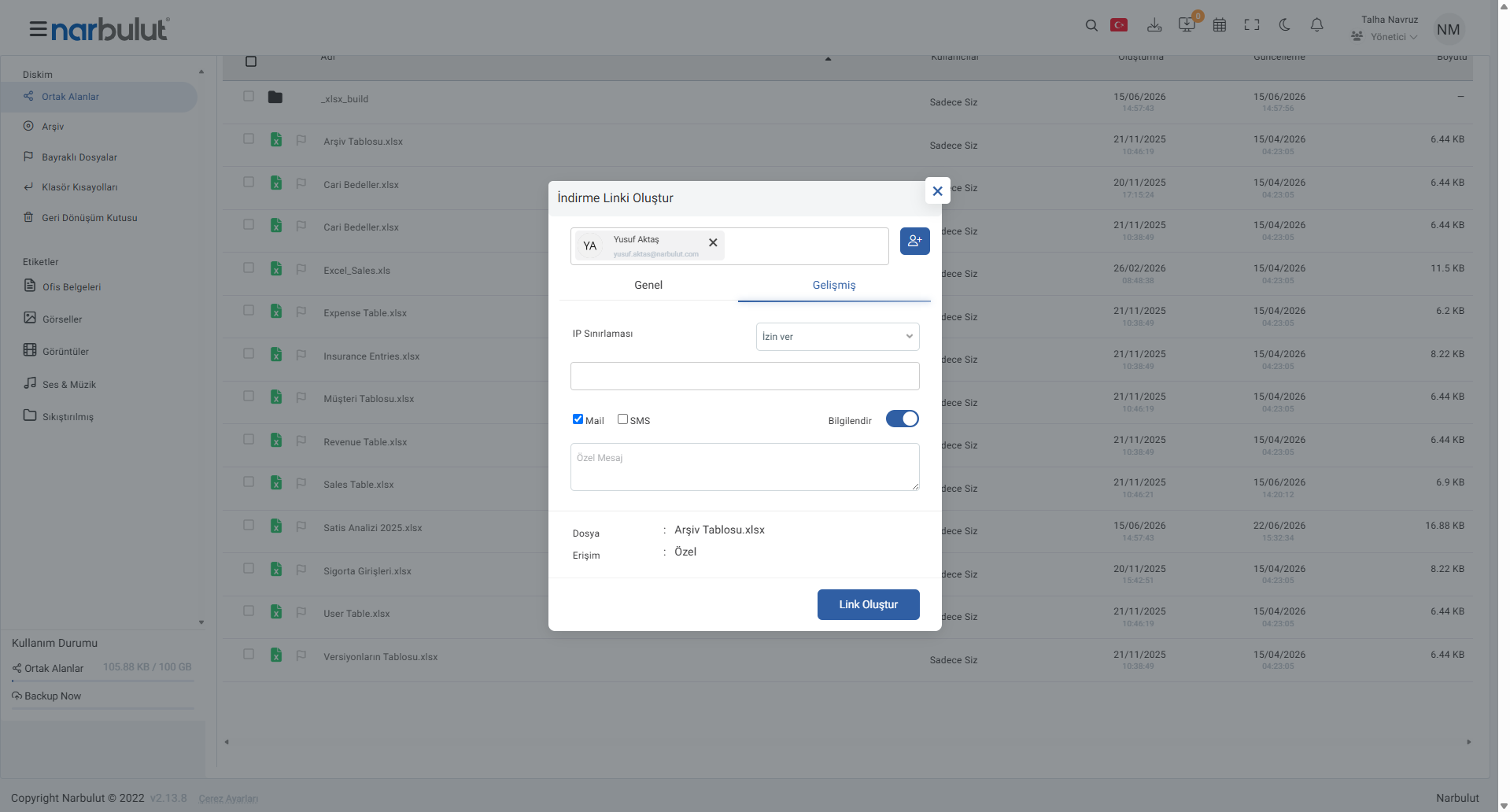
Advanced Security: IP Restriction
You can take things a step further for download links. With “IP Restriction” on the “Advanced” tab, you can allow the link to be accessed only from specific IP addresses, or block the addresses you want. This way your shared file is reachable only from networks you trust; you create an extra layer of security for your sensitive documents.
Activity Logs: Trace Every Step
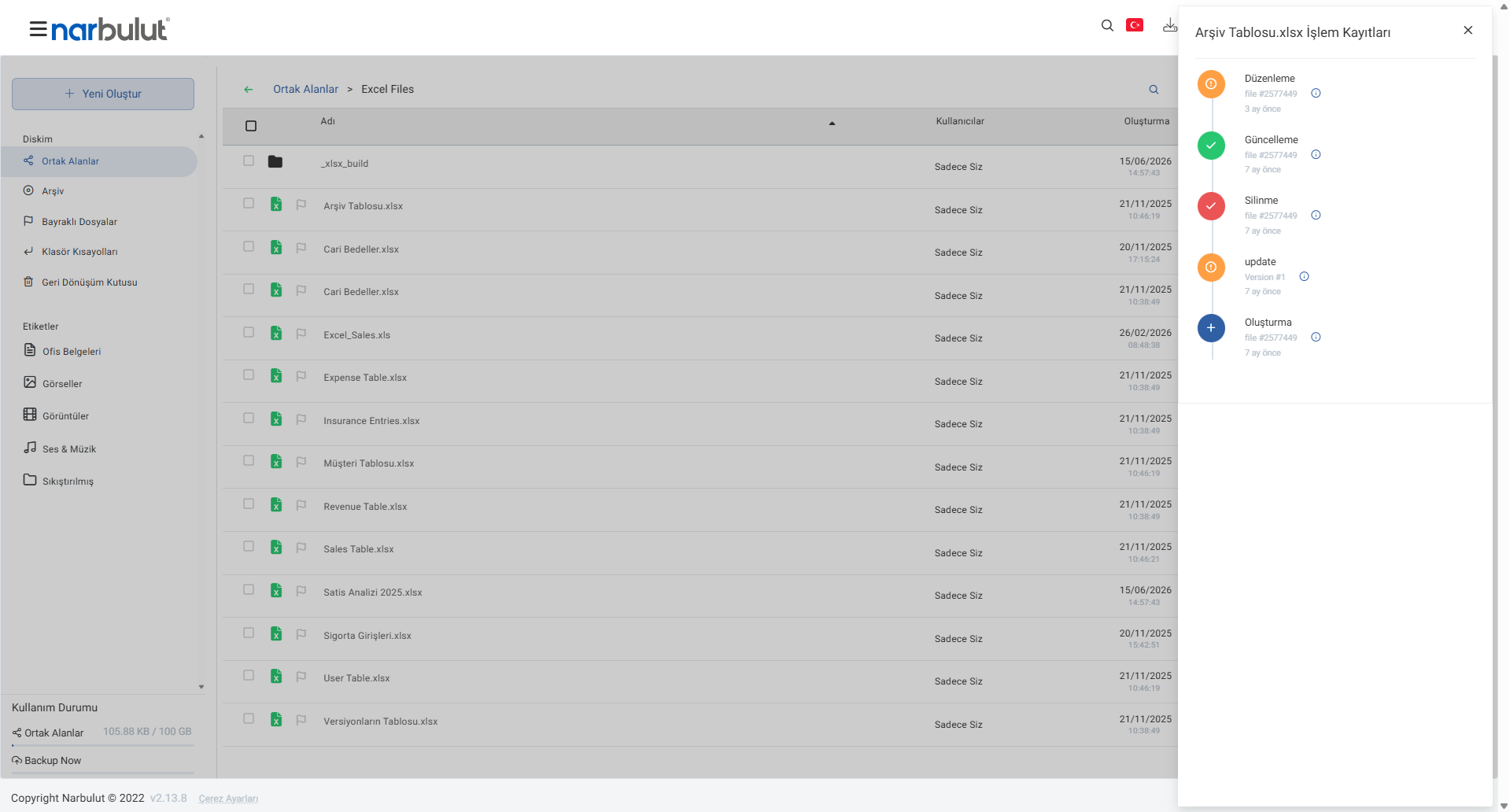
An important part of security is transparency. nDocs keeps a detailed activity log for every file. When you right-click a file and open “Activity Logs”, all actions such as creation, update, editing and deletion are listed on a timeline along with when they happened. Each action is distinguished by a colored icon and you can reach its details. This way you can review what happened to your file retrospectively and ensure accountability.
Meet Narbulut nDocs Workspace to keep control at every step of sharing:
Narbulut nDocs Workspace
Local, secure cloud workspace. Secure sharing, granular permissions, download links, IP restriction and activity logs on a single platform.

