Restore Your Data to Any Hardware You Want, Hassle-free!
Physical or virtual; Quickly upload your image backup to devices of different structures and immediately start operating your system in a new environment
Easy Image Backup's Universal Restore feature allows you to restore your image backup not only to the device from which the backup was taken, but also to other hardware-different systems. In this way, in scenarios such as hardware failure, device change or physical-virtual transition, you can get your system up and running directly without wasting time reinstalling it
Compatibility with Different Hardware
Safely transfer your backup to physical or virtual systems completely different from the backup device. This compatibility gives you device-independent business continuity
Driver Compatibility
When installing on the new device, the necessary drivers are automatically paired. The operating system adapts to the new hardware without the need for manual intervention from the user
Physical-Virtual Transition
Make your infrastructure flexible by restoring the backup taken from a physical device to a virtual environment, and the backup taken from virtual machines to physical systems
Compatible Restore Strategy
To get the most out of universal restore, determine your device migration scenario correctly. Easy Image Backup detects different hardware structures and manages compatibility for you
Analyze the hardware features of the system to be restored.
Technical differences such as processor architecture, disk type and boot structure are understood by the system.
Identify Backup and Target Device
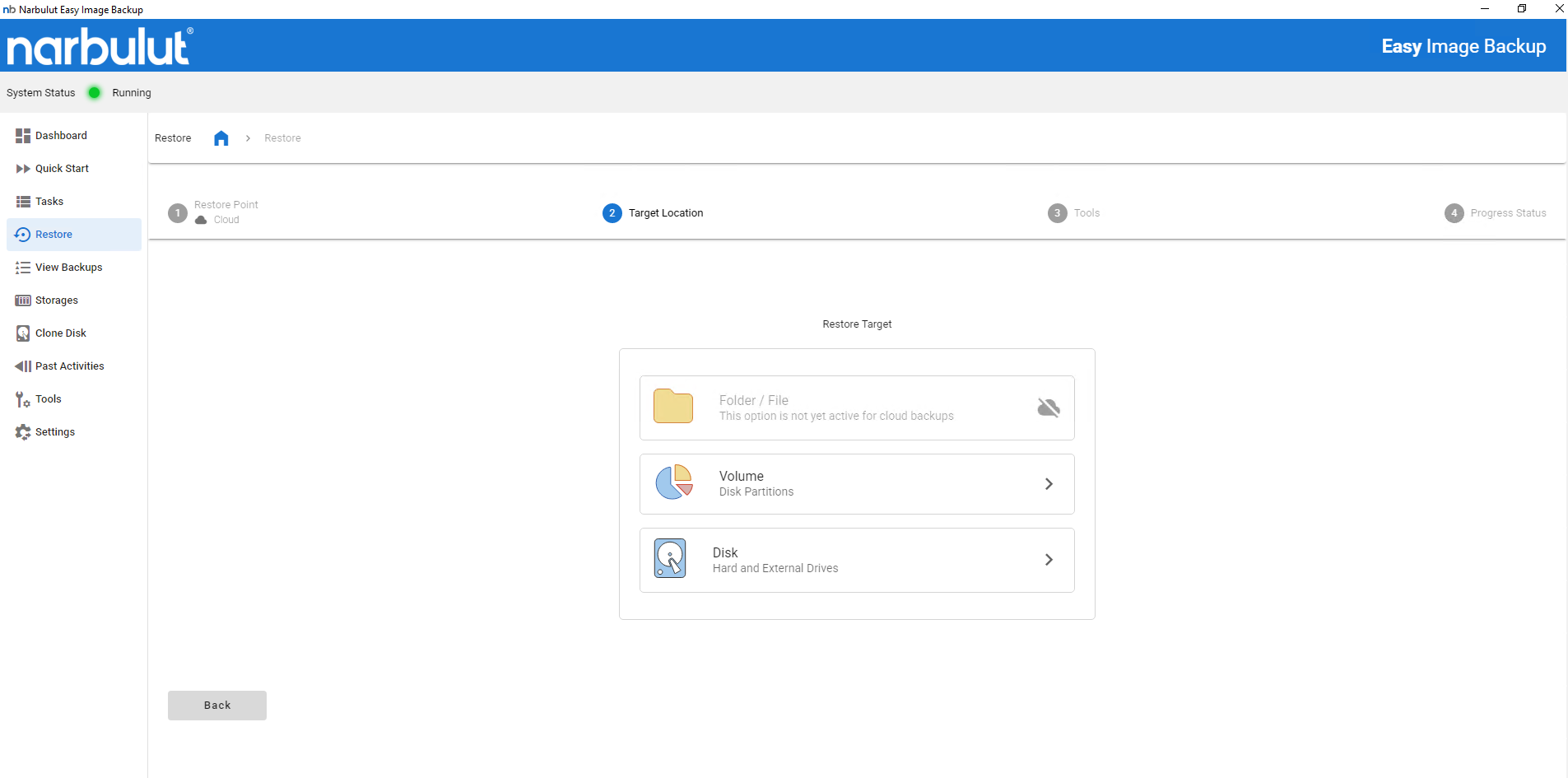
Select the image file to restore and the new device to transfer it to. The system automatically applies the appropriate configuration to the target device
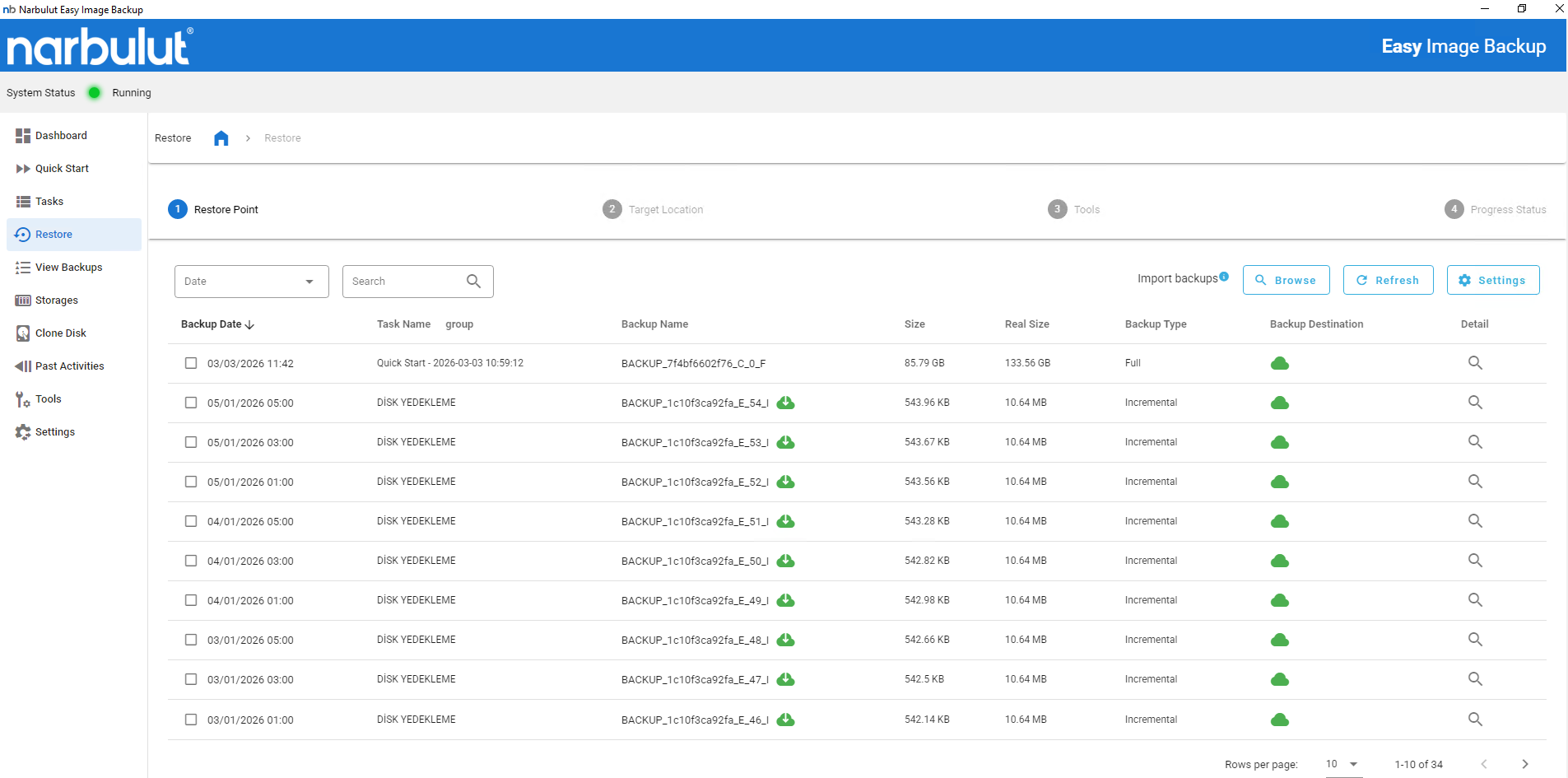
Select the image backup you want to restore from the interface.
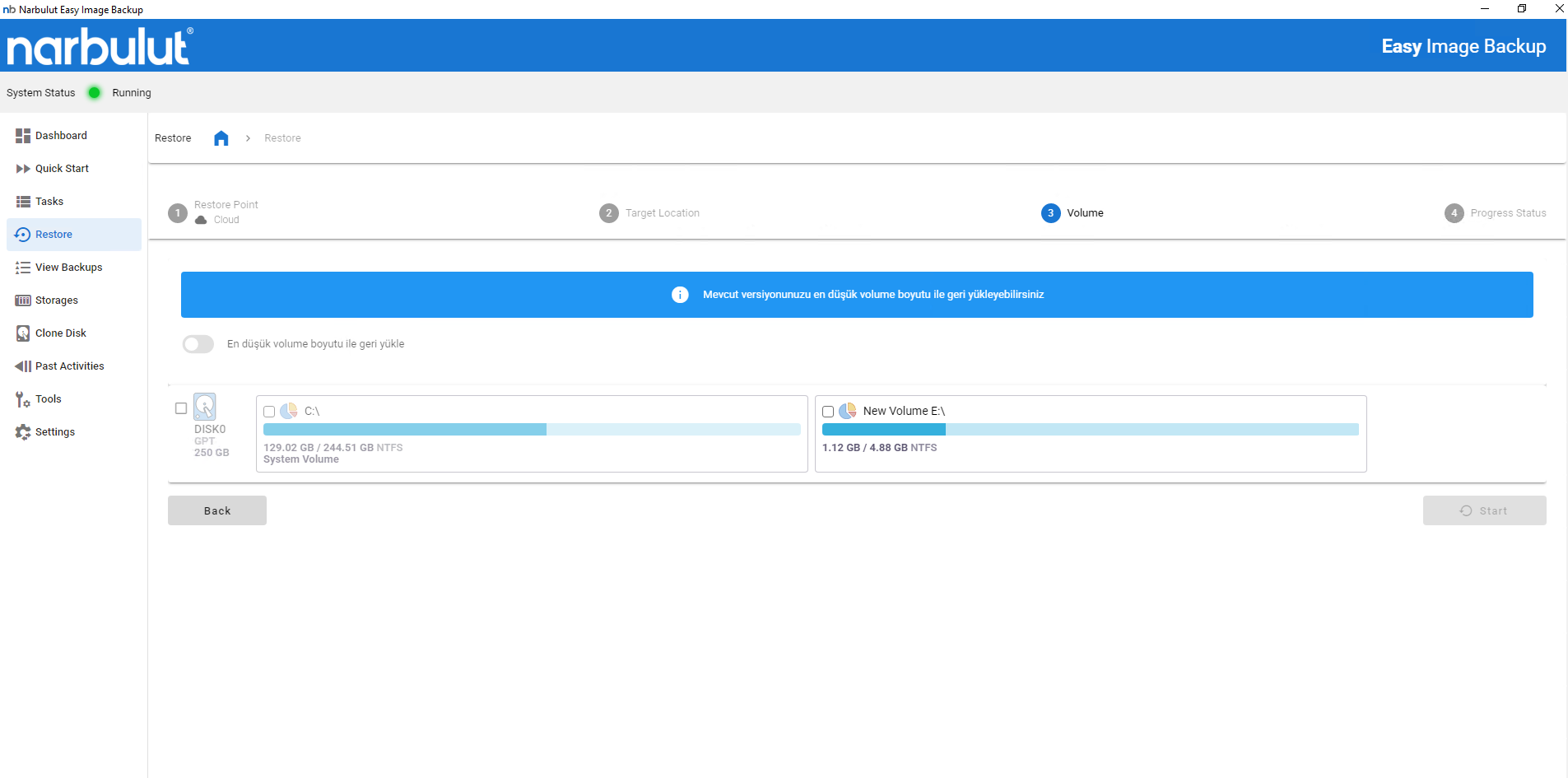
Necessary drivers and system components are adapted before restoration.
Start the Restore Process
When the process starts, the system completely transfers all settings and data to the new hardware. At the end of the restore, the device is ready for operation
Start the restore and monitor the processing time.
The system becomes ready for startup by automatically adapting the driver.
Start using the device directly after installation.
OTHER FEATURES
Discover other features of Easy Image Backup.
Explore all features of Easy Image Backup to manage and protect your data most efficiently. Discover now!
It is the process of transferring image backup to devices with different hardware structures.
No. Transfer can be made to systems of different brands, models and infrastructures without any problems.
Yes. P2V (Physical to Virtual) transitions are supported.
Yes. Easy Image Backup automatically identifies and integrates the necessary drivers.
No. The system detects these differences and automatically applies the appropriate restoration steps. The system automatically installs the Windows operating system on your device.
Yes. During transitions such as HDD → SSD, SATA → NVMe, the system installs by adapting the disk configuration.
Yes. Once all drive mappings are completed, the system boots without interruption.
It is suitable for corporate users, data center managers and all businesses that require high preparedness against a disaster scenario.
Yes. It ensures business continuity in case of hardware failure, device replacement or relocation.
It varies depending on backup size and device speed.
Narbulut Product Analysis
Step 1/12
What area of technological improvement are you planning for your company?
Data Security & BackupRansomware, deleted files and disaster recovery.
Cloud Server (IaaS)Website, ERP, CRM or application hosting.
Team CollaborationSecure file sharing and remote work.
Object Storage (S3)Object Storage for developers.
What industry does your company operate in?
Healthcare / MedicalPatient data (GDPR critical).
Finance / AccountingSensitive financial data.
Manufacturing / EngineeringCAD drawings and production plans.
Other / General ServicesOffice documents and general data.
What type of devices need to be protected?
Employee ComputersLaptop and desktop end-user devices.
Physical / Virtual ServersDatabase, Active Directory or File Server.
What should your backup strategy be?
File & Folder BasedOnly important business files (XLS, PDF, SQL) should be backed up.
Full Disk ImageBack up "Everything" including the operating system.
What is your upload speed for cloud backup?
Fiber / High SpeedI can send large data quickly.
Standard / ADSLMy speed is limited, compression is important.
Is ransomware a threat?
Yes, Very CriticalWe have experienced it before or are at risk.
Standard Protection is SufficientBasic backup measures are enough.
How long would you like to keep versions?
30 - 90 DaysTo fix recent errors.
1 Year and AboveLegal requirements or archiving.
What will be the primary purpose of the server?
E-Commerce / WebsiteHigh uptime and speed required.
ERP / Accounting SoftwareDatabase performance is important.
Software DevelopmentFlexible resource management.
What infrastructure do you need?
Windows ServerASP.NET, MSSQL, RDP.
Linux (Ubuntu/CentOS)PHP, Python, MySQL, Docker.
What is the estimated user traffic?
Low / MediumEntry level or new project.
High TrafficHeavy campaigns or many users.
Who will manage the server?
I Will Manage ItI have a technical team, root access is enough.
I Need SupportManaged Services required.
How many people will work in the shared workspace?